



Run your whole shop from one page
From your shop’s name, colors and fonts to checkout, delivery charges, SMS, couriers, printing, team, speed and AI — every setting in 20 sections, in one place. No hunting for separate plugins. Each section is shown step by step below.
🧭 eSP Theme settings — what’s where
Open the eSP Theme menu and every setting for the whole shop is in one place. Sections on the left, sub-tabs at the top, cards in the middle.
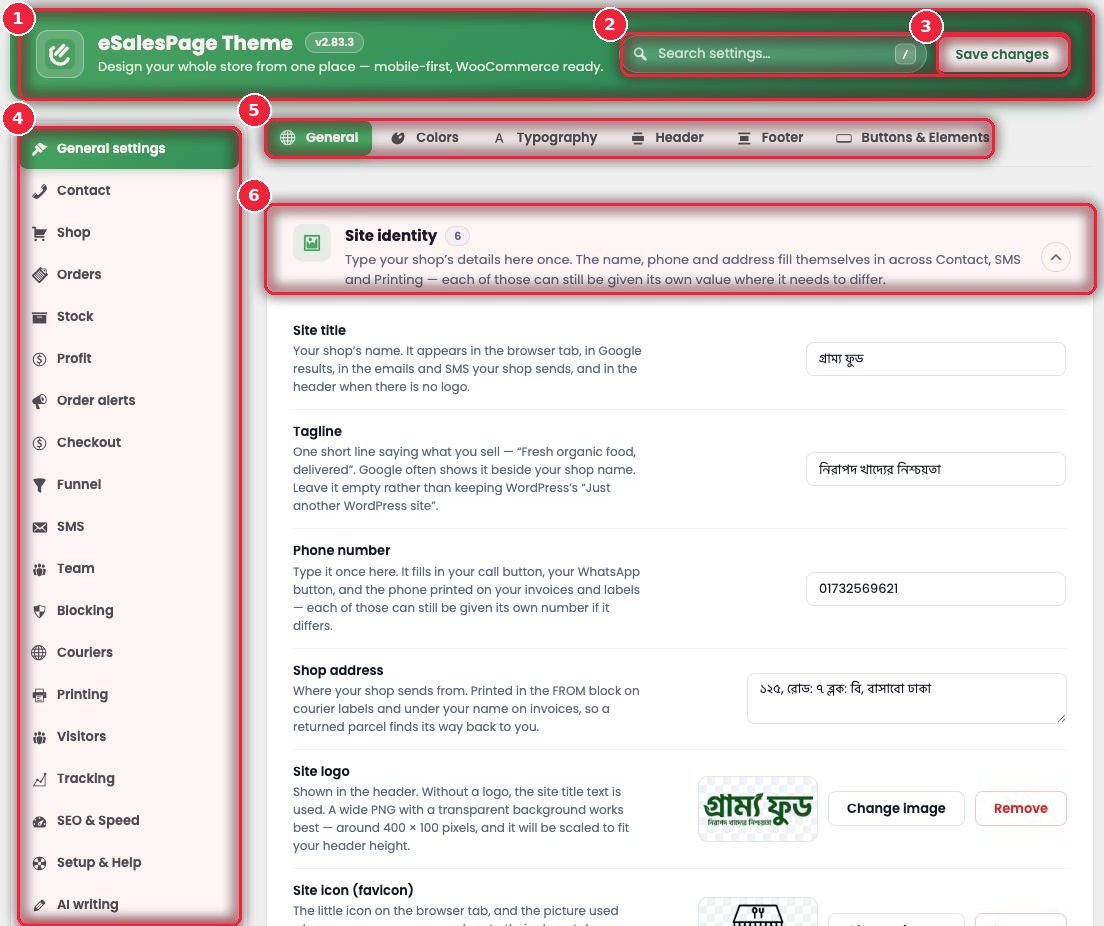
- 1Top bar Theme name and version.
- 2Search settings Can’t remember where a setting is? Type it here — pressing / also opens search.
- 3Save changes Save here after changing anything. If you don’t save, an “unsaved changes” bar appears at the bottom, and you can cancel with Discard.
- 4Sections on the left General settings, Contact, Shop, Orders, Stock, Profit, Order alerts, Checkout, Funnel, SMS, Team, Blocking, Couriers, Printing, Visitors, Tracking, SEO & Speed, Setup & Help, AI writing, Tools.
- 5Sub-tabs More divisions inside a section — e.g. Colors, Typography, Header and Footer in General.
- 6Cards Each card holds all the settings for one topic; the number next to it is how many settings. Click the arrow to open or close.
🏪 General — your shop’s identity
Write it once and your name, phone and address fill in automatically in Contact, SMS and Printing. You can still change them separately there if needed.
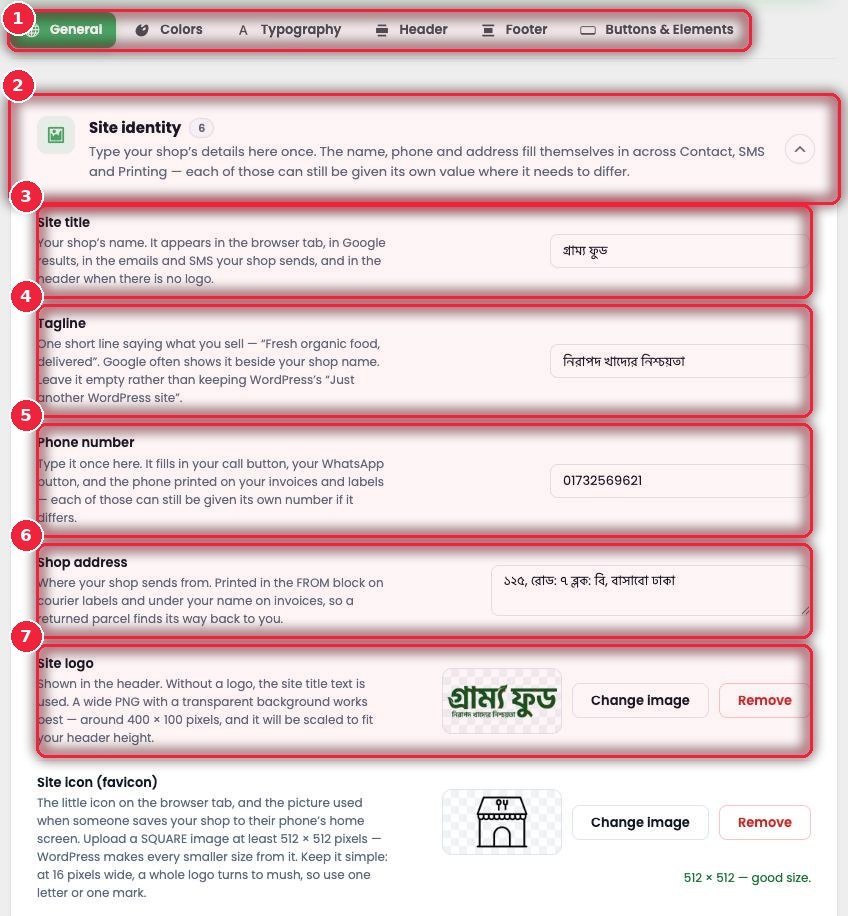
- 1General tabs General, Colors, Typography, Header, Footer, Buttons & Elements.
- 2Site identity Your shop’s core details.
- 3Site title Your shop’s name — in the browser tab, Google, emails, SMS, and in the header if there’s no logo.
- 4Tagline What you sell, in one line. Don’t leave WordPress’s “Just another WordPress site”.
- 5Phone number Enter it once and it goes on the call button, WhatsApp button, invoices and labels.
- 6Shop address Where parcels ship from — in the FROM part of labels and on invoices, so returned parcels come back to the right place.
- 7Site logo · favicon The header logo (a transparent PNG of about 400×100 px), and the small icon in the browser tab (512×512).
🎨 Colors — your shop’s colors
Change one color and every button, badge and link changes with it.
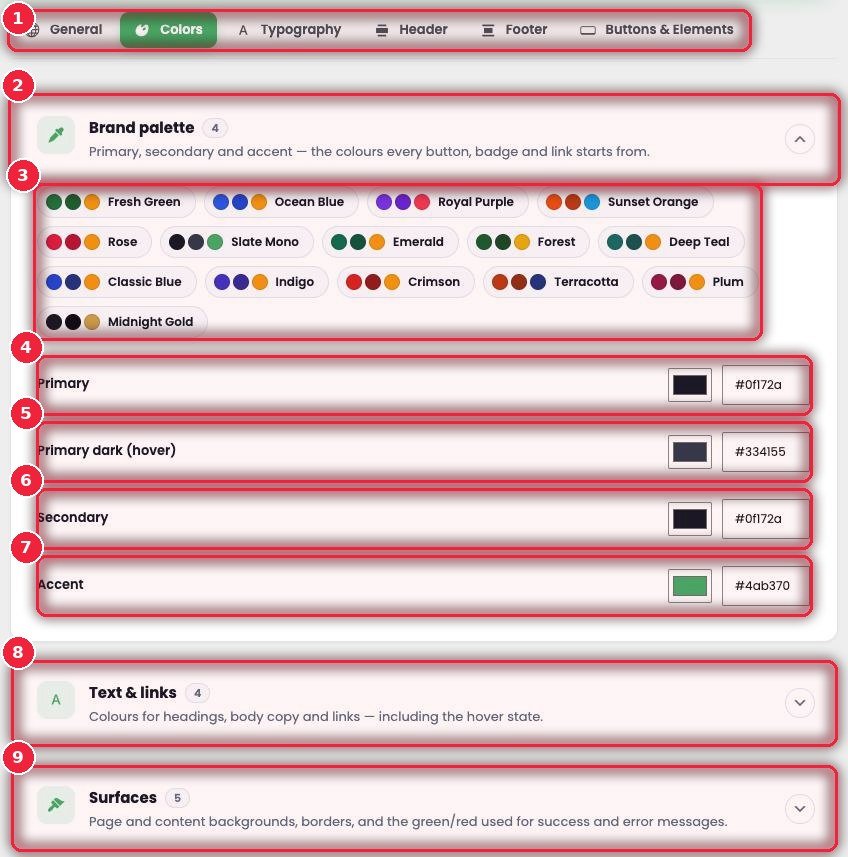
- 1Tab The Colors tab.
- 2Brand palette Primary, secondary and accent — every other color starts from these.
- 3Ready color sets 16 sets including Fresh Green, Ocean Blue, Royal Purple, Sunset Orange and Midnight Gold — recolor the whole shop in one click.
- 4Primary The main color.
- 5Primary dark (hover) The color on mouse hover.
- 6Secondary The second color.
- 7Accent The eye-catching color — badges, highlights.
- 8Text & links Heading, text and link colors.
- 9Surfaces Backgrounds, borders, and the green/red for success/error messages.
🔤 Typography — fonts
Which fonts for Bangla and English, how big, and how much spacing.
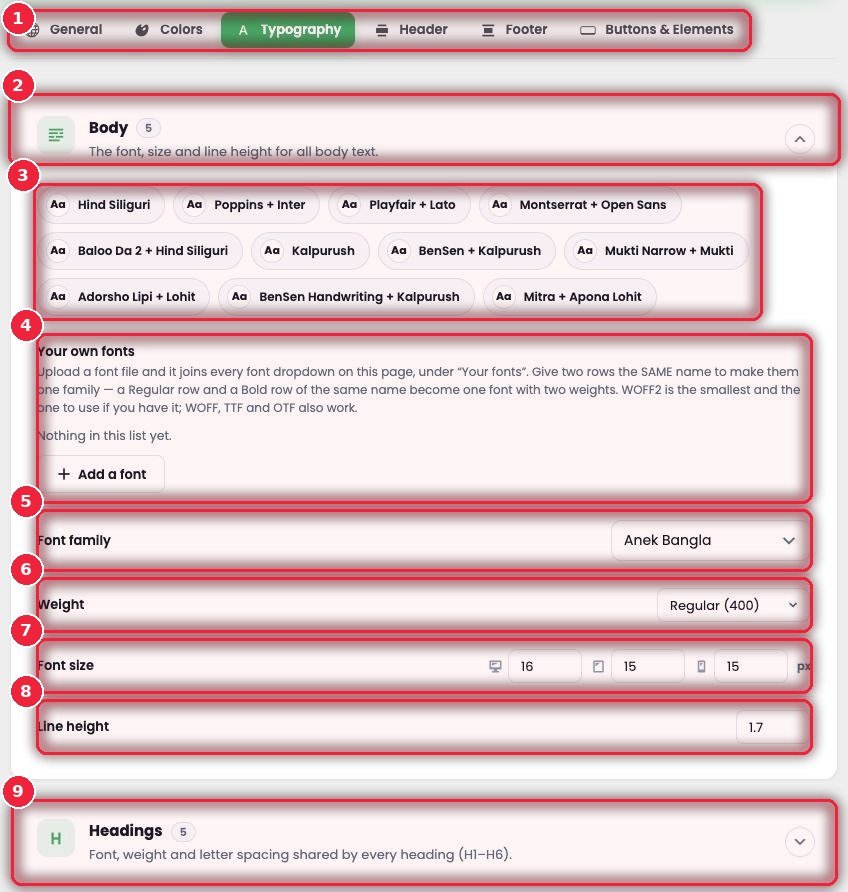
- 1Tab Typography.
- 2Body The font for all regular text.
- 3Ready font pairs Pairs with Bangla fonts like Hind Siliguri, Kalpurush, BenSen, Mukti, Adorsho Lipi and Baloo Da 2 — in one click.
- 4Your own fonts Upload your own font files (WOFF2, WOFF, TTF, OTF) — upload Regular and Bold under the same name and they work as one font.
- 5Font family Pick the font.
- 6Weight Thin to bold.
- 7Font size Separate sizes for desktop, tablet and mobile.
- 8Line height The space between lines.
- 9Headings The heading font; below it, Heading sizes sets H1–H6 per device.
🔝 Header — header and live search
The theme header’s design, menu, sticky header, logo and search — 26 settings.
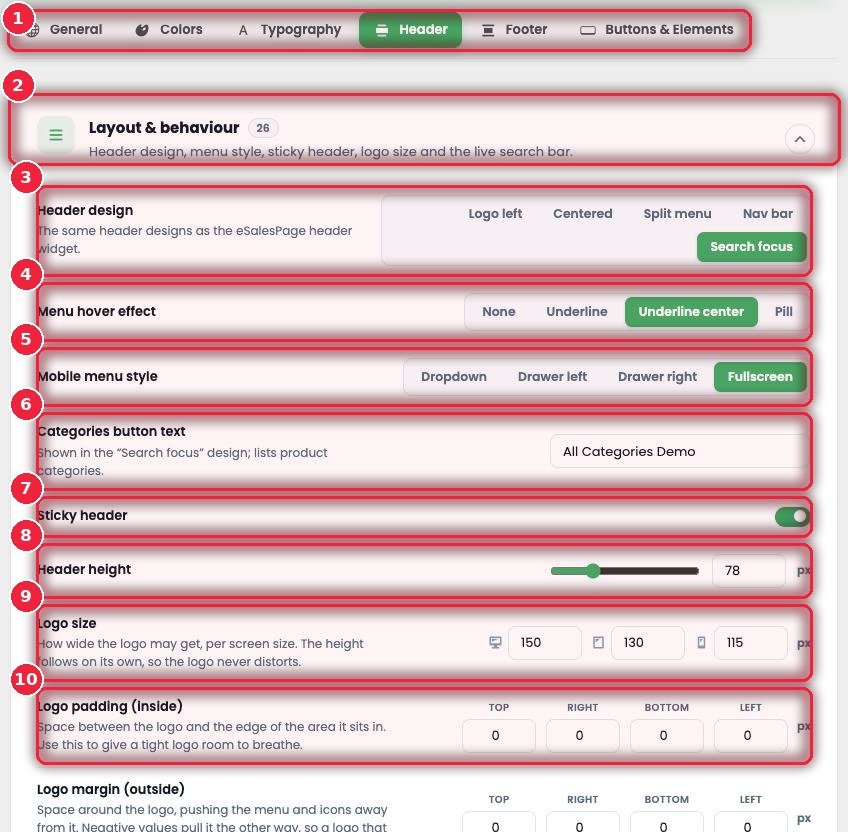
- 1Tab Header.
- 2Layout & behaviour Everything about how the header behaves.
- 3Header design Logo left, Centered, Split menu, Nav bar, Search focus।
- 4Menu hover effect Underline, Pill and more when hovering over the menu.
- 5Mobile menu style Dropdown, a Drawer from the left/right, or Fullscreen.
- 6Categories button text The category button text in the Search focus design.
- 7Sticky header Stays at the top when scrolling.
- 8Header height The header’s height.
- 9Logo size How wide the logo is on desktop, tablet and mobile — the height adjusts itself so the logo never stretches.
- 10Logo padding Space around the logo.
🔚 Footer
Pick a ready footer, then adjust everything below it your way.
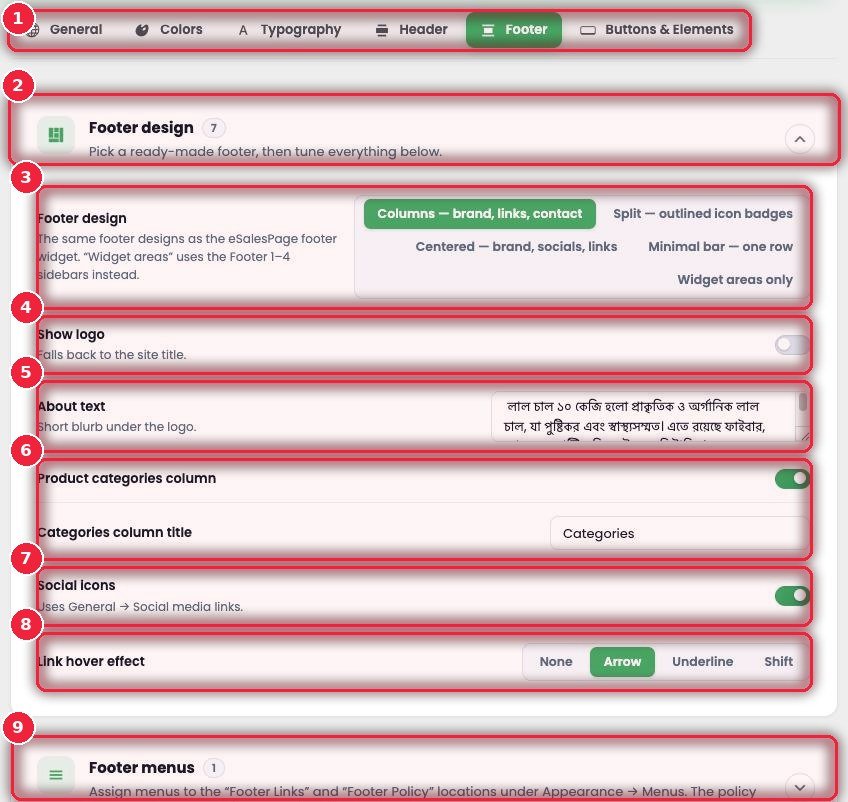
- 1Tab Footer.
- 2Footer design What you can adjust.
- 3Design Columns, Split, Centered, Minimal bar, or Widget areas.
- 4Show logo Whether to show the logo.
- 5About text A short description under the logo.
- 6Category column A column of product categories and its heading.
- 7Social icons Social links (taken from Contact).
- 8Link hover effect Arrow, Underline, Shift।
- 9More cards Footer menus, Footer contact (email, address), Bottom bar (payment method images), typography, layout, colors and the Copyright bar.
🔘 Buttons & Elements — buttons and forms
All buttons across the theme and WooCommerce look the same.
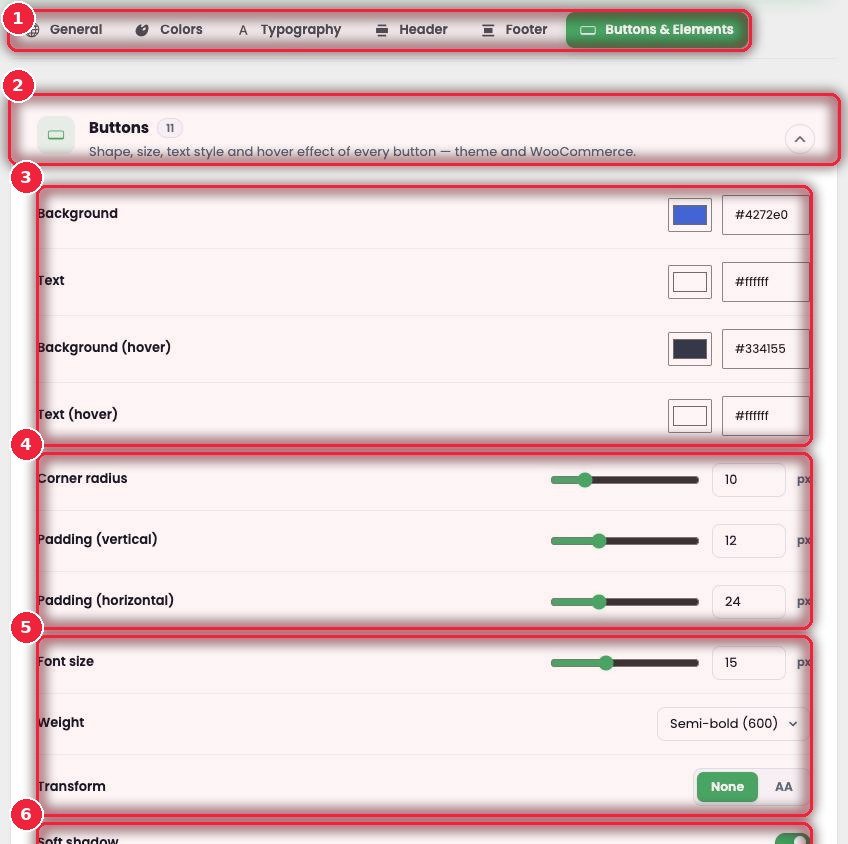
- 1Tab Buttons & Elements.
- 2Buttons How all buttons look.
- 3Colors Background, text, and their hover colors.
- 4Shape How rounded the corners are, and inner padding.
- 5Text Size, weight, and whether it’s uppercase.
- 6Soft shadow A light shadow.
📞 Contact — phone, WhatsApp, floating buttons
How customers get in touch — phone, WhatsApp, Messenger and floating buttons in the corner of the page.
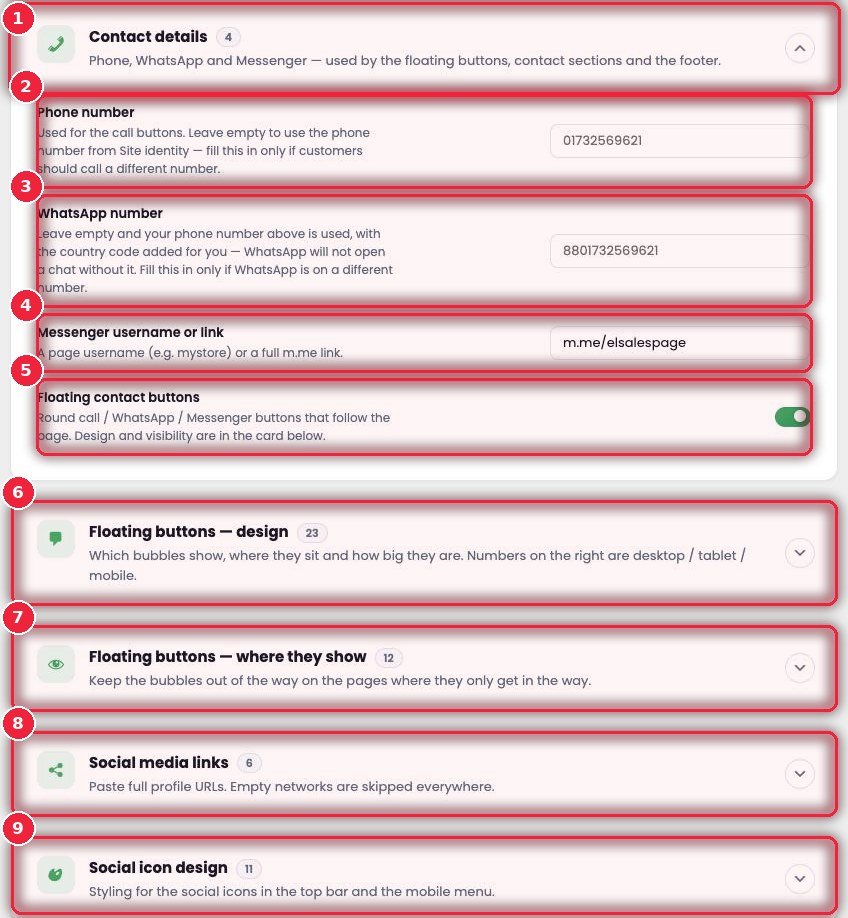
- 1Contact details Contact information.
- 2Phone number The number for the call button — leave empty to use the Site identity number.
- 3WhatsApp number Leave empty and the phone number above is used with the country code added.
- 4Messenger Your page username or m.me link.
- 5Floating contact buttons Round floating Call, WhatsApp and Messenger buttons on/off.
- 6Floating button design Which to show, order, left/right, distance, size, shape, shadow, effects like Pulse, colors and labels — 23 settings.
- 7Where they show Mobile/desktop, after how much scrolling, and hidden on cart, checkout, thank-you, product, home or specific pages.
- 8Social media links Links to Facebook, Instagram, YouTube, TikTok and more — empty ones don’t show anywhere.
- 9Social icon design How the social icons look in the top bar and mobile menu.
🛍️ Shop — shop page and filters
Shop and category pages — filter sidebar, product grid, sorting. Filtering doesn’t reload the page.
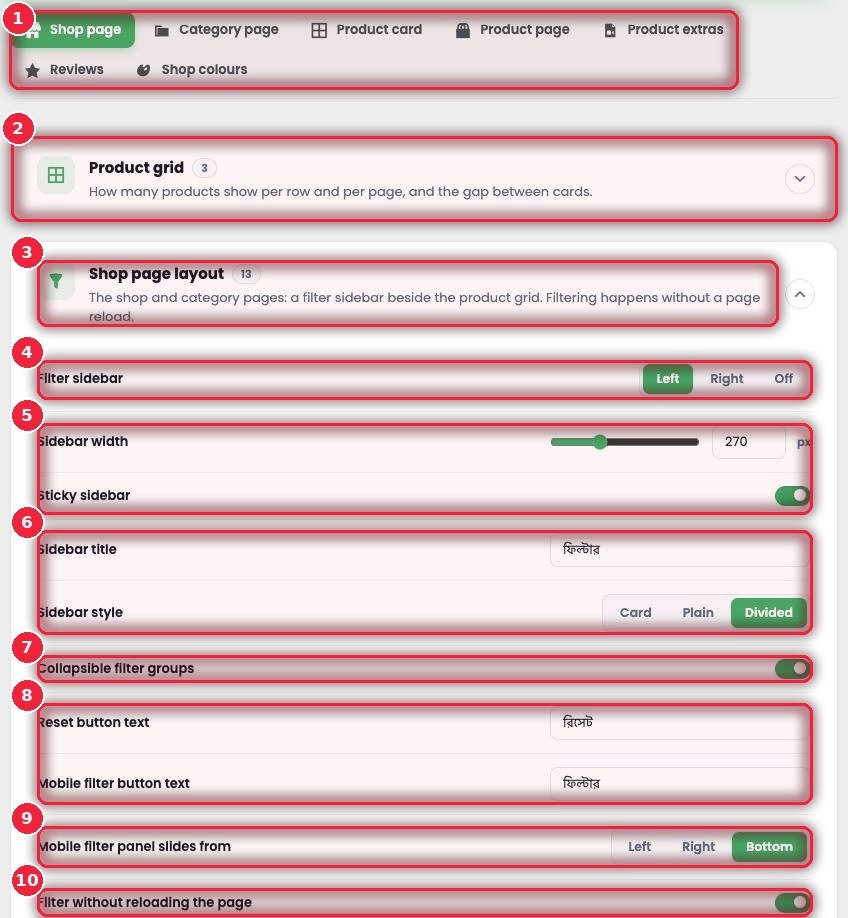
- 1Seven tabs Shop page, Category page, Product card, Product page, Product extras, Reviews, Shop colours.
- 2Product grid How many per row, how many per page, and the gap between them.
- 3Shop page layout The page structure, including the filter sidebar.
- 4Filter sidebar Left, right, or off.
- 5Width and sticky How wide the sidebar is and whether it sticks when scrolling.
- 6Heading and style Card, Plain or Divided.
- 7Collapsible groups Filter groups can be opened and closed.
- 8Button text Reset, and the filter button on mobile.
- 9Mobile filter Slides in from the left, right or bottom.
- 10Filtering without reload Plus keeping filters in the address bar, scrolling to results, and chips for selected filters.
📦 Product page — the buy box
The most important part of the product page — choosing a variation, quantity, total price and the button.
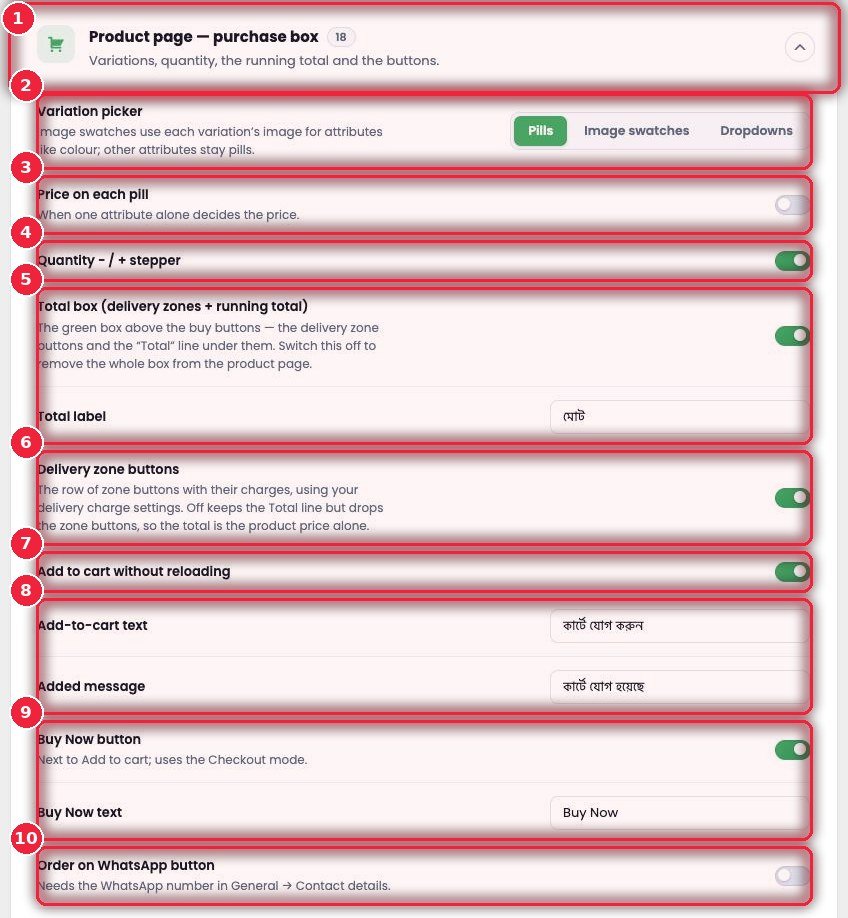
- 1Purchase box 18 settings for the buying section.
- 2Variation picker Pills, image swatches (for colors), or a Dropdown.
- 3Price on each pill If only one attribute sets the price, the price shows on each option.
- 4Quantity stepper − / + buttons.
- 5Total box Delivery area buttons and a running total — the customer sees the full amount before ordering.
- 6Delivery zone buttons Inside/outside Dhaka and so on, with charges.
- 7Add to cart without reload Adds to cart without changing the page.
- 8Button text “Add to cart” and the added-to-cart message.
- 9Buy Now A direct buy button next to Add to cart.
- 10Order on WhatsApp Order on WhatsApp with a pre-written message that includes the product name.
➕ Product extras and Reviews
Extra sections on the product page — add them per product in the Products → Edit → eSP Extras tab, and set how they look here.
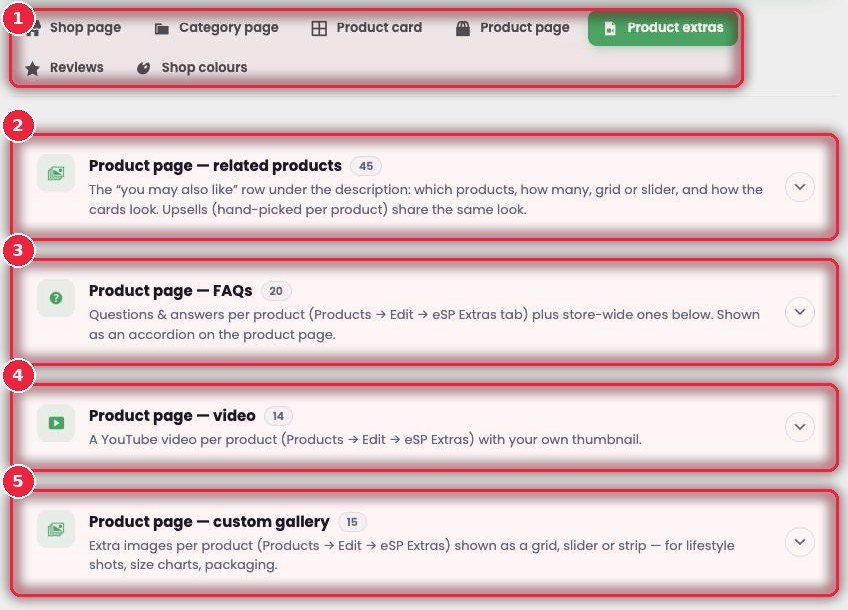
- 1Tab Product extras (Reviews and Shop colours are on the second row).
- 2Related products “You may also like” — which products, how many, grid or slider, and hand-picked upsells.
- 3FAQs Questions and answers for each product, plus general shop-wide questions, as an accordion.
- 4Video A YouTube video per product with your own thumbnail — optionally as the first gallery image.
- 5Custom gallery Extra images — in-use photos, size charts, packaging — as a grid, slider or strip.
🗂️ Orders — Order Desk statuses and tabs
Which tabs show in Order Desk and in what order, your own statuses, where orders came from, and ready-made notes for the courier.
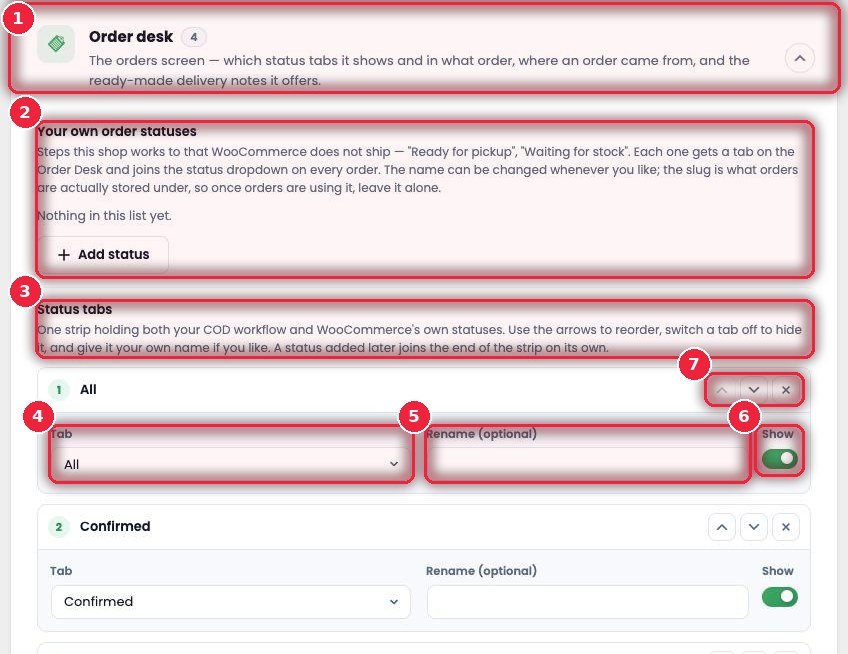
- 1Order desk Settings for the order screen.
- 2Your own order statuses Your own steps that WooCommerce doesn’t have — e.g. “Ready for pickup”, “Waiting for stock”. Each one gets its own tab in Order Desk.
- 3Status tabs COD steps and WooCommerce statuses in one row.
- 4Which tab Which status goes in each slot.
- 5Rename Give it your own name if you like, e.g. “RTS”.
- 6Show Whether to show the tab.
- 7Order Move up or down with the arrows; remove with ✕.
☎️ Orders — incomplete orders, calls and auto calls
Four cards that make order confirmation easier.
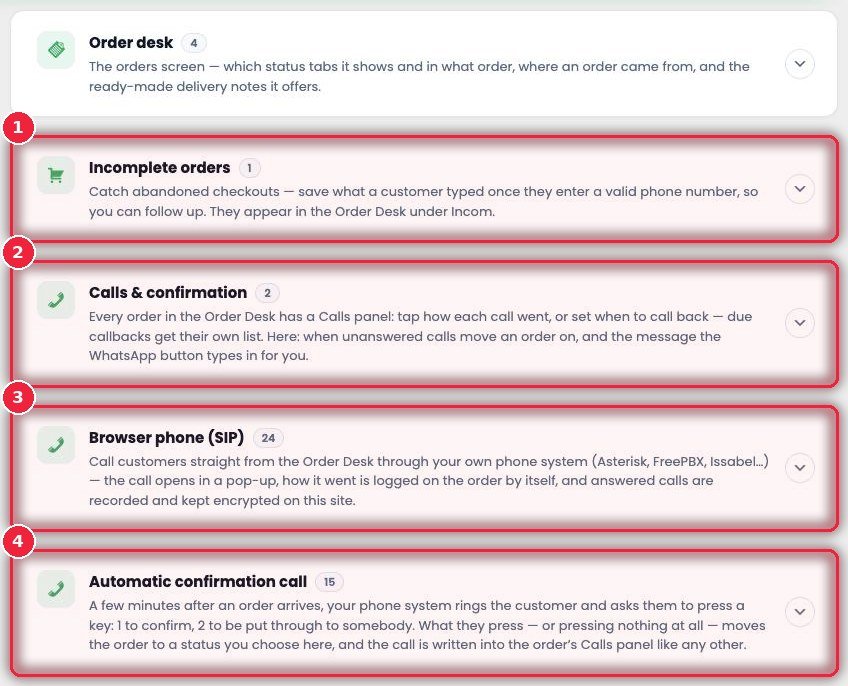
- 1Incomplete orders As soon as a customer enters a valid phone number, what they typed is kept — even if they don’t finish the order, you’ll find it under Incomplete in Order Desk and can call them.
- 2Calls & confirmation After how many unanswered calls an order moves to No Response by itself, and which message is pre-typed on the WhatsApp button.
- 3Browser phone (SIP) Call straight from Order Desk using your own phone system (Asterisk, FreePBX, Issabel…) — calls in a popup, results written to the order automatically, answered calls recorded and stored encrypted, and you choose how long before they’re deleted.
- 4Automatic confirmation call A few minutes after an order comes in, the phone system calls the customer itself: press 1 to confirm, press 2 to talk to your staff, or press nothing — you decide which status each one leads to. The call is logged in the order’s Calls panel.
📦 Stock — when stock is deducted
Full explanation on its own page: Stock — all features.
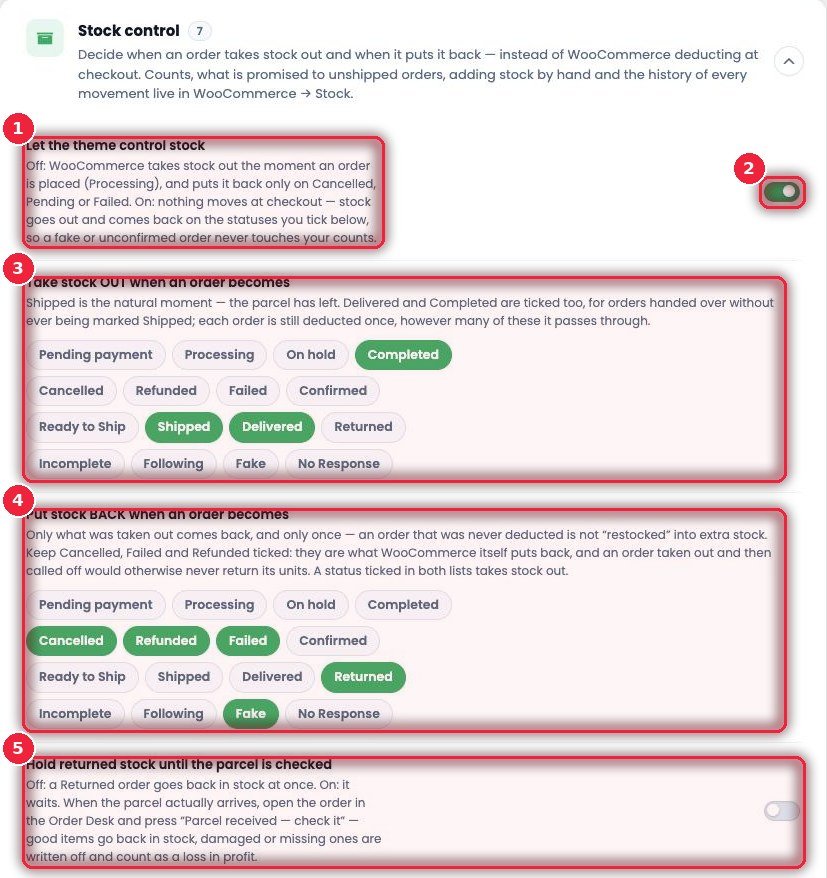
- 1What changes WooCommerce deducts stock at checkout; turn this on and it’s deducted only at the statuses you choose.
- 2On/off Let the theme control stock.
- 3Stock goes out e.g. Shipped, Delivered, Completed.
- 4Stock comes back Cancelled, Refunded, Failed, Returned, Fake.
- 5Return check Put back into stock after the parcel is received and checked.
💵 Profit — your real profit
Sales aren’t profit. Enter courier charges, return charges, COD fees and packaging — together with product costs, the Dashboard shows what you actually kept on delivered orders.
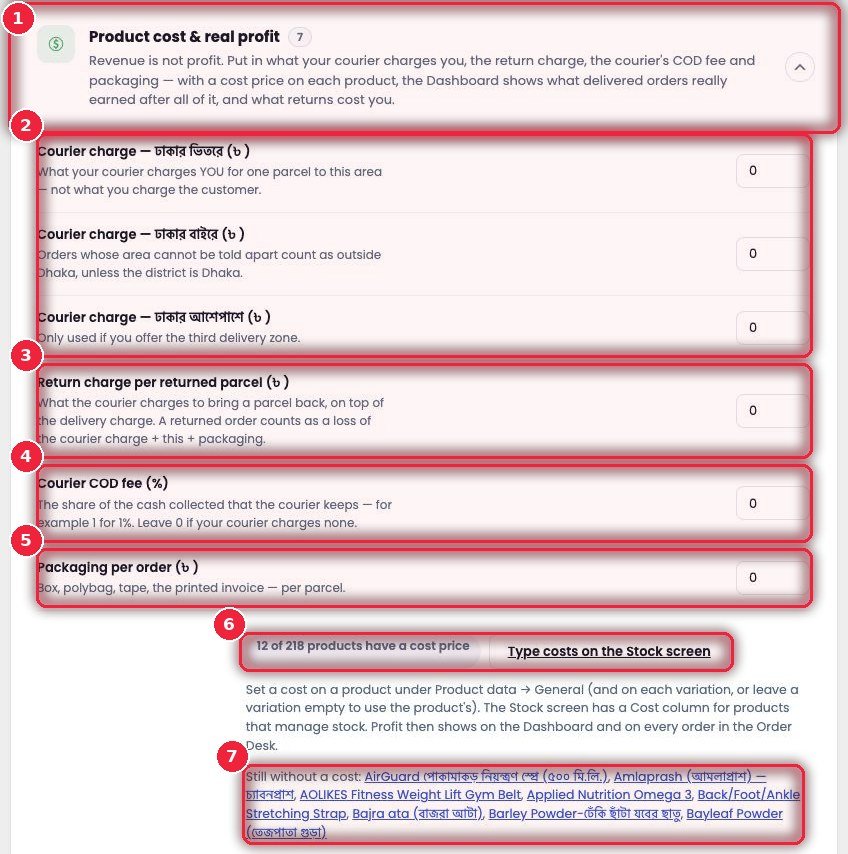
- 1Product cost & real profit The costs used in the profit calculation.
- 2Courier charges Inside Dhaka, outside, and suburbs — what the courier charges you (not what you charge the customer).
- 3Return charge What the courier charges extra to bring a parcel back — loss on a returned order = courier charge + this + packaging.
- 4COD fee What % of the money the courier keeps.
- 5Packaging Box, poly bag, tape and invoice per parcel.
- 6How many products have a cost How many products have a purchase price set, with a button to enter them directly on the Stock page.
- 7Missing costs Which products still need a purchase price — click to add.
🔔 Order alerts — tell the team when an order comes in
Whenever an order’s status changes, the news goes wherever you want. Tick which statuses to notify for, separately for each destination.
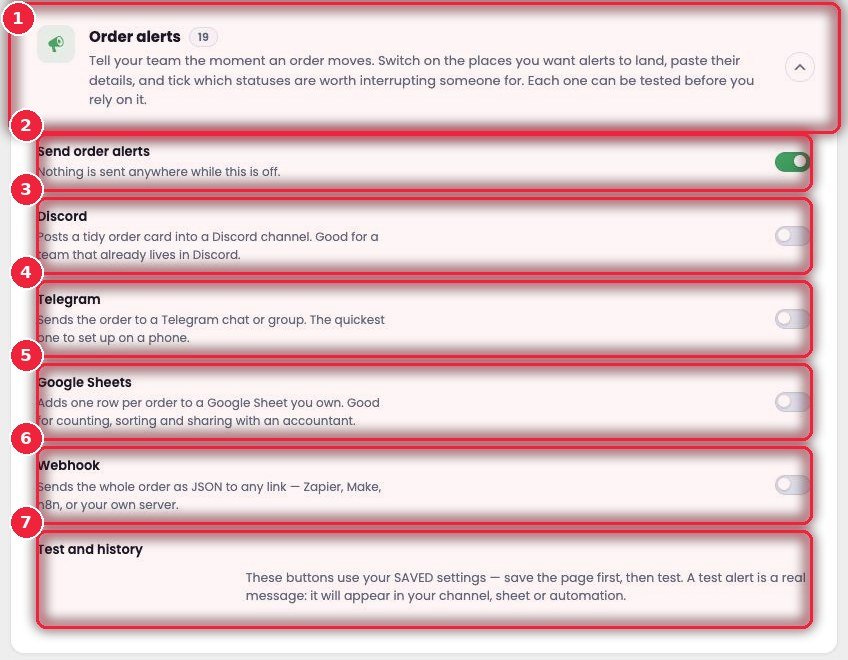
- 1Order alerts 19 settings.
- 2Send order alerts The main switch — when off, nothing is sent.
- 3Discord An order card in a channel, optionally tagging a role.
- 4Telegram To a chat or group — the easiest to set up on a phone, and can be silent.
- 5Google Sheets Each order as a row in your sheet — for record-keeping or showing your accountant.
- 6Webhook The full order as JSON to Zapier, Make, n8n or your own server.
- 7Test and history Send a test after saving — the test goes out as a real message.
🛒 Checkout — Buy Now and the checkout form
How customers place orders — popup, drawer or full page, which fields appear, and what gets validated.
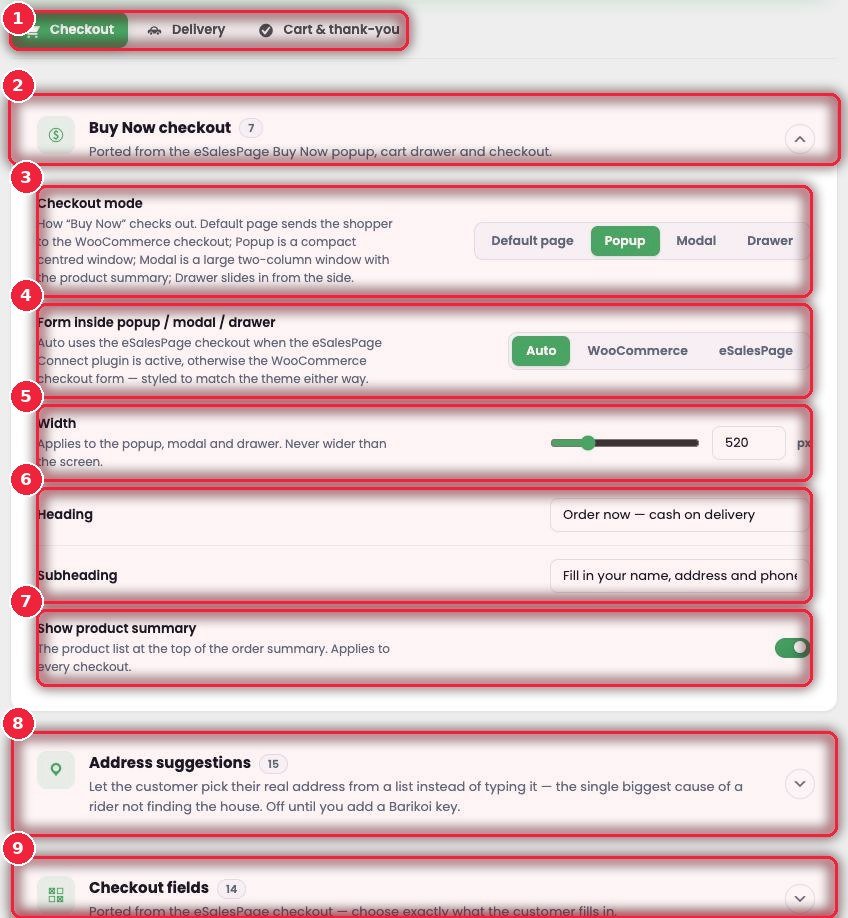
- 1Three tabs Checkout, Delivery, Cart & thank-you.
- 2Buy Now checkout What happens when Buy Now is clicked.
- 3Checkout mode Default page, Popup, Modal (two columns) or Drawer (from the side).
- 4Form inside Auto, WooCommerce, or the eSalesPage form.
- 5Width The popup’s width.
- 6Heading e.g. “Order now — cash on delivery”.
- 7Product summary The product list at the top.
- 8Address suggestions A list of real addresses via Barikoi as you type — removes the biggest reason riders can’t find the house.
- 9Checkout fields Just name, phone and address, or email, district, note and coupon too — write your own labels and placeholders.
🚚 Delivery — inside/outside Dhaka charges
Simple inside/outside Dhaka charges instead of WooCommerce’s complicated shipping zones.
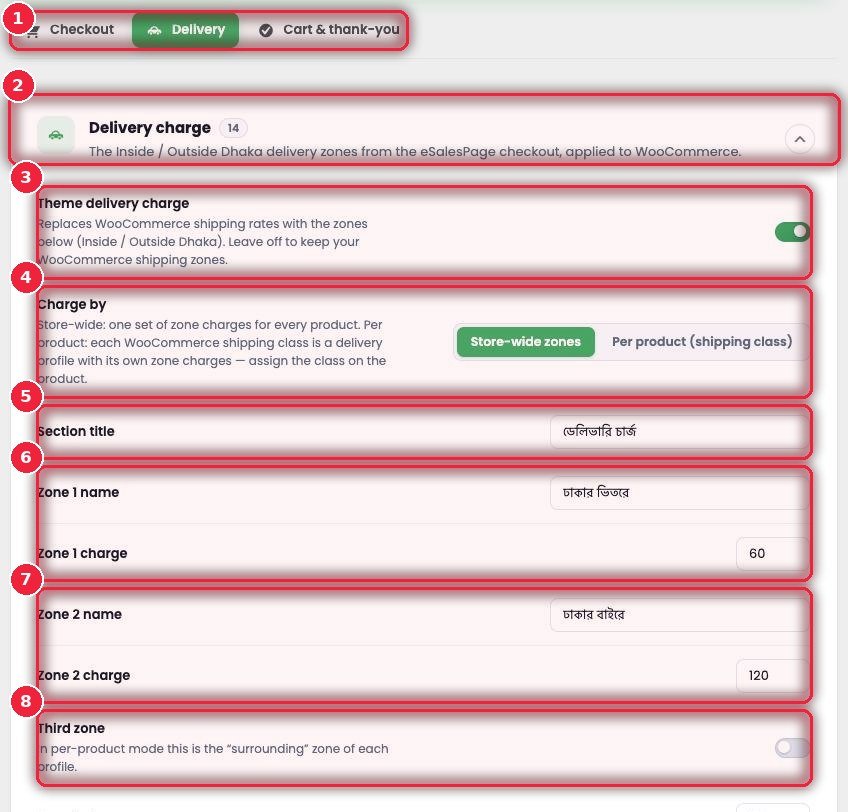
- 1Tab Delivery.
- 2Delivery charge 14 settings.
- 3Theme delivery charge When on, these zones replace WooCommerce’s shipping rates.
- 4Charge by One charge for all products, or different charges by each product’s shipping class.
- 5Section title The section name at checkout.
- 6Zone 1 Name and charge — e.g. Inside Dhaka 60.
- 7Zone 2 e.g. Outside Dhaka 120.
- 8Third zone An optional third zone — e.g. Dhaka suburbs.
✅ Cart & thank-you — the thank-you page
The page customers see after ordering — the first place to build trust.
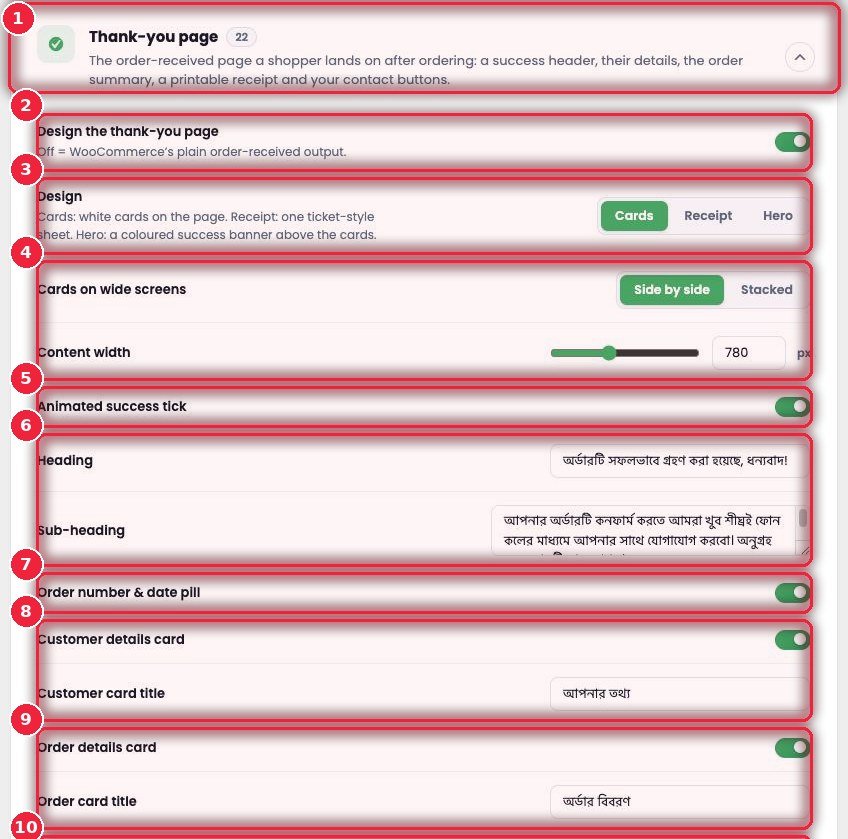
- 1Thank-you page 22 settings.
- 2On/off When off, WooCommerce’s standard page is used.
- 3Design Cards, Receipt (like a ticket), or Hero (a colored banner).
- 4Layout Cards side by side or stacked, and width.
- 5Animated success tick An animated success tick.
- 6Heading e.g. “Your order has been received” with a note below about confirming by phone.
- 7Order number and date As small pills.
- 8Customer details card Customer details and the card heading.
- 9Order details card The order summary.
- 10Product thumbnails Small product images.
🔻 Funnel — defaults for every eFunnel
New funnels start with these; each funnel can change them separately. Funnel details: eFunnel — all features.
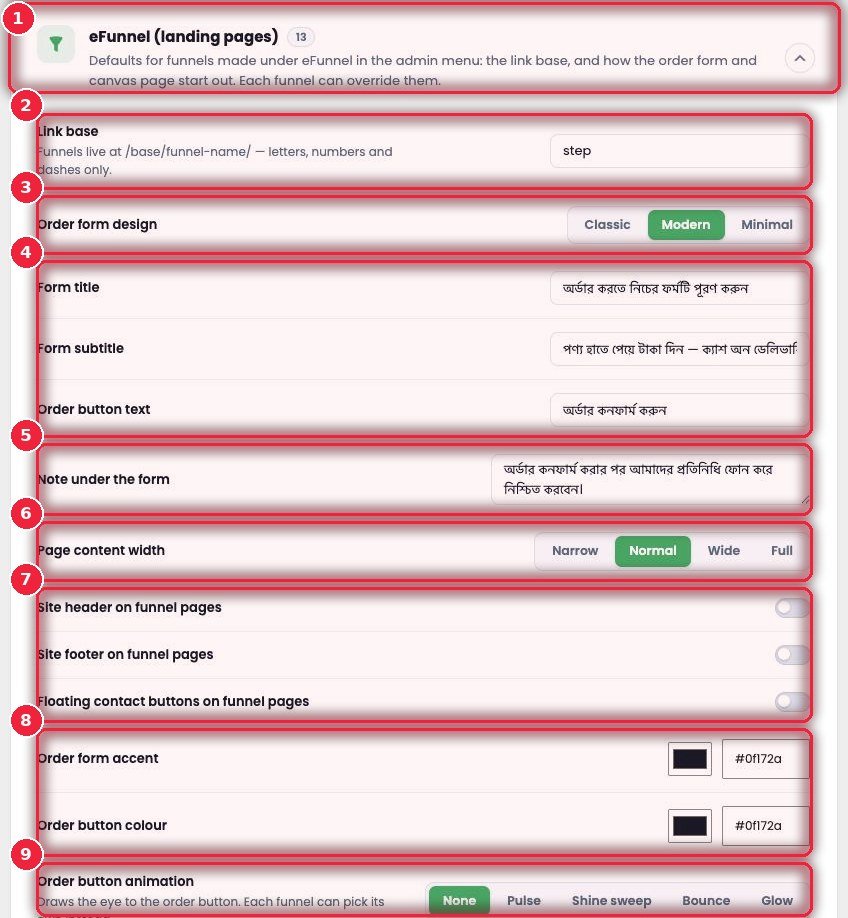
- 1eFunnel 13 settings.
- 2Link base The start of the funnel address — e.g. /step/funnel-name/.
- 3Order form design Classic, Modern, Minimal।
- 4Form text Heading, subtitle and order button.
- 5Note under the form e.g. “After you order, our team will call to confirm”.
- 6Page content width Narrow, Normal, Wide, Full।
- 7Header, footer, floating buttons Whether they show on funnel pages.
- 8Colors The form’s accent and button color.
- 9Button animation Pulse, Shine sweep, Bounce, Glow।
✉️ SMS — provider and status messages
SMS the customer when the order status changes. CRM campaigns and automations use this same setup.
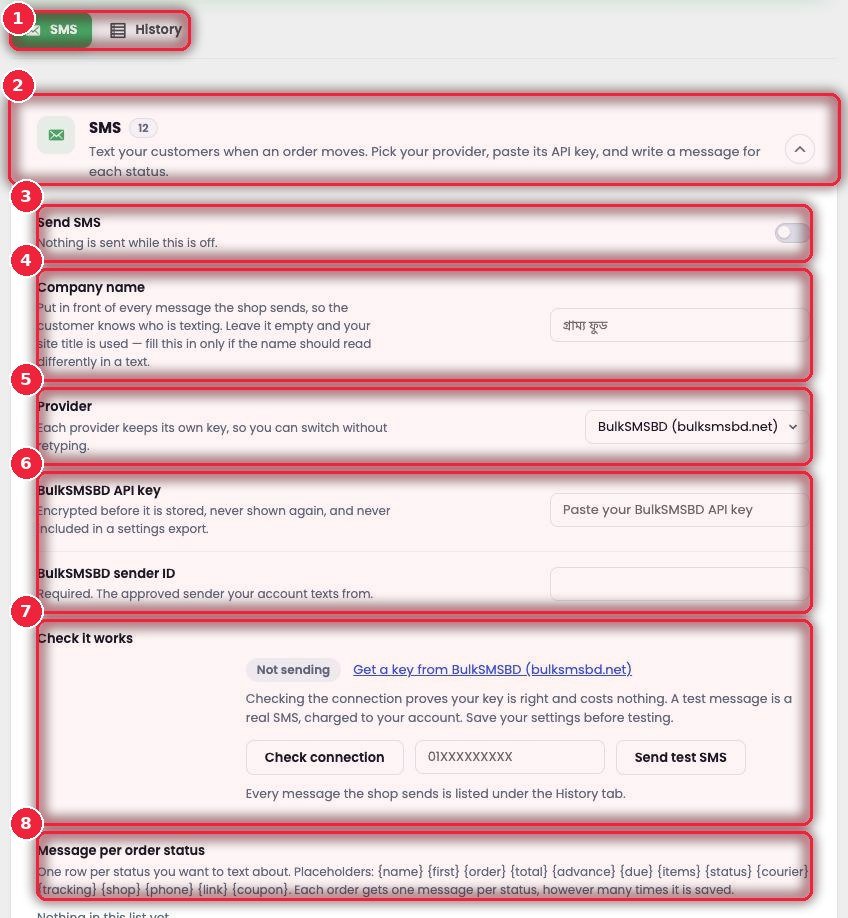
- 1Two tabs SMS and History (every SMS sent).
- 2SMS 12 settings.
- 3Send SMS The main switch.
- 4Company name Your shop name at the start of every SMS.
- 5Provider BulkSMSBD or sms.net.bd (Alpha SMS) — each keeps its own key.
- 6API key and sender ID Saved encrypted and never shown.
- 7Check it works The connection check is free; a test SMS goes out as a real SMS.
- 8Message per order status A message for each status — with tags like {name}, {order}, {total}, {due}, {courier}, {tracking} and {link} filled in.
👥 Team — who can do what
Who can get into the shop admin, and which orders team members can see.
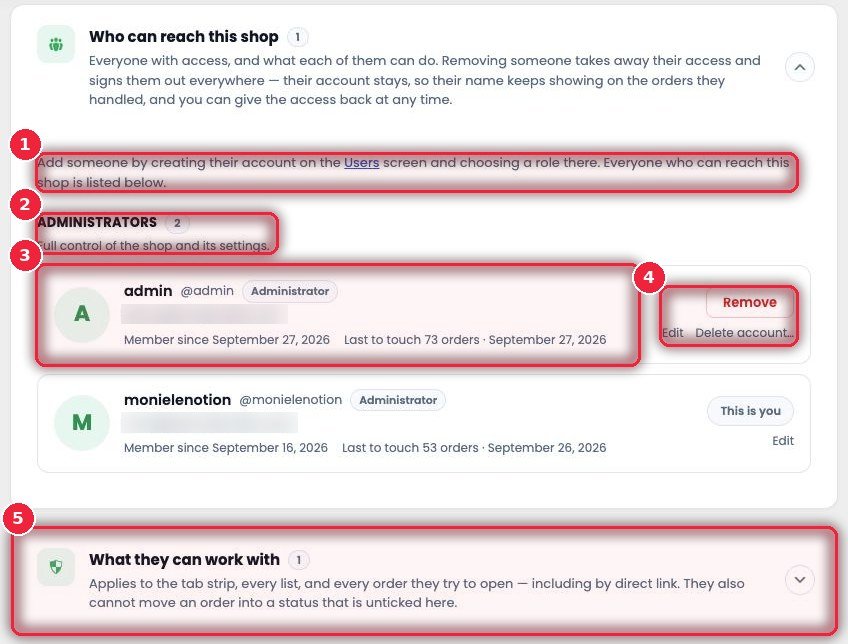
- 1Adding someone new Create an account and assign a role in WordPress’s Users screen — they’ll appear in this list.
- 2Groups by role e.g. Administrators — full control of the shop and settings.
- 3Each member Name, role, member since, and the last few orders they worked on.
- 4Remove · Edit Remove logs them out everywhere but keeps the account — their name still shows on old orders, and you can give access again later.
- 5What they can work with Which order statuses the team can see and which statuses they can move orders to — they can’t open other orders even with a direct link.
🛡️ Blocking — stopping fake orders
Six tabs — Blocking, Auto-block, Customer tags, Fraud check, Fraud rules, Devices. Full explanation: Blocking — all features.
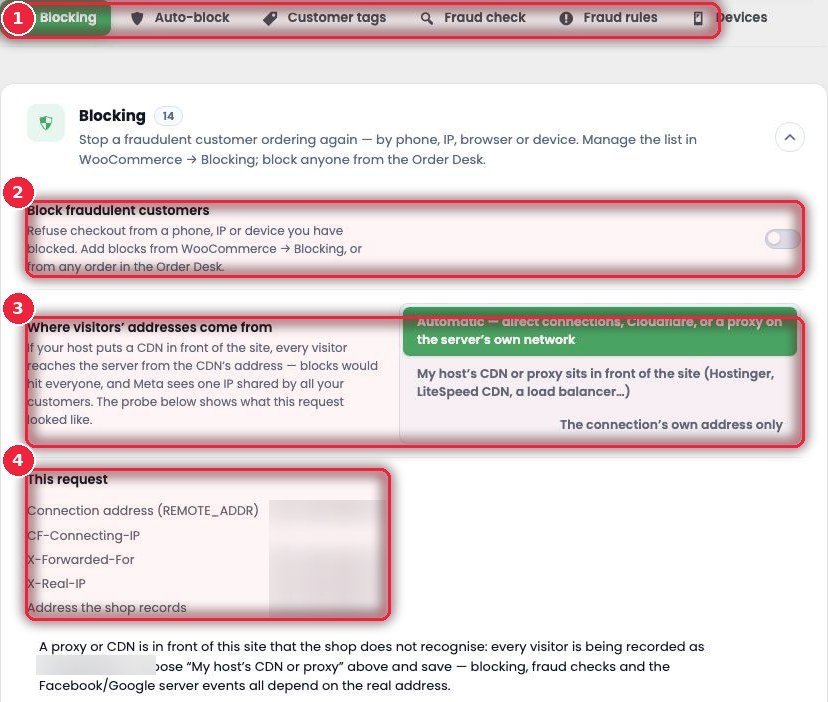
- 1Six tabs All fraud protection in one place.
- 2Block fraudulent customers Checkout is blocked for blocked phones, IPs and devices.
- 3Where the real IP comes from If your host uses a CDN, set it here — otherwise everyone shows the same IP.
- 4This request Which IP the server sees right now.
🚛 Couriers — Steadfast, Pathao, RedX, CarryBee
Turn on a courier and enter its details, and every order in Order Desk gets “Send to courier” — no need to go to the courier’s panel to book separately.
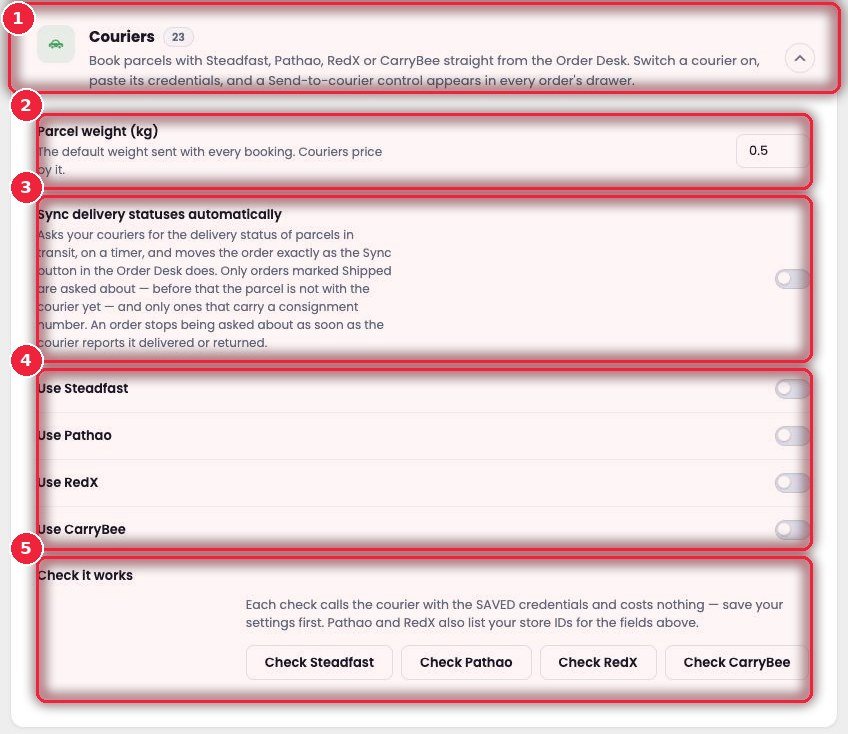
- 1Couriers 23 settings.
- 2Parcel weight The default weight for each booking — couriers charge by weight.
- 3Sync delivery statuses Pulls delivery status from the courier at set intervals and marks orders Delivered or Returned by itself. Only for Shipped orders with a consignment number; you can set how often it asks.
- 4Four couriers Steadfast, Pathao, RedX, CarryBee — turn one on and its API key, secret and store ID fields appear.
- 5Check it works After saving, check each courier for free; Pathao and RedX also show your list of store IDs.
🖨️ Printing — invoices and labels
Invoices and shipping labels from Order Desk’s Print button — which size, and what gets printed.
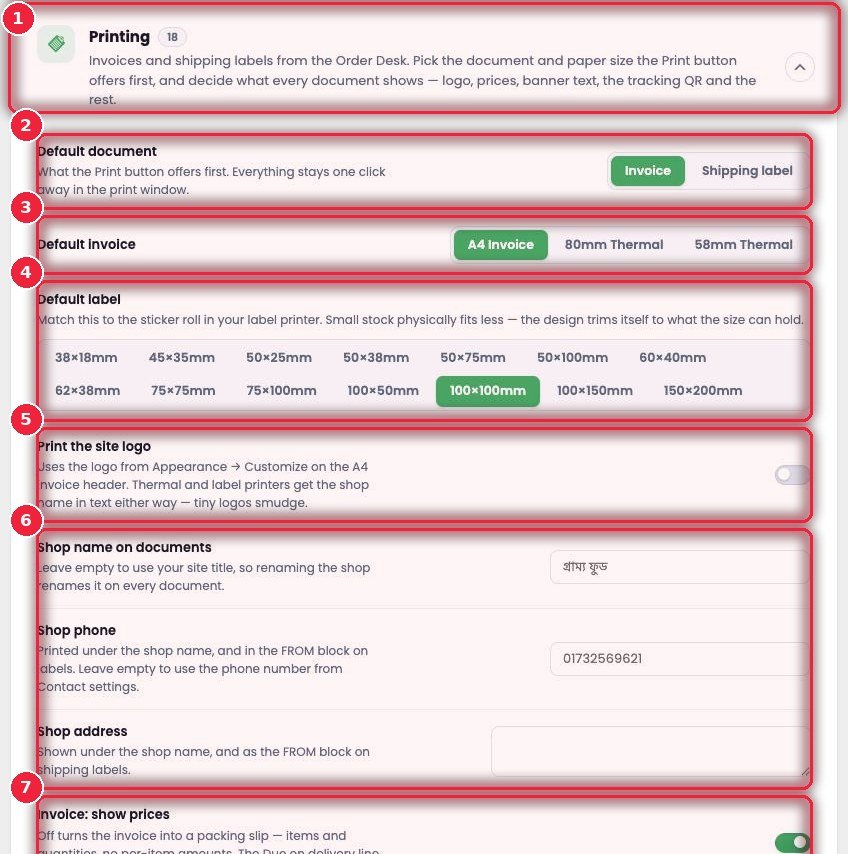
- 1Printing 18 settings.
- 2Default document Invoice or label first when Print is clicked.
- 3Default invoice A4, 80mm or 58mm thermal.
- 4Default label From 38×18mm to 150×200mm — match your label printer’s roll; the design shrinks itself for small sizes.
- 5Print the site logo Logo on A4 invoices; shop name as text on thermal and labels.
- 6Shop name, phone, address Taken from Site identity if left empty.
- 7Invoice: show prices Turn it off and the invoice becomes a packing slip — no prices, but the amount-due line stays for the rider.
👣 Visitors — visitor tracking
Who came from which ad, and whether they bought. Full explanation: Visitors — all features.
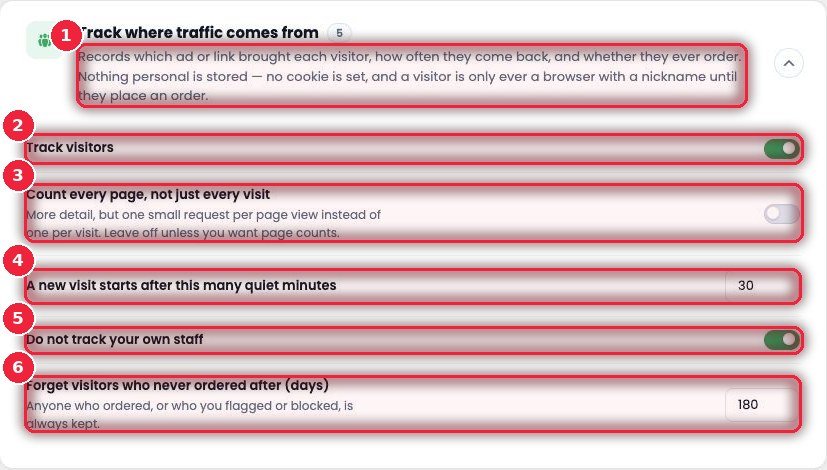
- 1What it does No cookies, and no personal information before an order.
- 2Track visitors On/off.
- 3Count every page Whether to count every page.
- 4New visit After how many minutes.
- 5Exclude staff Your own team isn’t counted.
- 6Old data After how many days visitors who never bought are deleted.
📡 Tracking — pixels and server events
Facebook, Google, Clarity, Rules, Catalog & feed, Storage. Full explanation: Event Tracker — all features.
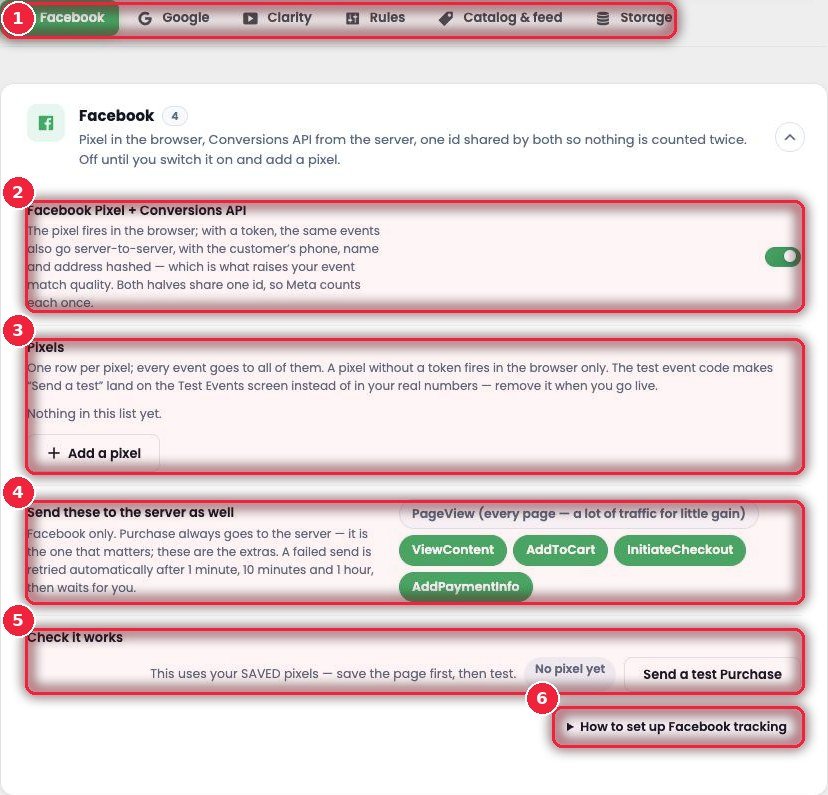
- 1Six tabs Each platform separately.
- 2Pixel + Conversions API From the browser and the server with the same ID.
- 3Pixels Multiple pixels, tokens and test codes.
- 4What goes from the server Purchase always; choose the rest.
- 5Check it works Send a test Purchase.
- 6Help Step-by-step setup.
⚡ SEO & Speed — a faster site
Everything to speed up your site across five tabs — no separate cache or optimization plugin needed.
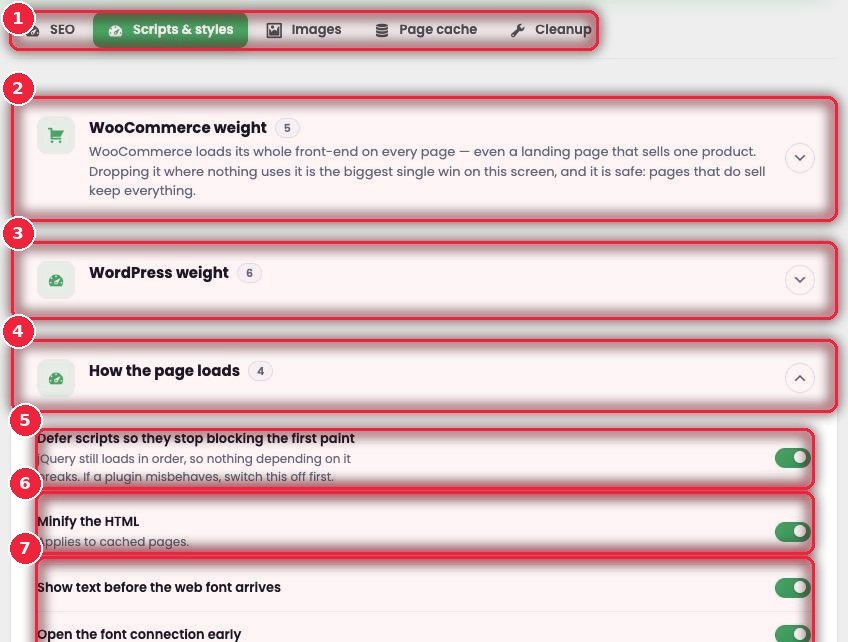
- 1Five tabs SEO, Scripts & styles, Images, Page cache, Cleanup.
- 2WooCommerce weight Drops WooCommerce CSS/JS on pages that don’t need it, turns off the cart-fragments request, and sends only the country you sell to — the biggest win on this screen.
- 3WordPress weight Drops the block library, Dashicons, emoji and oEmbed; slows the heartbeat; hides the version.
- 4How the page loads Page loading techniques.
- 5Defer scripts Loads scripts later — the first view appears faster.
- 6Minify the HTML Makes the HTML smaller.
- 7Fonts Shows text before fonts arrive, and connects to the font server early.
🩺 Setup & Help — is everything OK
If something isn’t working, look here first.
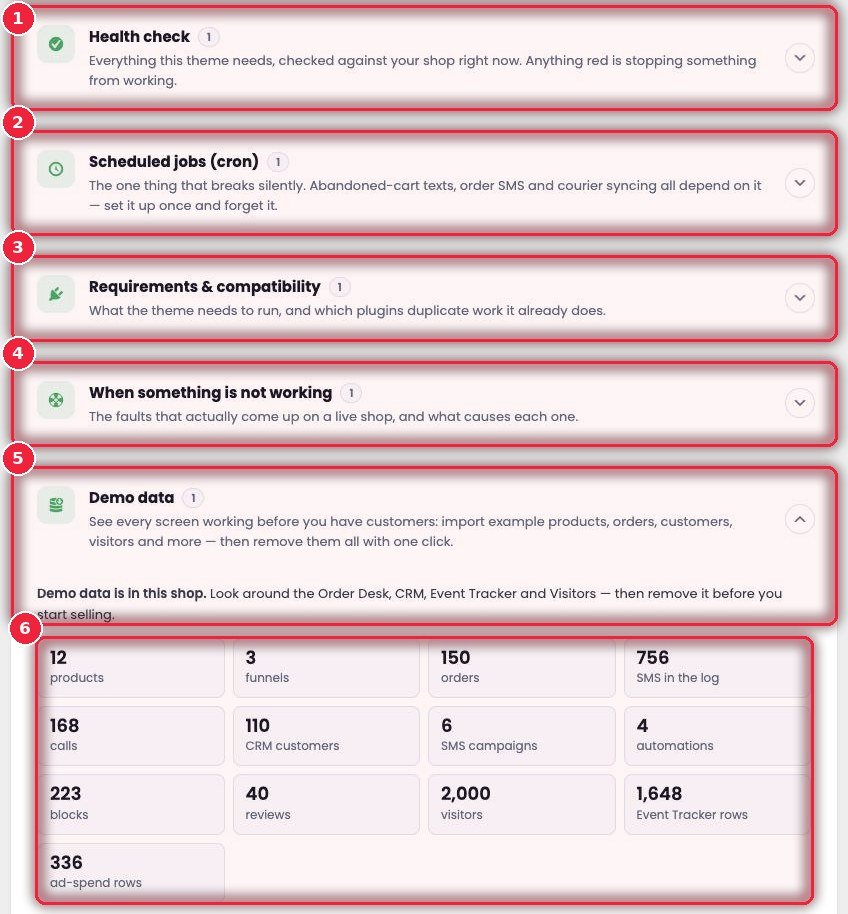
- 1Health check Checks WordPress, PHP, WooCommerce, HTTPS and the visitor IP right now; red means something isn’t working — fix from the top down.
- 2Scheduled jobs (cron) The thing that quietly breaks — abandoned cart SMS, order SMS and courier sync depend on it. Set it up once.
- 3Requirements & compatibility What you need (WordPress 6.5+, PHP 7.4+, HTTPS, 256M memory) and which plugins you don’t need because the theme already does that job.
- 4When something is not working Real-world problems and their causes — e.g. SMS not sending, Facebook and Events numbers not matching.
- 5Demo data Sample products, orders, customers and visitors so you can see every screen before real customers arrive — and delete it all in one click.
- 6What’s included How many demo products, orders, calls, SMS, reviews and visitors. SMS, calls and courier booking are off for demo orders, since the numbers could belong to real people.
🤖 AI writing — writing with AI
“Write with AI” in almost every eSalesPage widget in the block editor — pick a product, click Generate, and the text, lists and icons are filled in. AI never invents reviews, customer names, statistics, coupon codes or shop details; prices and ratings always come from the product.
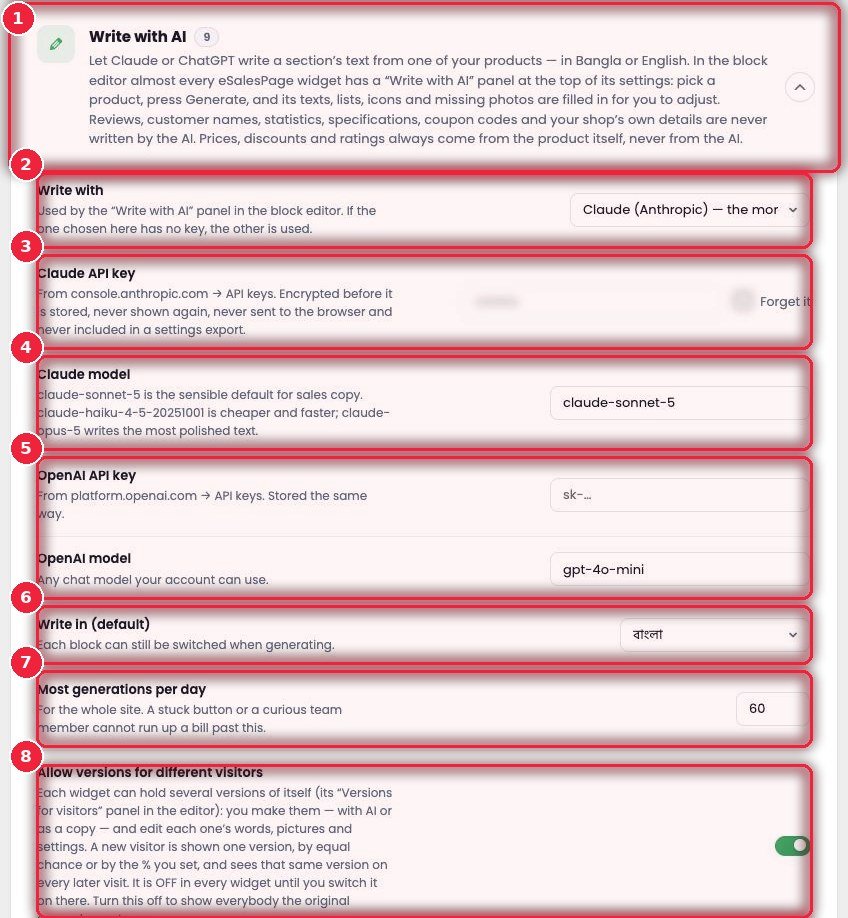
- 1Write with AI 9 settings.
- 2Write with Claude or ChatGPT — if one isn’t available, the other is used.
- 3Claude API key Saved encrypted, never sent to the browser.
- 4Claude model Which model — the default is good for sales copy, with cheaper or higher-quality options too.
- 5OpenAI Key and model.
- 6Write in Bangla, Bangla+English, or English.
- 7Most generations per day A daily maximum — so accidental clicks don’t run up the bill.
- 8Versions for visitors Make several versions of a widget and show different ones to different visitors (like an A/B test).
🧰 Tools — backup and reset
Move settings to another site, or go back to an earlier state.
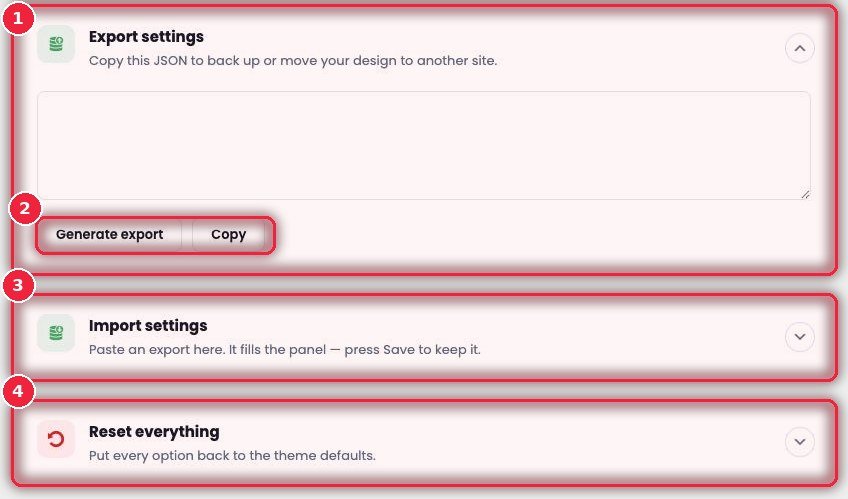
- 1Export settings All settings as JSON — for backup or the same design on another site.
- 2Generate · Copy Generate it and copy.
- 3Import settings Paste an exported JSON and Save.
- 4Reset everything All options back to theme defaults — be careful, Export first.
⚙️ How it works
- Pick a section from the list on the left and a sub-section from the tabs at the top.
- Open a card and change the setting — if you’re not sure where it is, use the search at the top.
- Click Save changes; if you make a mistake, use Discard before saving.
- Before big changes, keep a backup with Tools → Export.