





Call from the browser, let orders confirm themselves
One-click calling and recording with the Browser phone, customers confirming their own orders with OTP, and automatic confirmation calls — how each works, shown with real screenshots and demos you can try.
📞 Browser phone — call customers right from the browser
No picking up your mobile and typing numbers. Click the 📞 button in Order Desk and the call goes out from your computer using your office phone number (PBX) — you talk through headphones. How the call went is written to the order automatically, and if the customer answers, the whole conversation is recorded.
Try it yourself
First choose whether the customer will answer, then click the 📞 button. When the call ends, watch how the call log and recording appear in the Calls panel on the left.
#ESALESPAGE-1010 · Mehedi Islam
- No calls yet
📸 How the call log looks on a real order
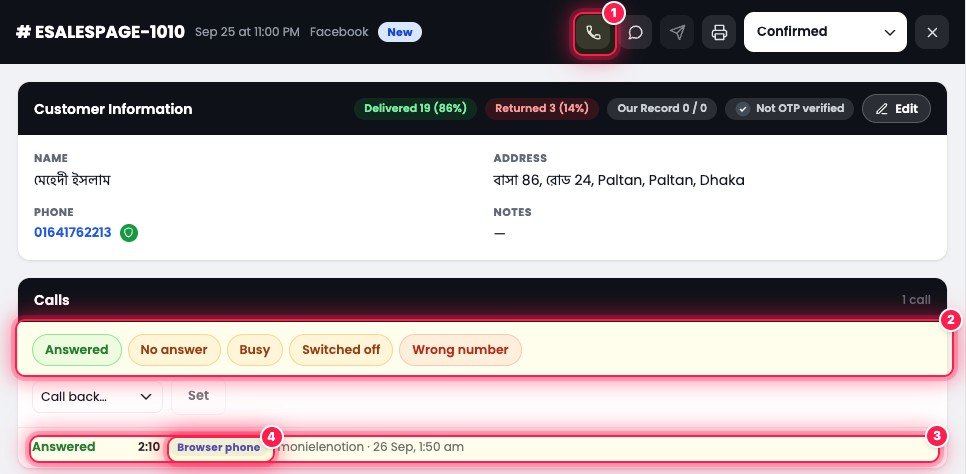
- 1Call button The 📞 button at the top of the order panel. The green 📞 button on every row of the Order Desk list does the same.
- 2Result buttons With the Browser phone on, the call result is saved automatically. If needed, correct it by hand with these buttons — Answered, No answer, Busy, Switched off, Wrong number.
- 3Call log lineAnswered 2:10 means the customer picked up and you talked for 2 minutes 10 seconds. Next to it: who called (monielenotion) and when (26 Sep, 1:50 am).
- 4Browser phone This label means the call went out from the browser and the system wrote the log itself. With recording on, a ▶ play button appears on this line.
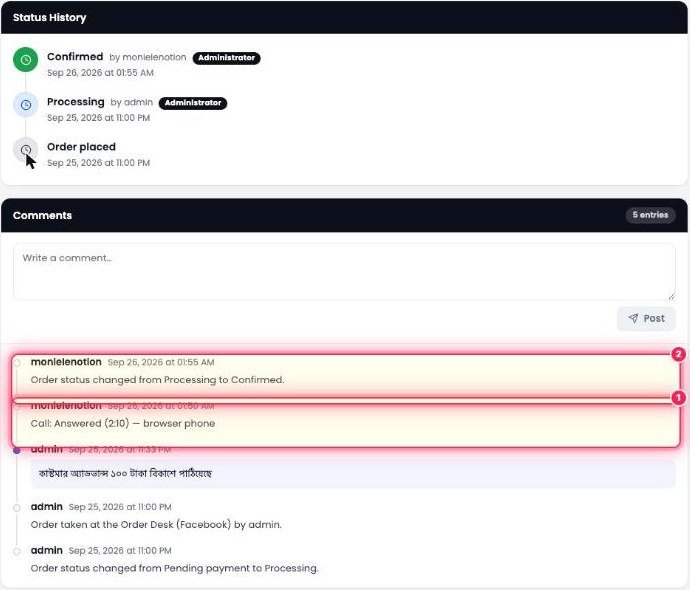
- 1Status changed 5 minutes after the call ended (01:55 AM), the status was changed from Processing to Confirmed — and it shows who did it.
- 2Call: Answered (2:10) — browser phone The call is also written to Comments automatically (01:50 AM). So anyone who opens the order later knows the customer was spoken to before it was confirmed.
⚙️ Setup — eSP Theme → Orders → Browser phone (SIP)
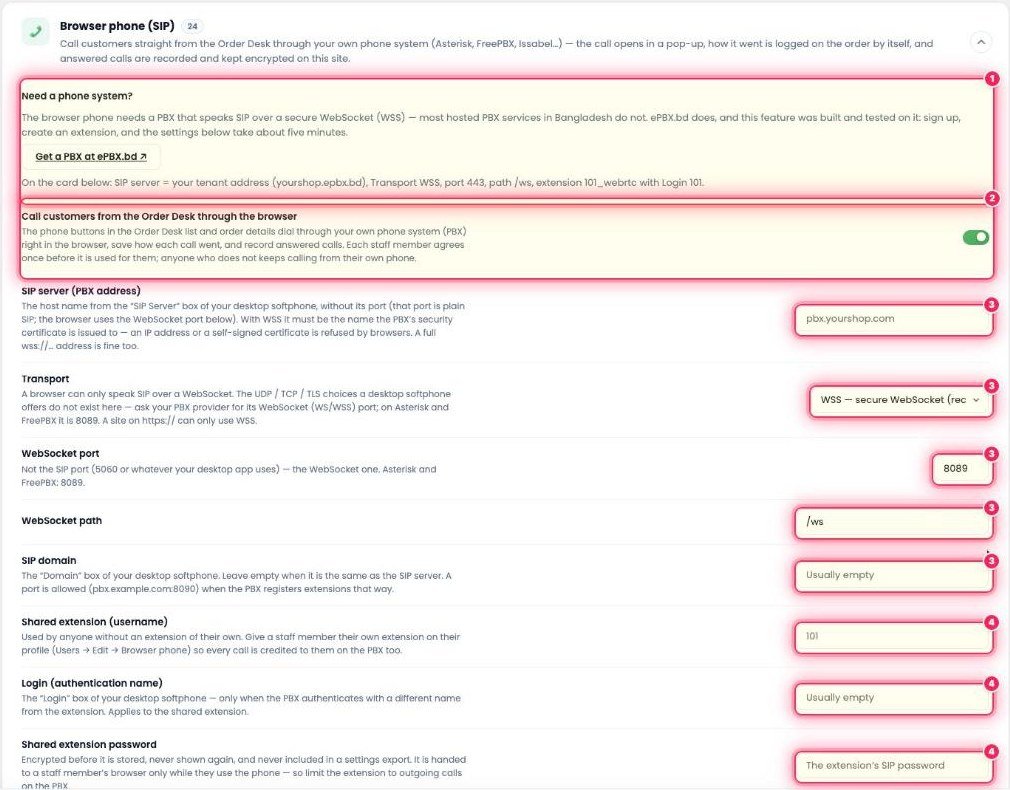
- 1Need a phone system? No PBX? Use Get a PBX at ePBX.bd. Below it lists what to enter for ePBX: SIP server = yourshop.epbx.bd, Transport WSS, port 443, path /ws, extension 101_webrtc, Login 101.
- 2Call customers from the Order Desk through the browser The main switch. When on, every 📞 button in Order Desk calls through the browser. Each staff member has to give consent once the first time; anyone who doesn’t keeps calling from their own mobile as before.
- 3SIP server, Transport, WebSocket port, path, SIP domain Your PBX’s address. Browsers can only talk over WebSocket, so keep Transport on WSS (that’s what works on an https site). On Asterisk/FreePBX the port is usually 8089; on ePBX it’s 443.
- 4Shared extension, Login, Password One common extension for everyone. Or give each staff member their own extension (Users → Edit → Browser phone) — then the PBX also shows who made which call. The password is stored encrypted and never shown.
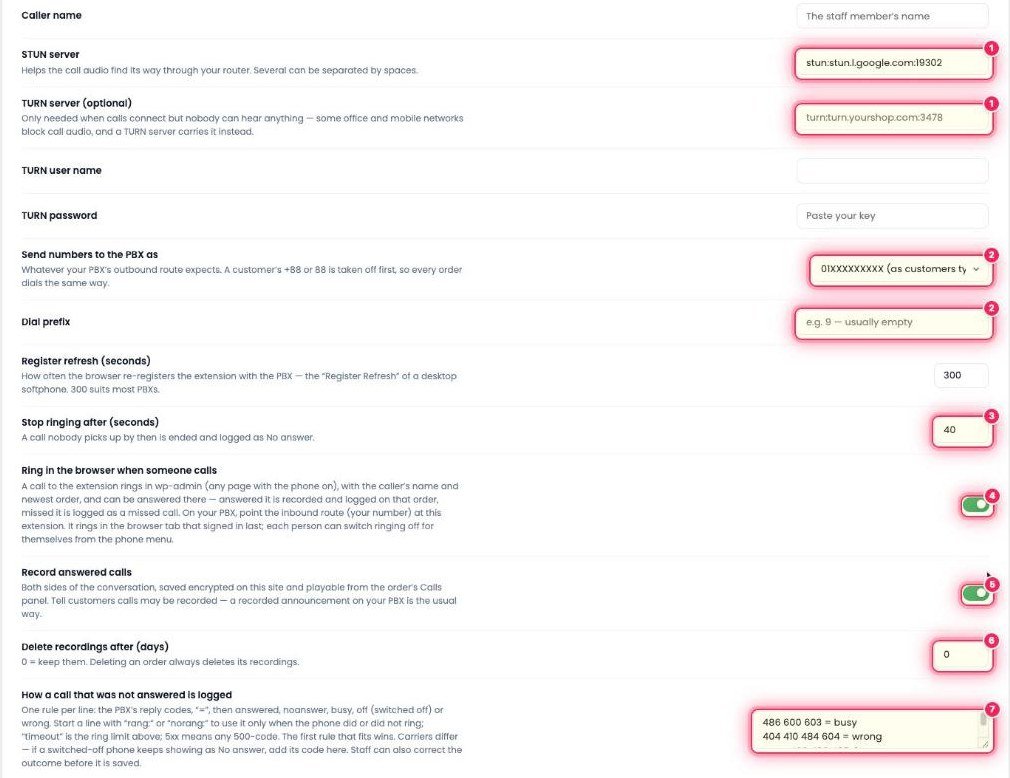
- 1STUN / TURN server Helps call audio get through routers properly. You only need a TURN server when calls connect but nobody can hear anything.
- 2Send numbers to the PBX as / Dial prefix The number format your PBX expects — 01XXXXXXXXX, 8801XXXXXXXXX or +8801XXXXXXXXX. Even if a customer typed +88, it’s stripped first, so every order dials the same way.
- 3Stop ringing after (seconds) If nobody answers within this many seconds, the call ends and is logged as No answer (default 40).
- 4Ring in the browser when someone calls When a customer calls your number, it rings in wp-admin — showing the customer’s name and their latest order. If you answer, it’s recorded and logged on that order; if not, it’s logged as a Missed call.
- 5Record answered calls When the customer answers, both sides of the conversation are recorded. Details in the section below.
- 6Delete recordings after (days) Recordings delete themselves after this many days. 0 = never delete.
- 7How a call that was not answered is logged Rules that read the PBX’s response code to decide whether a call was Busy, Wrong number, No answer or Switched off. For example 486 600 603 = busy. Every operator sends different codes, so you can add lines if needed. Staff can also correct the result before it saves.
✅ Steps to turn it on
- Get an extension from ePBX.bd (or any PBX that supports WSS).
- Open eSP Theme → Orders → Browser phone (SIP) and turn on the main switch.
- Enter the SIP server, Transport (WSS), port, path, extension and password.
- Click Save changes, then Test connection — it only signs the extension in to check; it doesn’t make a call.
- Click 📞 on any order in Order Desk — the first time, the browser asks for microphone permission; click Allow.
🎙️ Call recording — listen right inside the order
Any Browser phone call the customer answers is recorded automatically. No hunting for recordings in some folder — the ▶ play button sits right next to the call log in that order’s Calls panel.
- 1Where to listen Order Desk → the order’s 👁 View → Calls panel → ▶ on the call log line. In the demo above, choose “Answers” and finish the call to see it.
- 2Which calls are recorded Only calls the customer answered (Answered) — both outgoing calls and incoming calls from customers. No answer or Busy calls have nothing to record.
- 3Security Recordings are encrypted and kept on your own site, not on any outside service.
- 4How long they’re kept Set it with Delete recordings after (days). Deleting an order deletes its recordings too.
- 5Why it helps When a customer later says “I never ordered” or “I didn’t ask for this size”, you can play them the recording. You can also listen to how new staff talk to customers and train them.
🔐 Customers confirm their own order with OTP
After the order is placed, the thank-you page asks the customer one short question — “Should we call you to confirm your order?” If they say “No”, a code is sent to their mobile by SMS. Once they enter the code, the order becomes Confirmed by itself — nobody has to call. Entering the code proves the number is real and in the customer’s hands, which is all a confirmation call would have checked anyway.
What the customer sees — try it yourself
On the left is the customer’s phone, on the right your Order Desk. Click “Place order”, then choose Yes or No in the popup and watch how the order status changes. (The demo code is shown in the SMS bubble.)
Total: ৳650 (Cash on delivery)
Order Desk · #ESALESPAGE-2001
- No order yet
⚙️ Setup — eSP Theme → Checkout → Confirm the order on the thank-you page
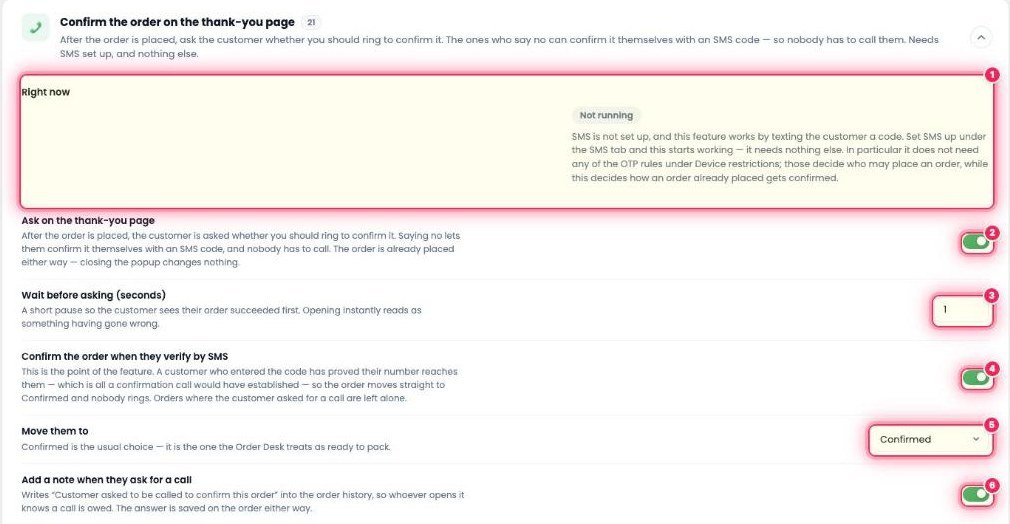
- 1Right now Whether the feature is currently running. On this site it says Not running — because SMS isn’t set up. Set up an SMS gateway in eSP Theme → SMS and it starts working; nothing else is needed.
- 2Ask on the thank-you page The main switch — whether to show the customer the question after ordering. The order is already placed, so even if the customer closes the popup, nothing about the order changes.
- 3Wait before asking (seconds) Pauses a moment before opening the popup, so the customer first sees their order went through. Opening it instantly can make it look like something went wrong.
- 4Confirm the order when they verify by SMS The heart of the feature — enter the right code and the order goes straight to Confirmed, no call needed. If the customer asked for a call, their order stays as it was.
- 5Move them to Which status the order moves to after the code is entered. Usually Confirmed, since Order Desk treats that as “ready to pack”.
- 6Add a note when they ask for a call If the customer says “Yes, call me”, the order history gets Customer asked to be called to confirm this order — so whoever opens it knows a call is pending.
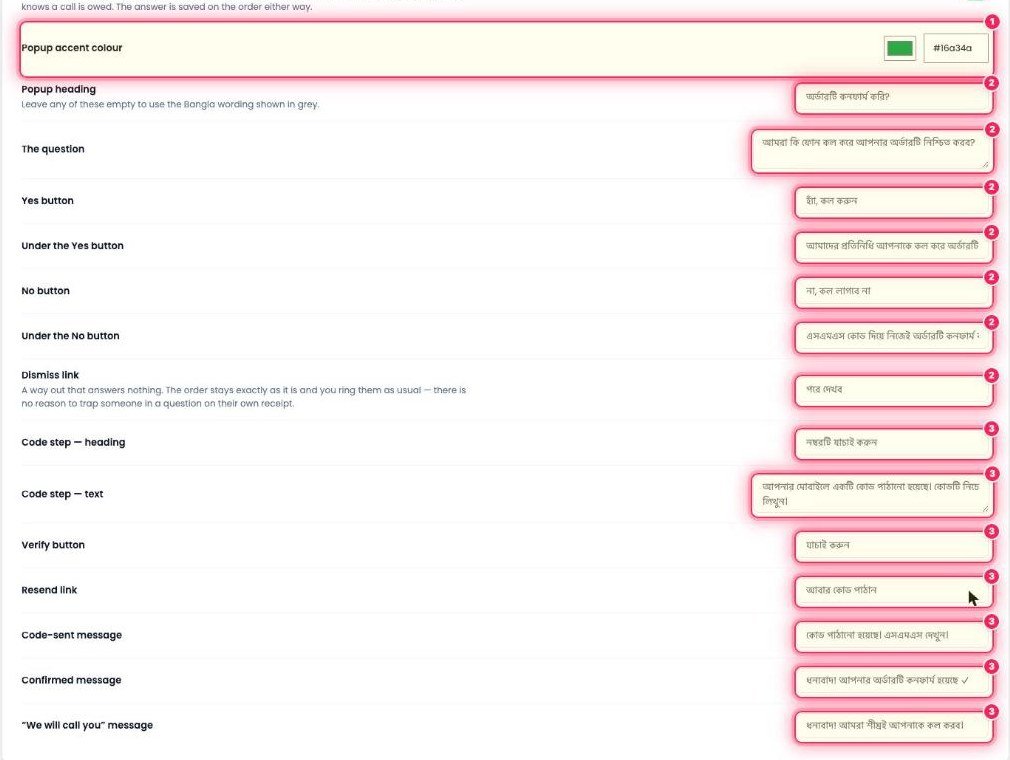
- 1Popup accent colour The color of the popup’s buttons and heading — match it to your brand.
- 2Question step Popup heading, the question, Yes/No buttons, the small text below them, and the Dismiss link (“I’ll look later”). Leave a field empty and the default Bangla text shown in grey is used.
- 3Code step Code step heading and text, Verify button, Resend link, and three messages — code sent, order confirmed, and “we’ll call you shortly”.
🤖 Automatic confirmation call — confirmation calls on their own
A few minutes after an order comes in, your phone system calls the customer itself and plays a message recorded in your voice — “Press 1 to confirm your order, press 2 to talk to our agent”. Whatever the customer presses, the order status changes automatically. Even a 2 AM order gets confirmed without anyone staying up.
Take the call yourself, as the customer
Click “New order comes in”. In the demo, the 3-minute wait is shown as 3 seconds. Then a call comes to the customer’s phone — answer it, reject it, or leave it ringing, and watch what happens to the order on the right.
No call yet
Order Desk · #ESALESPAGE-2002
- No orders yet
⚙️ Setup — eSP Theme → Orders → Automatic confirmation call
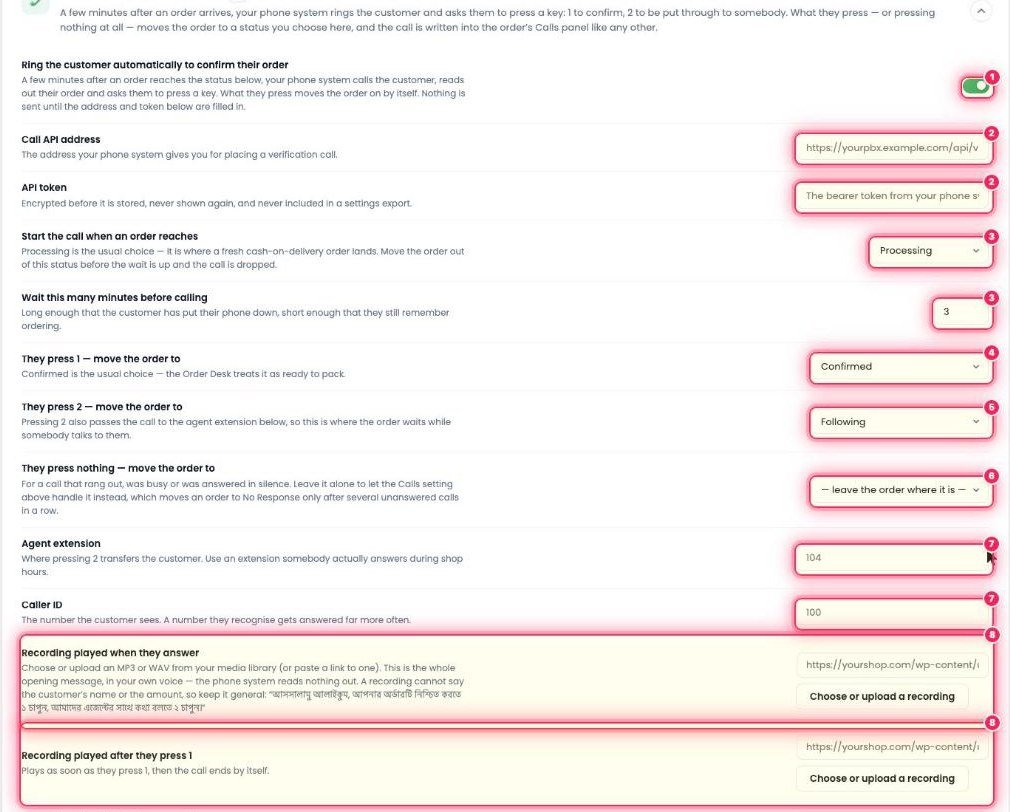
- 1Ring the customer automatically to confirm their order The main switch. No calls go out until you enter the API address and token below.
- 2Call API address / API token The address and token your phone system (PBX) gives you for making calls. The token is stored encrypted and never shown.
- 3Start the call when an order reaches / Wait this many minutes Which status triggers the call (usually Processing) and how many minutes later (e.g. 3). If you change the order’s status in the meantime, the call doesn’t go out.
- 4They press 1 — move the order to Where the order goes when they press 1 — usually Confirmed.
- 5They press 2 — move the order to Pressing 2 forwards the call to an agent, and the order waits in this status — e.g. Following.
- 6They press nothing What happens if the call dropped, was Busy, or they answered but pressed nothing. With “leave the order where it is”, the Calls setting below decides: only after several missed calls in a row does it become No Response.
- 7Agent extension / Caller ID Which extension the call goes to when they press 2 (where someone answers during shop hours), and which number shows on the customer’s phone. People answer more when they see a familiar number.
- 8Recordings Three MP3/WAV files — what plays when they answer, after pressing 1, and after pressing 2. Record them in your own voice, e.g.: “Assalamu alaikum, press 1 to confirm your order, press 2 to talk to our agent.” Without recordings, the phone system reads out a short sentence in its own voice.
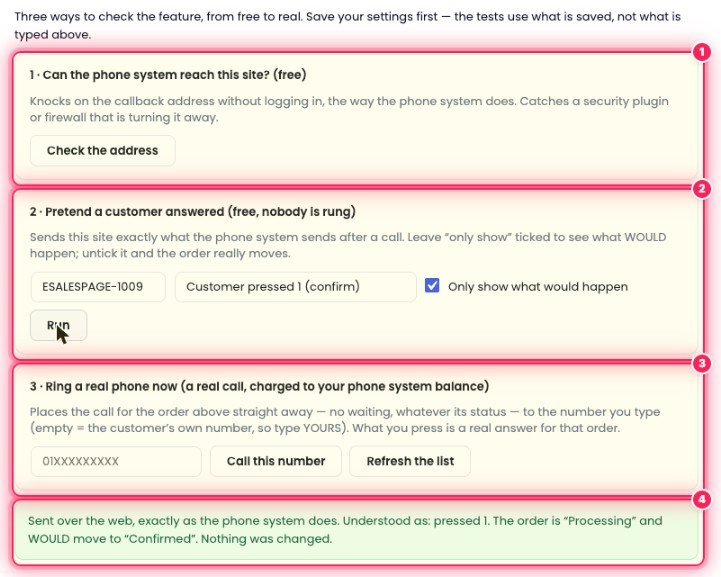
- 1Can the phone system reach this site? (free) Checks whether the phone system can send results back to your site. If a security plugin or firewall is blocking it, you’ll catch it here.
- 2Pretend a customer answered (free, nobody is rung) Without calling anyone, it assumes the customer pressed 1/2, pressed nothing, was Busy, or didn’t answer. With Only show what would happen ticked, nothing changes — it just shows what would have happened.
- 3Ring a real phone now A real call — hear the whole thing on your own number. This uses your PBX balance.
- 4Result The real result from running test 2 on this site: “pressed 1. The order is Processing and WOULD move to Confirmed. Nothing was changed.” — meaning the settings are correct.
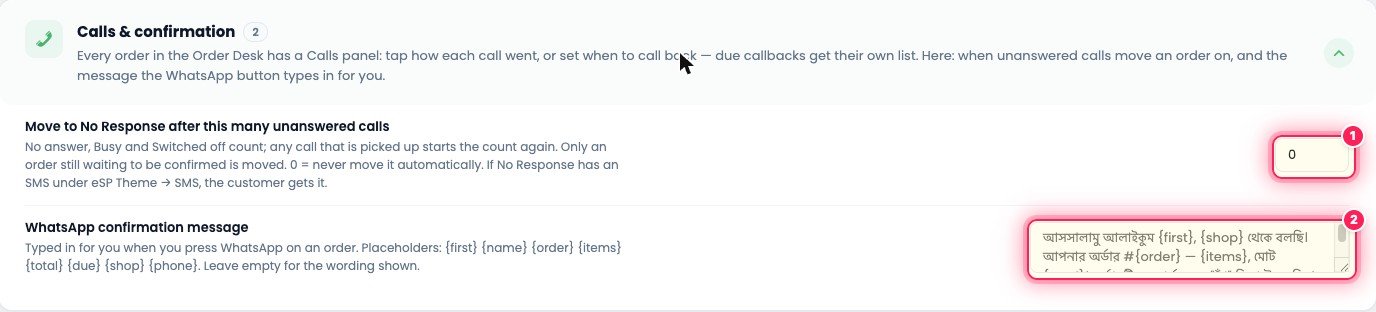
- 1Move to No Response after this many unanswered calls After this many unanswered calls in a row (No answer, Busy, Switched off), the order moves to No Response by itself. If they answer once in between, the count starts over. 0 = never move it automatically. If an SMS is set for No Response, the customer gets it.
- 2WhatsApp confirmation message The message that’s pre-typed when you press the order’s WhatsApp button. {first}, {order}, {items}, {total}, {due} and {shop} are replaced with the order’s real details.
✅ Steps to turn it on
- Get the Call API address and token from your PBX.
- Record three short Bangla messages and upload them to Media.
- Turn the switch on, fill in every field, then click Save changes.
- Test for free with 1 and 2 under Test it, and finally make one real call to your own phone with 3.
- Check Order Desk — every auto call is written to the order’s Calls panel just like any other call.
🧭 Which one to use when
| Method | What you need | Who does the work | Best for |
|---|---|---|---|
| Browser phone | A PBX with WSS support (e.g. ePBX.bd), a headset | Your staff, from the browser | When you want to talk to every customer to confirm, and need recordings and a call log |
| OTP confirmation | Just an SMS setup | The customer, on the thank-you page | Confirming more orders for less, and for night-time orders |
| Automatic confirmation call | A PBX with a Call API, 3 recordings | The phone system itself | Lots of orders, few staff — press 1 for Confirmed, 2 for an agent |
| Manual call (Calls panel) | Nothing | Staff, from their own mobile | When starting out or with few orders — log results with the result buttons |