



Stop fake orders right at checkout
The same person places fake orders again and again, switches numbers and tries again, and your courier charges go down the drain. With Blocking, stop them by phone, IP, browser or device — by hand or automatically — and use courier records to decide who can order directly, who needs an OTP, and who can’t order at all.
🛡️ Blocking — at a glance
The Blocking page shows who’s blocked, how many attempts were stopped, and what they were blocked by.

- 1Add a block · Settings Add a block by hand (section 3) and change the rules (from section 4).
- 2Blocked now How many blocks are active right now.
- 3Lifted or expired How many were lifted or have expired.
- 4Attempts stopped How many order attempts were stopped while blocked — each one is a courier charge saved.
- 5Phone numbers How many phone numbers are blocked.
- 6Devices & browsers How many devices or browsers.
- 7IP addresses How many IPs.
- 8Status Blocked now, Lifted or expired, All.
- 9Type and search Filter by Phone, IP, Browser or Device, or search by value, name, phone or note.
📋 The block list — what each row shows
What’s blocked, why, whose, how many attempts, and for how long.
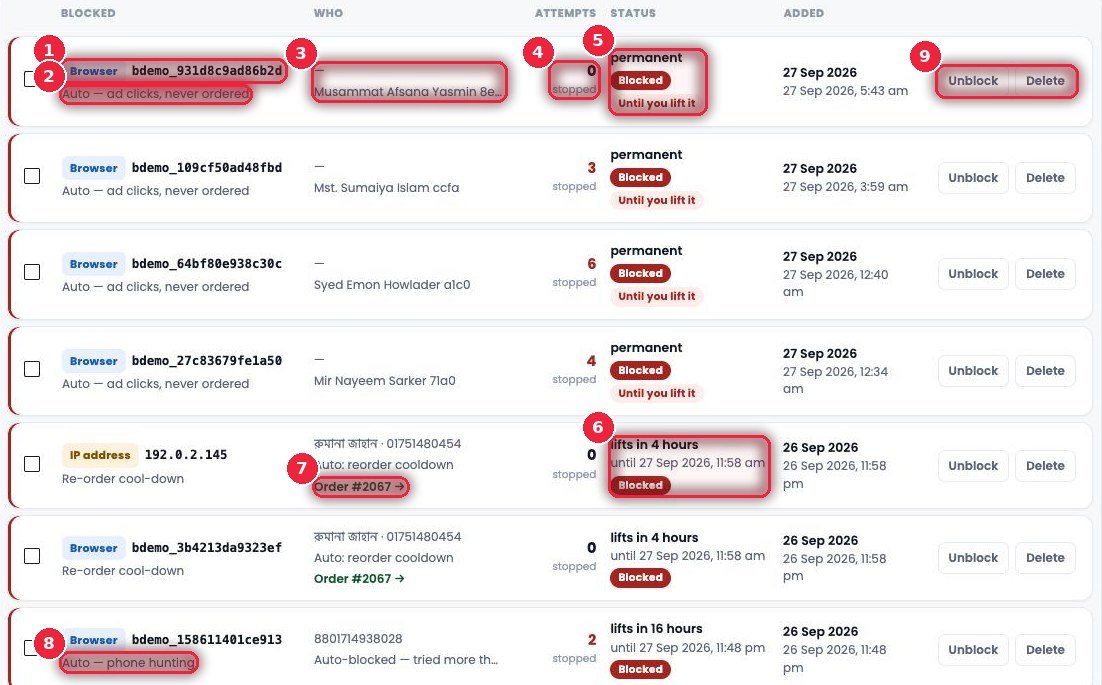
- 1Type and value Browser, IP address, Phone or Device — and its value.
- 2Reason e.g. “Auto — ad clicks, never ordered” (clicked ads repeatedly, never bought), which comes from Visitors.
- 3Who Which visitor or customer, name and phone.
- 4Attempts How many times they tried to order after being blocked.
- 5Permanent Stays until you lift it.
- 6Time limit e.g. “lifts in 4 hours” — lifts itself after this much time.
- 7Order link Which order the block came from — e.g. Re-order cool-down: after placing one order, they can’t order again for a while.
- 8Phone hunting Trying number after number to get around a block — “tried more than 3 different phone numbers”.
- 9Unblock · Delete Lift it if it was a mistake, or delete it completely.
✋ Blocking someone by hand
Most blocks happen from an order in Order Desk, where the phone, IP, browser and device are already known. If you have a number or IP in hand, do it from here.
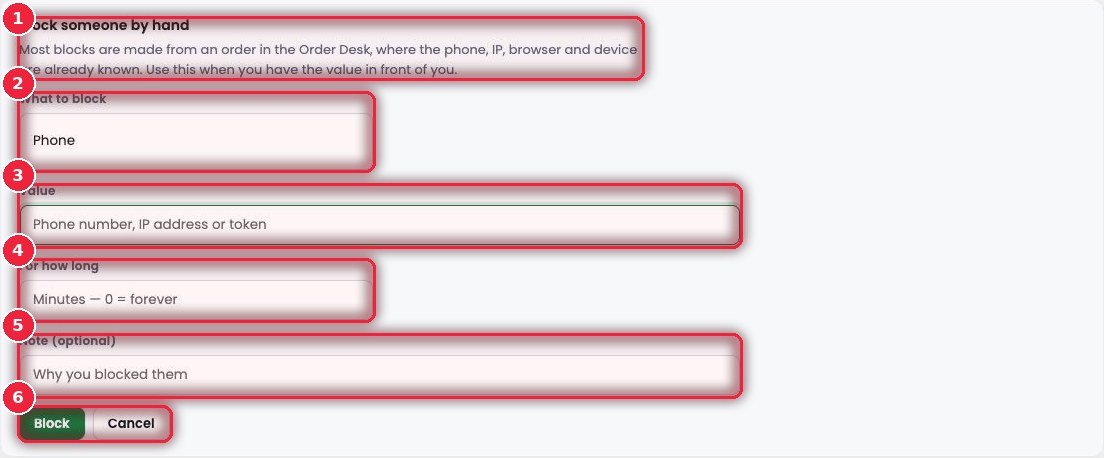
- 1When When you have the value in front of you — e.g. someone threatened you on the phone, or another shop owner shared a number.
- 2What to block Phone, IP address, Browser or Device.
- 3Value The number, IP or token.
- 4For how long How many minutes — 0 means forever.
- 5Note Why you blocked it — so anyone on the team understands later.
- 6Block · Cancel Save or cancel.
⚙️ Settings — turning blocking on and the real IP
eSP Theme → Blocking has six tabs. The first holds the main switch.
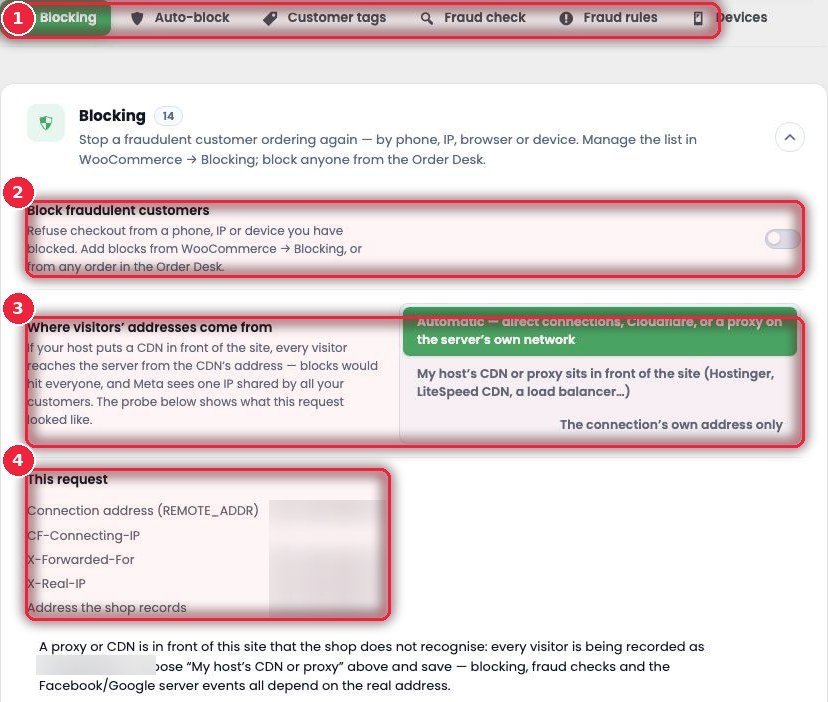
- 1Six tabs Blocking, Auto-block, Customer tags, Fraud check, Fraud rules, Devices.
- 2Block fraudulent customers When on, blocked phones, IPs or devices can’t check out. When off, the list is kept but doesn’t stop anyone.
- 3Where the visitor’s address comes from If your host’s CDN (Hostinger, LiteSpeed…) sits in front, everyone can appear with the same IP — then blocking one person blocks everyone. Set it correctly here.
- 4This request Which IP the server sees right now — check that it’s correct. Blocking, fraud check and server events all depend on the real IP.
🔢 Auto-block — when they switch numbers
Blocked fraudsters try again with new numbers. This counts how many different numbers come from the same device and blocks automatically. Works on every checkout form.
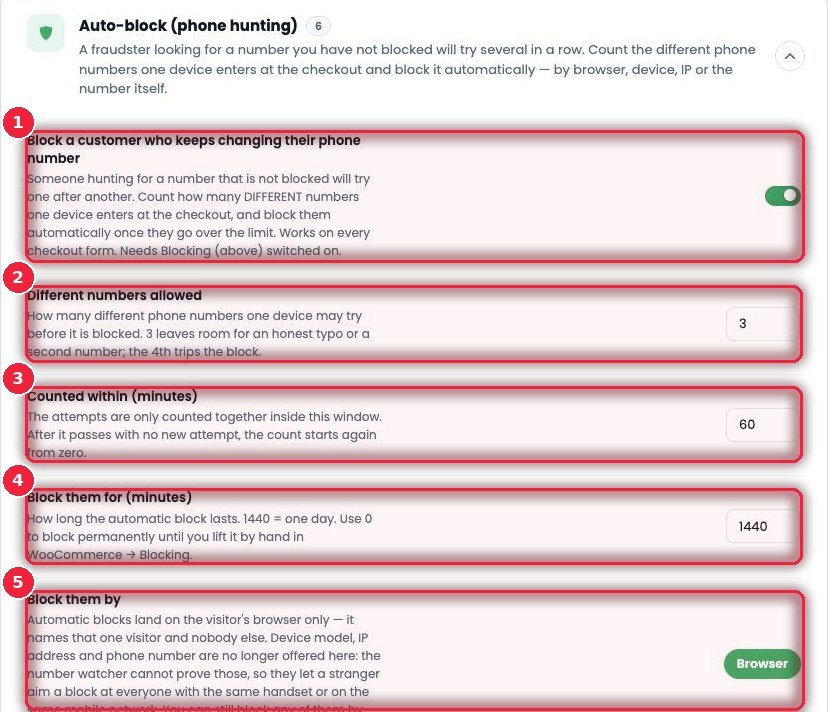
- 1Turn it on Blocking must be on.
- 2How many different numbers e.g. 3 — leaves room for a typo or a second number; the 4th one gets blocked.
- 3Within how many minutes Attempts within this window are counted together, then it resets to zero.
- 4How long to block e.g. 1440 = one day; 0 means until you lift it.
- 5What it blocks by Auto-block only sits on the browser — it stops exactly that person. Someone else with the same phone model or on the same mobile network isn’t blocked by mistake.
🏷️ Customer tags — tag and block by record
As soon as an order comes in, it looks up previous orders by phone number and tags it — New, Duplicated, Bad, On Way, Repeated. You decide which statuses count toward which tag. Tags show on every order in Order Desk.
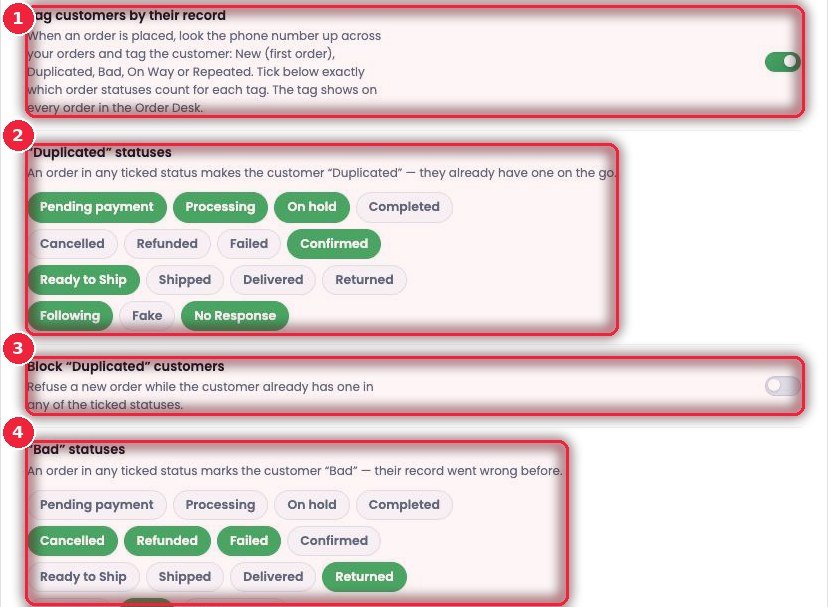
- 1Tag customers by their record Tagging on/off.
- 2“Duplicated” statuses If the customer has an order in one of these statuses, they’re Duplicated — meaning an order is already in progress.
- 3Block “Duplicated” Won’t take a new order while one is in progress.
- 4“Bad” statuses e.g. Cancelled, Refunded, Failed, Returned, Fake — if any of these happened before, they’re Bad.
🚚 Bad, On Way and Repeated
You choose which tags can’t place orders.
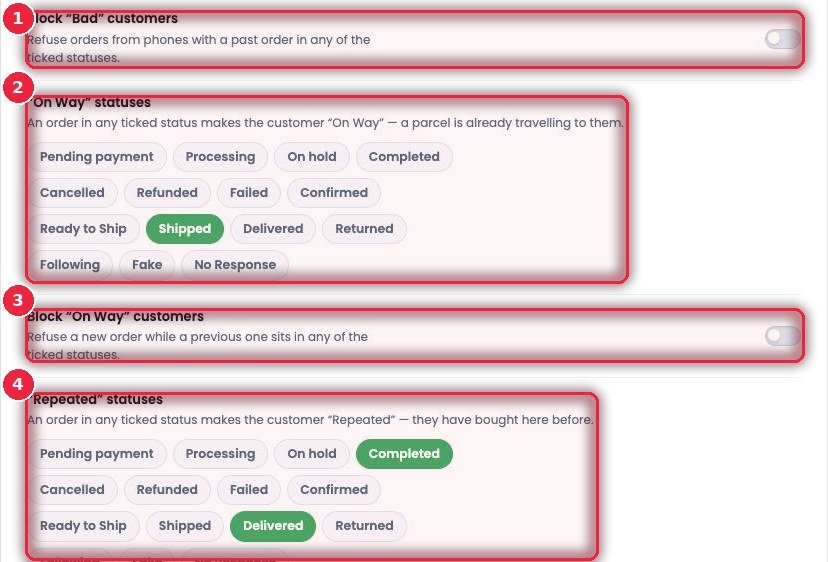
- 1Block “Bad” Won’t take the order if a previous order is in a Bad status.
- 2“On Way” statuses e.g. Shipped — a parcel is on the way right now.
- 3Block “On Way” Won’t take a new order before the previous one arrives.
- 4“Repeated” statuses e.g. Completed, Delivered — they’ve bought before.
🎁 Telling the customer why, and discounts for returning buyers
The last three settings.
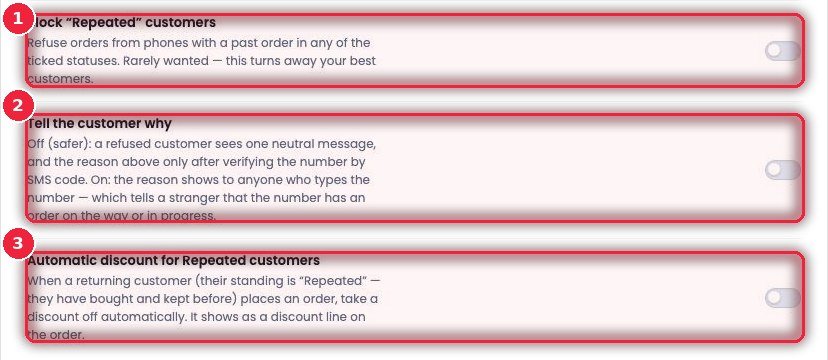
- 1Block “Repeated” Usually not needed — it turns away your best customers.
- 2Tell the customer why Off (safer): a blocked customer sees a general message, and sees the real reason only after verifying their number with an SMS code. On: the reason shows as soon as the number is typed — which could let a stranger learn that an order is in progress on that number.
- 3Auto discount for Repeated customers When a returning customer orders, a discount is taken off automatically and shown as a separate line on the order.
🔍 Fraud check — the customer’s courier record
Know before you send a rider — how many deliveries and returns this customer has across the country’s couriers. Shows on the Delivery Analysis card of every order in Order Desk.
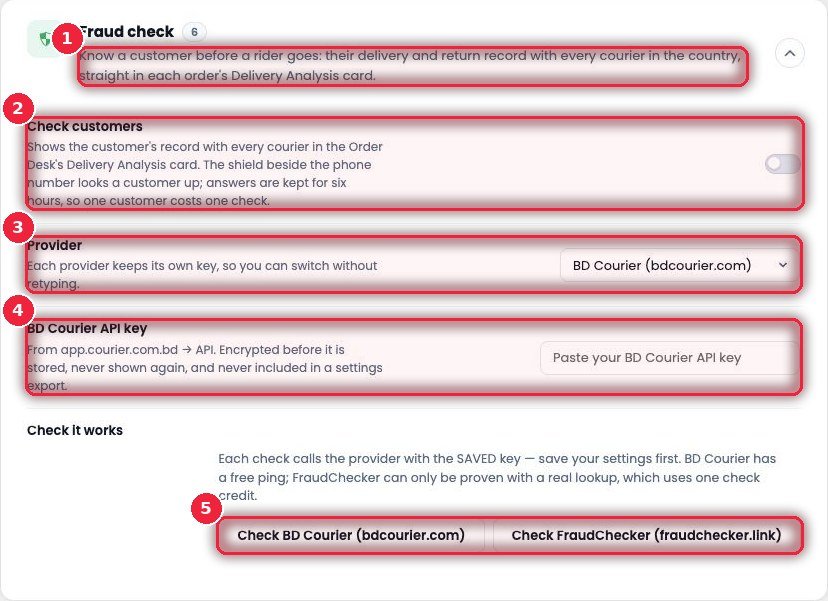
- 1What it does Records from all couriers.
- 2Check customers When on, a shield icon appears next to the phone number. Answers are kept for 6 hours, so you pay only once per customer.
- 3ProviderBD Courier or FraudChecker — each keeps its own key, so switching doesn’t mean retyping.
- 4API key Saved encrypted, never shown again, and not included in settings exports.
- 5Check it works Test it after saving.
⚖️ Fraud rules — checkout decisions based on the record
The courier record decides at checkout automatically: good customers order without OTP, risky customers enter an SMS code, and if the cancel rate is over the limit, the order isn’t accepted at all.
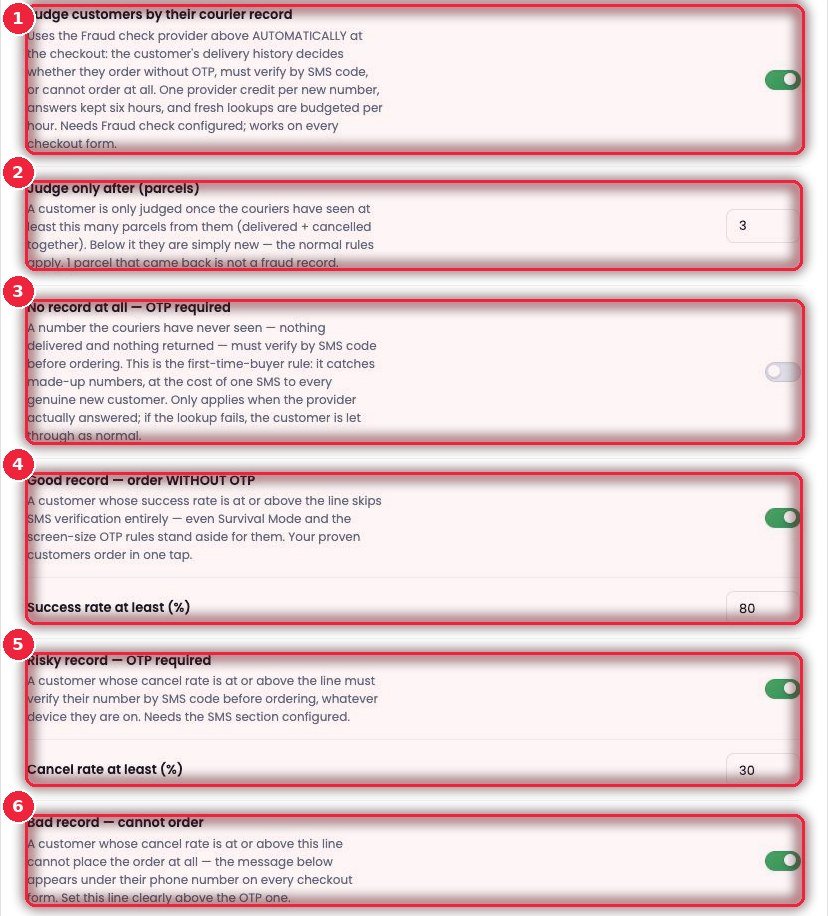
- 1Judge customers by their courier record Fraud check must be set up. One credit per new number, answers kept for 6 hours, and there’s a limit on new lookups per hour.
- 2Judge only after (parcels) Only judge once the courier has at least this many parcels — one returned parcel isn’t a fraud record.
- 3No record — OTP A number the couriers have never seen must enter an SMS code — catches made-up numbers, but costs one SMS for every genuinely new customer. If the lookup fails, the customer goes through normally.
- 4Good record — no OTP With a success rate of e.g. 80% or more, no OTP is needed — Survival Mode and screen-size OTP rules step aside for them too. Loyal good customers order in one tap.
- 5Risky record — OTP With a cancel rate of e.g. 30% or more, an SMS code is required.
- 6Bad record — no order If the cancel rate is higher still, the order isn’t accepted — your message shows under the phone number. Keep this limit well above the OTP limit.
📱 Devices — which screen the order comes from
Strict rules for when a wave of fraud hits — OTP on every order, OTP on computers, OTP on very small screens, or no orders from computers at all.
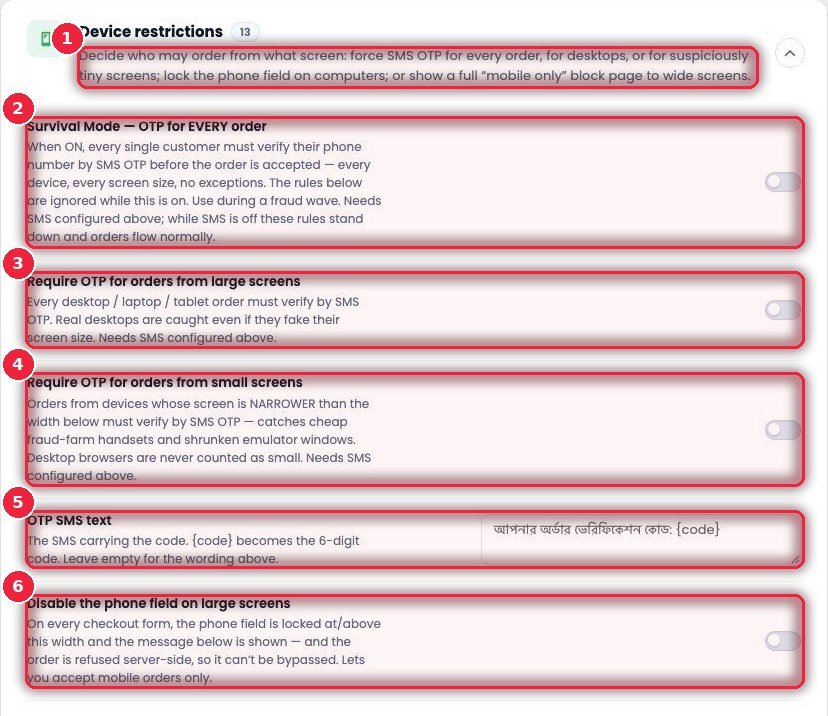
- 1What you can do Decide who can order from which screens.
- 2Survival Mode When on, every order needs an SMS OTP — no exceptions. Use it during a fraud wave. Without SMS, this rule steps aside and orders go through normally.
- 3OTP on large screens OTP for orders from desktops, laptops and tablets — caught even if the screen size is faked.
- 4OTP on small screens Screens narrower than a set width — catches cheap fraud-farm handsets and shrunk emulators.
- 5OTP SMS text The text of the code SMS; {code} is replaced with the 6-digit code.
- 6Phone field off on large screens The phone field is locked on computers and the server rejects the order too — it can’t be bypassed. Use this if you only want orders from mobiles. You can also show a full “mobile only” page on large screens.