



Fake orders won’t lock up your stock anymore
Standard WooCommerce reduces stock the moment an order comes in — even for fake or unconfirmed orders. So your website shows “Out of stock” while the goods are sitting in your shop. With eSP Stock you decide when stock goes out and when it comes back, and every movement is recorded.
📦 Stock page — the top part and key numbers
Open the page and you’ll see what you have, what’s sold but not yet shipped, and what’s running out.
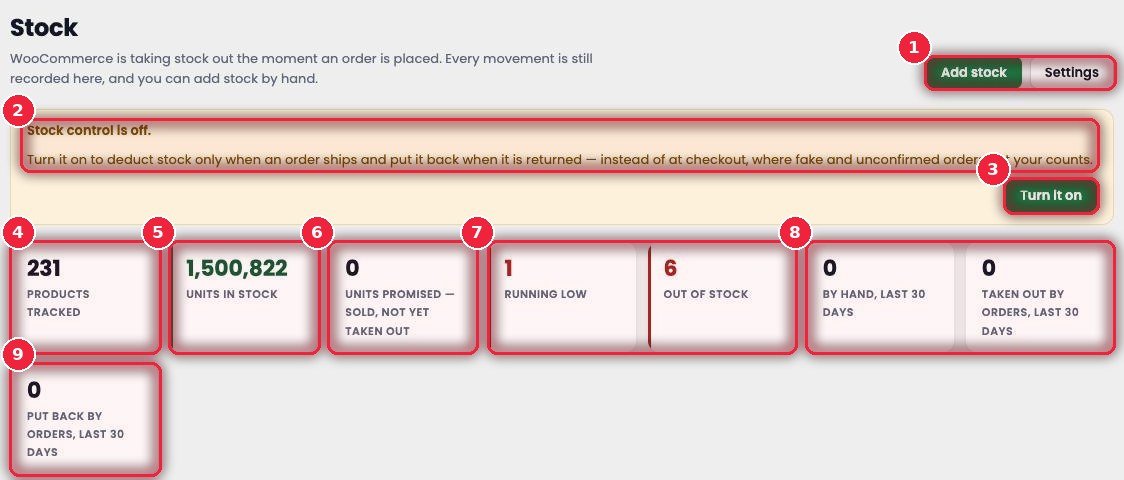
- 1Add stock · Settings Add stock by hand (section 4 below) and change the stock rules (sections 5–6).
- 2Stock control message If stock control is off, it tells you that WooCommerce is currently deducting stock at checkout.
- 3Turn it on Switch it on in one click — then stock only goes down when the parcel ships, and comes back if it’s returned.
- 4Products tracked How many products/variations are being counted.
- 5Units in stock Total pieces on hand.
- 6Units promised Sold but not yet shipped — subtract these to see how many you can actually sell.
- 7Running low · Out of stock How many products are nearly out and how many are completely out.
- 8Last 30 days of movement How much was added/removed by hand and how much went out with orders.
- 9Put back by orders How many pieces came back from returns or cancellations.
📋 Products — stock for each product
Each product and variation on its own row. A red stripe on the left means out of stock; yellow means running low.
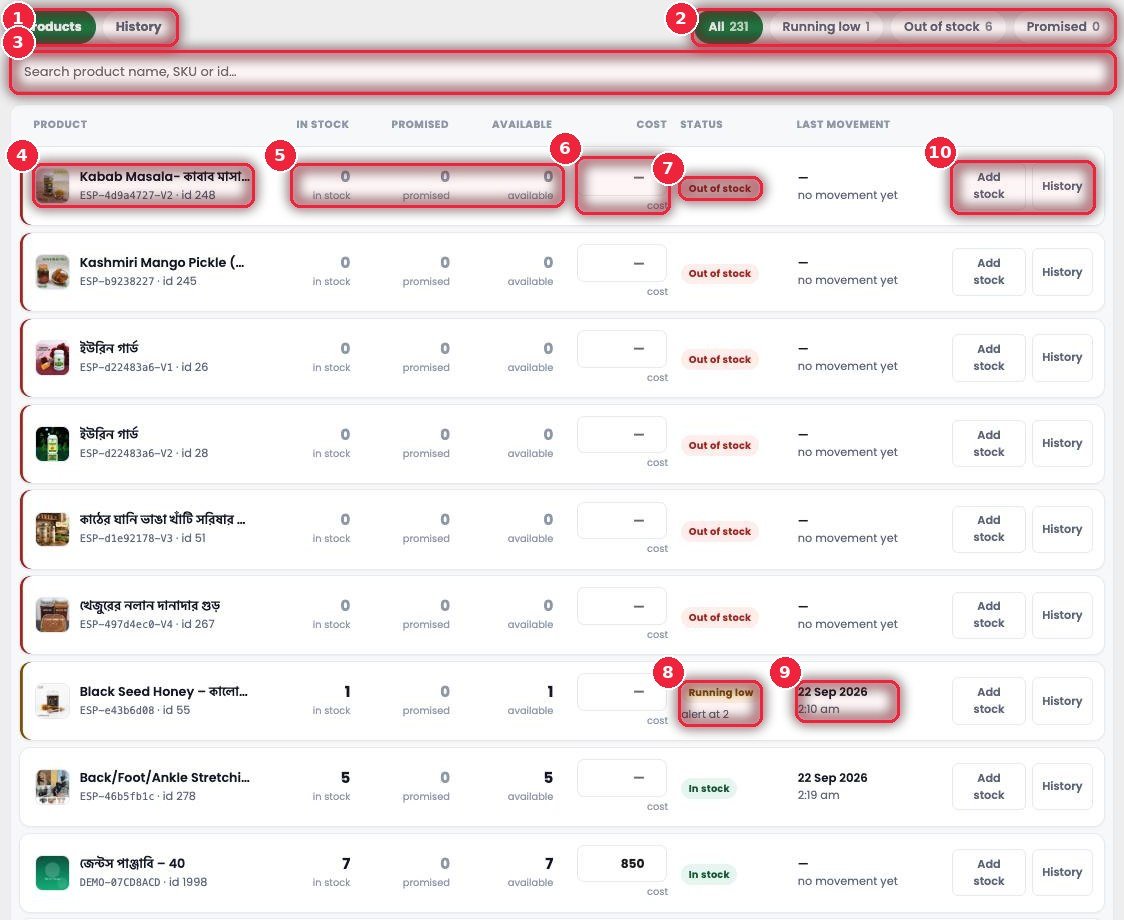
- 1Products · History The stock list and the ledger of every movement.
- 2FiltersAll, Running low, Out of stock, Promised — with counts.
- 3Search By product name, SKU or id.
- 4Product Image, name, SKU and id.
- 5In stock · Promised · Available How many you have, how many are sold and waiting to ship, and how many you can actually sell.
- 6Cost Enter the purchase price right here — the Dashboard’s profit numbers come from this.
- 7Out of stock Status label.
- 8Running low Running low, and the level at which it warns you (e.g. alert at 2).
- 9Last movement When the stock last changed.
- 10Add stock · History Add stock to this product directly, or view only its ledger.
➕ Adding, removing or correcting stock by hand
New goods arrived from a supplier, you counted the warehouse and the numbers don’t match, or something got damaged — pick the product, enter the number, and leave a note so you know later why it changed.
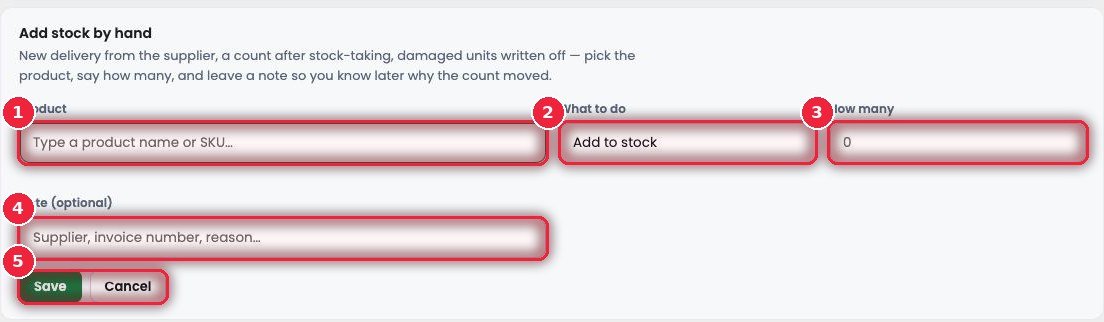
- 1Product Type a name or SKU and it finds it.
- 2What to doAdd to stock, Remove from stock, or Set the exact count (enter exactly what you counted).
- 3How many How many pieces.
- 4Note Supplier name, invoice number, or the reason — e.g. “2 broken”.
- 5Save · Cancel Once saved, it goes straight into History.
🕒 History — a ledger of every movement
Who changed the stock, when and why — it’s all written down. The ledger is always kept, whether stock control is on or not.
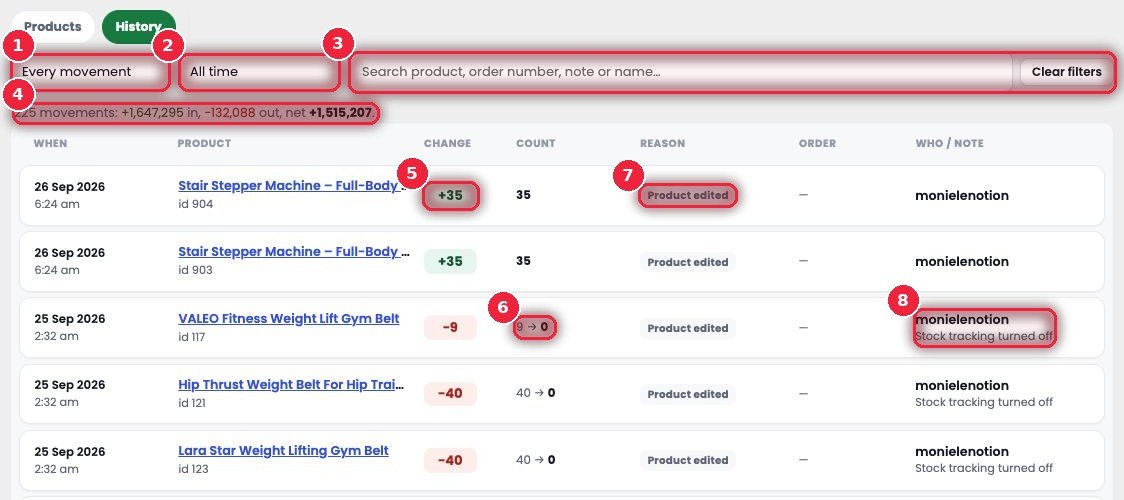
- 1Type of movement All, only in, only out, by hand, out with an order, back from an order, back from a refund, order edit or product edit.
- 2Period Today, yesterday, 7/30/90/365 days, or your own dates.
- 3Search By product, order number, note or name. Use Clear filters to show everything again.
- 4Summary How many movements, total in, total out, and the net change.
- 5Change How much it changed — green added, red removed.
- 6Count What it was before → what it is now.
- 7Reason Why it changed (Product edited, Order, By hand…) and on which order.
- 8Who / note Who changed it and their note.
⚙️ Settings — when stock goes out, when it comes back
The rules live in eSP Theme → Stock. With stock control on, nothing is deducted at checkout — only at the status you choose.
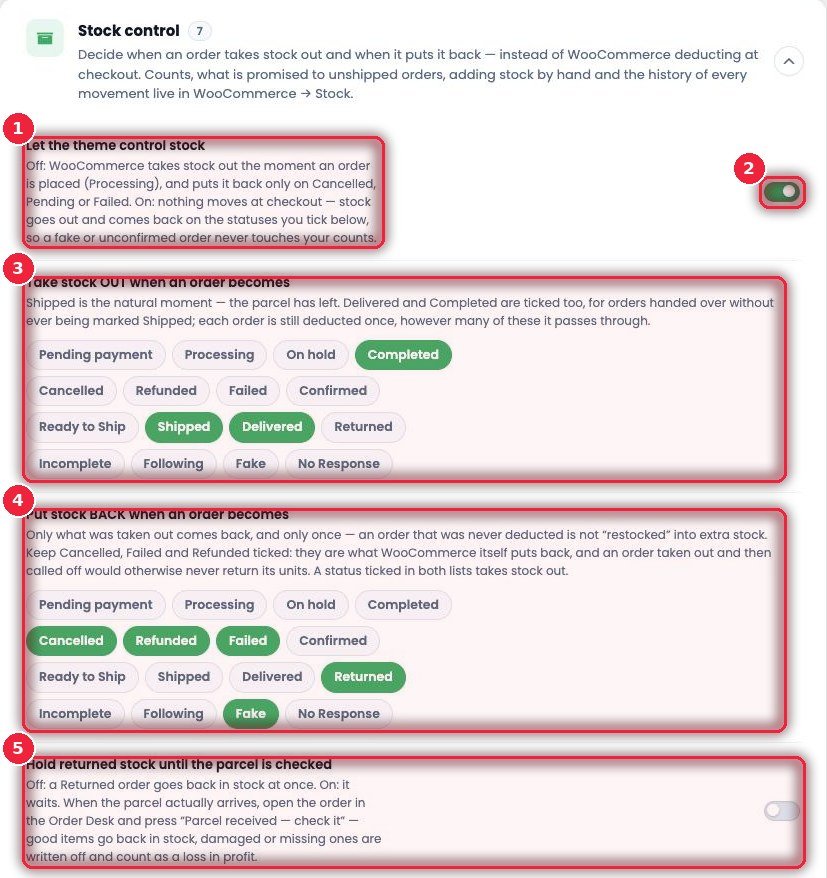
- 1Why you need it When it’s off, WooCommerce deducts stock as soon as the order comes in (Processing) and only gives it back on Cancelled, Pending or Failed. When it’s on, fake or unconfirmed orders don’t touch your stock count.
- 2On/off switchLet the theme control stock.
- 3Take stock OUT The status at which stock goes out — normally Shipped (the parcel has left). Delivered and Completed are ticked too, in case an order gets delivered without passing through Shipped. However many statuses an order goes through, stock is deducted only once.
- 4Put stock BACK The statuses at which it comes back — Cancelled, Refunded, Failed, Returned, Fake. An order that never had stock deducted won’t create extra stock when it’s put back.
- 5Hold returned stock When on, returned parcels don’t go straight back into stock. Once you have the parcel in hand, click “Parcel received — check it” in Order Desk — good items go back into stock, and damaged or missing items are counted as a loss in your profit numbers.
📬 Return parcel reminders and “promised” counts
Catch it when the courier is slow to return parcels, and see how much stock is actually free to sell.
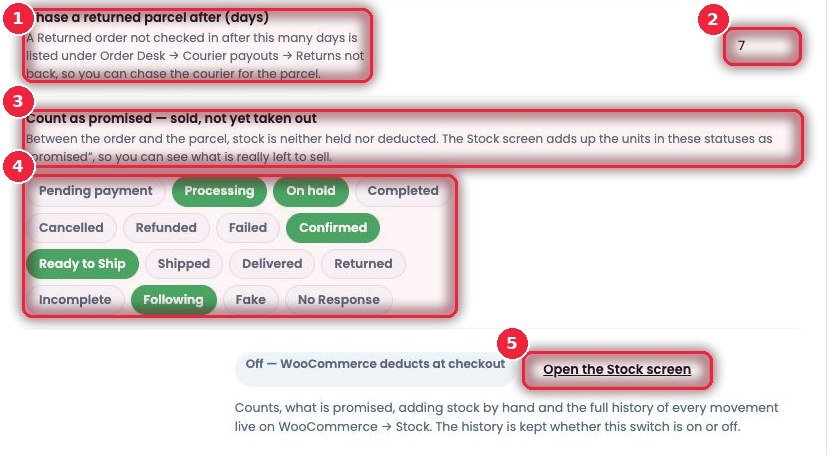
- 1Chase a returned parcel If a Returned order isn’t back in your hands within this many days…
- 2Days …it shows up in Order Desk → Courier payouts → Returns not back, so you can chase the courier.
- 3Count as promised Between the order and the parcel leaving, stock is neither deducted nor held — it just adds up the pieces in these statuses and shows them as “promised”.
- 4Which statuses count as promised e.g. Processing, On hold, Confirmed, Ready to Ship, Following.
- 5Open the Stock screen Go straight to the Stock page.