


See where your ad money is really going
Who came from which ad, how many times, and whether they bought — for every visitor individually. Which campaigns and ad sets actually bring in money, and who keeps clicking your ads but never buys — all in one place.
👣 At a glance — visitors and filters
The Visitors page shows the full picture at the top, then ways to filter by date and group.
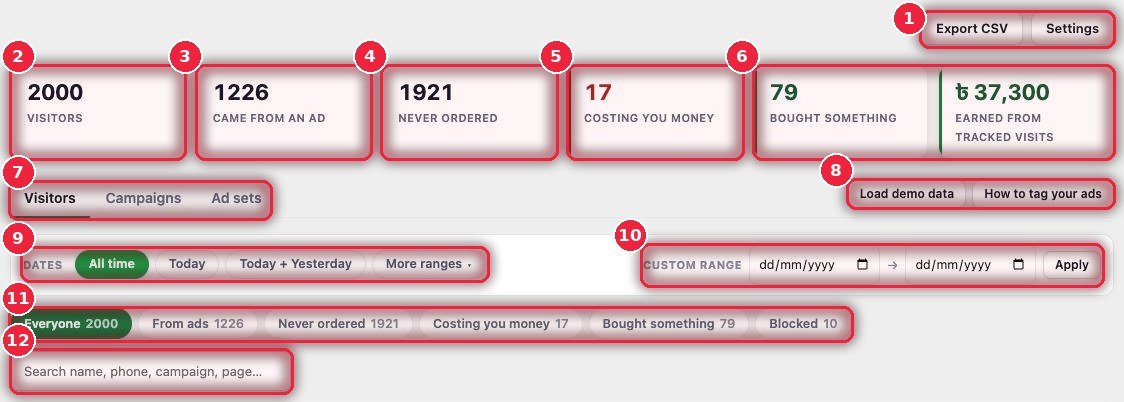
- 1Export CSV · Settings Download the list (e.g. to build an exclusion audience in Ads Manager), and change the tracking rules.
- 2Visitors How many in total (each browser counts as one).
- 3Came from an ad How many arrived by clicking an ad.
- 4Never ordered How many have never ordered.
- 5Costing you money Clicked ads repeatedly but didn’t buy — over the limit you set (section 8 below).
- 6Bought · Earned How many bought and how much money came from these tracked visits.
- 7Three tabsVisitors (each person), Campaigns, Ad sets.
- 8Load demo data · How to tag your ads Try it with sample data, and see what tags to put on your ads (section 6).
- 9Dates All time, today, today + yesterday, more ranges.
- 10Custom range Your own dates.
- 11Groups Everyone, From ads, Never ordered, Costing you money, Bought something, Blocked — with counts.
- 12Search By name, phone, campaign or page.
📋 The visitor list
Each row is one visitor. Until they place an order, they’re just a browser and a nickname — no personal information is stored and no cookie is set.
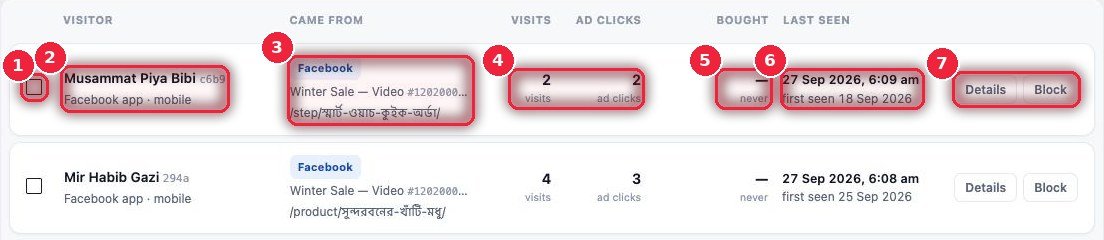
- 1Checkbox Pick a few to act on together.
- 2Visitor Nickname and short ID, which browser, and phone or computer.
- 3Came from Where from (Facebook, Google, direct…), which campaign, and the first page they landed on.
- 4Visits · Ad clicks How many times they came and how many of those were ad clicks.
- 5Bought Whether they bought.
- 6Last seen When they last came, and when they first came.
- 7Details · Block See full details, or block them directly if suspicious.
🔍 One visitor’s full details
Click Details and it opens on the side — who, from where, which ad, what they viewed.
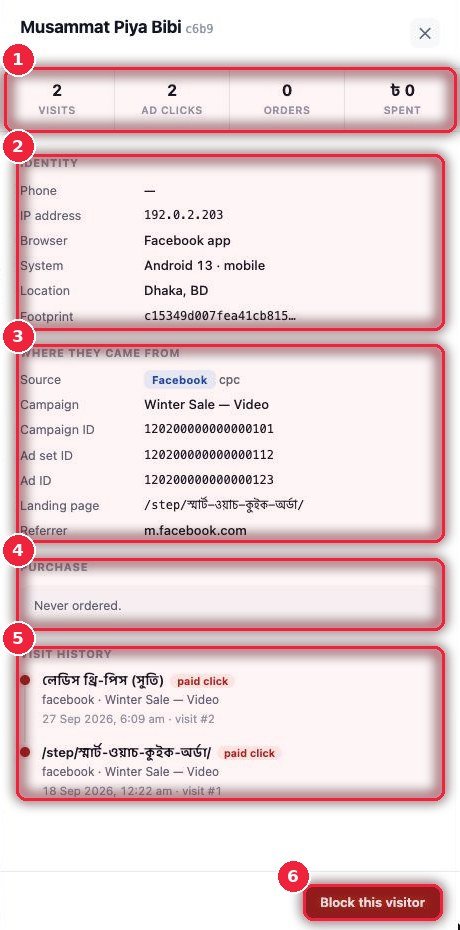
- 1Summary How many visits, ad clicks, orders, and how much they spent.
- 2Identity Phone (if they ordered), IP, browser, phone/computer, area and footprint.
- 3Where they came from Source, campaign, campaign/ad set/ad IDs, first page and referrer.
- 4Purchase Whether they ordered.
- 5Visit history Every visit — which page, from which ad, when, and whether it was a paid click.
- 6Block this visitor Block right from here.
📣 Campaigns — which campaign actually brings sales
Ads Manager tells you how many people clicked. Here you see how many of them actually bought and how much money came in.
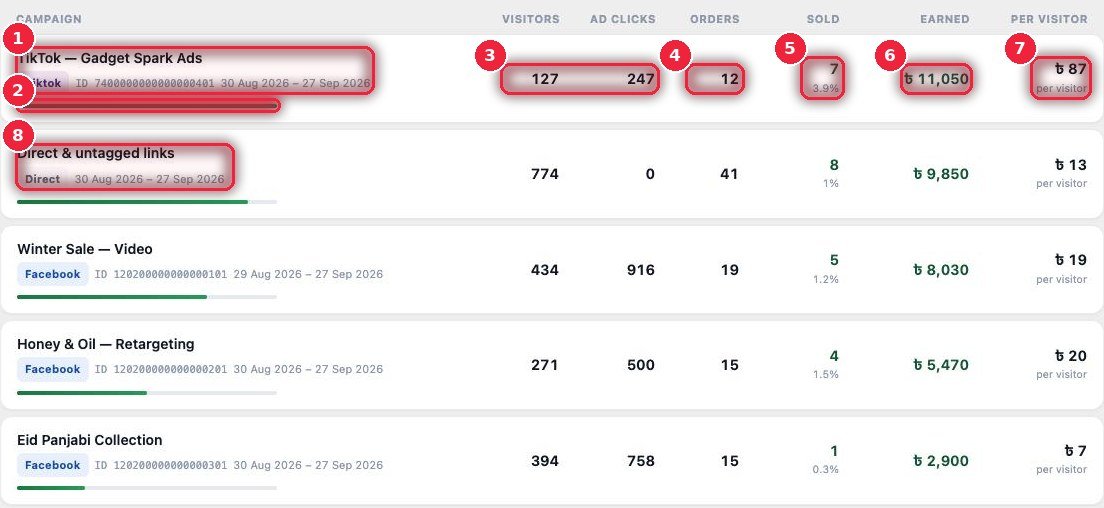
- 1Campaign Name, platform (Facebook, TikTok…), ID, and from when to when.
- 2Bar How much money it brought compared with other campaigns.
- 3Visitors · Ad clicks How many people came and total clicks.
- 4Orders How many orders came in.
- 5Sold How many orders turned into successful sales, and as a % of visitors.
- 6Earned How much money came in.
- 7Per visitor Money per visitor — compare with your ad cost to see whether you’re making a profit.
- 8Direct & untagged Visitors from untagged links or who came directly, on a separate line.
🎯 Ad sets — which audience is working
Within the same campaign, which audience (ad set) is bringing real sales.
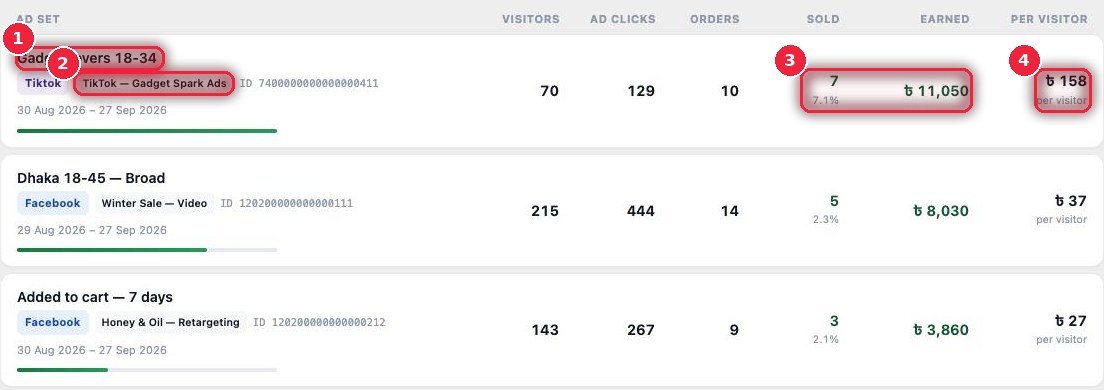
- 1Ad set The audience name — e.g. “Dhaka 18-45 — Broad” or “Added to cart — 7 days”.
- 2Which campaign Platform and campaign name.
- 3Sold · Earned How many sold, what %, and how much money.
- 4Per visitor Earnings per visitor — decide here which audience deserves more budget.
🏷️ Tagging your ads — copy-paste once
Click How to tag your ads to see what to add. Add it once and Facebook fills in the real names and IDs on every click.
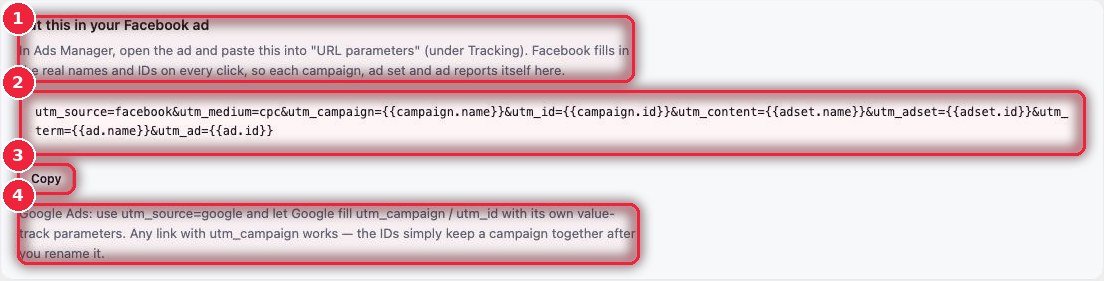
- 1Where to put it In Ads Manager, open the ad and paste it into “URL parameters” under Tracking.
- 2What to put The whole line — campaign, ad set and ad names and IDs.
- 3Copy Copy in one click.
- 4Google Ads Set utm_source=google; Google fills in the rest with its own value-track. utm_campaign is enough — with an ID, the numbers stay together even if you rename the campaign.
⚙️ Settings — what gets tracked
Turn it on in eSP Theme → Visitors. No cookies are set, and no personal information is stored until someone orders.
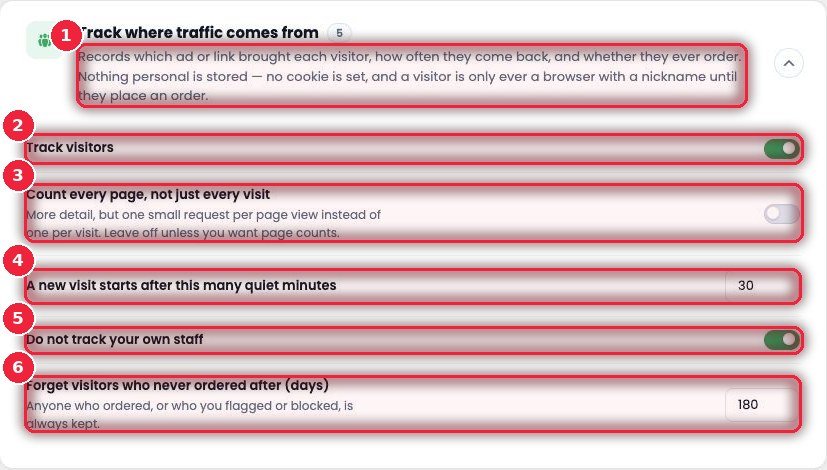
- 1What it does Which ad or link they came from, how many times they came back, and whether they ever ordered.
- 2Track visitors On/off.
- 3Count every page Whether to count every page — more data, but one small request per page. Keep it off if you don’t need it.
- 4When a new visit starts After how many quiet minutes the next visit counts as new (e.g. 30).
- 5Exclude your own staff Your team viewing the site isn’t counted.
- 6Delete old visitors Forgets visitors who never ordered after this many days. Anyone who ordered, or whom you flagged/blocked, is always kept.
🚨 Clicks ads again and again, never buys
Rules to catch clicks that waste your ad money. But to be honest: this counts clicks from one browser.
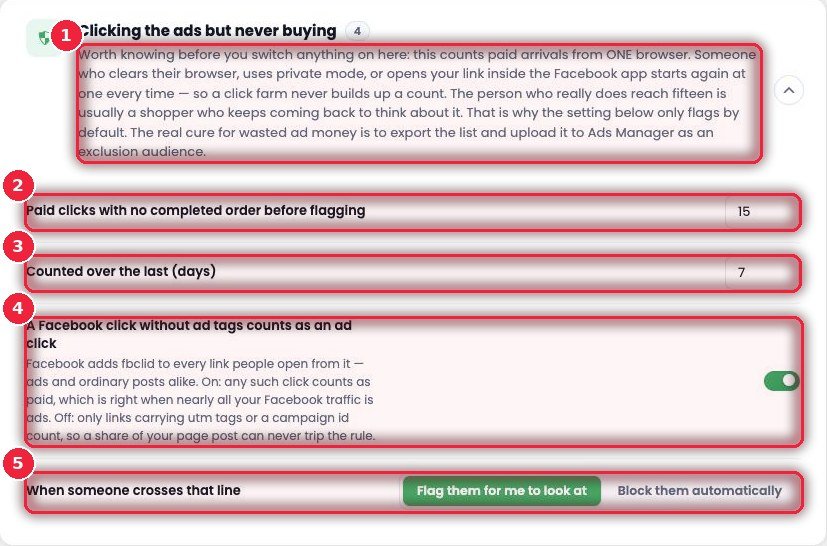
- 1Know this first If someone clears their browser, uses private mode or opens the link inside the Facebook app, the count starts again from one — so click farms aren’t caught here. Someone who really comes 15 times is usually a genuine buyer who’s still thinking. That’s why by default it only flags them. The real way to save ad money is to export the list and build an exclusion audience in Ads Manager.
- 2How many paid clicks Flag after this many ad clicks without an order (e.g. 15).
- 3Within how many days Over what period (e.g. 7 days).
- 4Untagged Facebook clicks Facebook adds fbclid to every link — ad or normal post. When on, every Facebook click counts as paid (use this if nearly all your traffic comes from ads). When off, only links with utm or a campaign id count.
- 5When the limit is crossedFlag them for me to look at (you decide after looking) or Block them automatically.