


Every customer’s full history in one place
Who bought before, who keeps returning parcels, who hasn’t ordered in a long time — everything is worked out automatically by phone number. Pick customers from there and send an SMS, or set rules so the right SMS goes out at the right time on its own.
👥 Tabs and key numbers
CRM has four tabs, with a summary of your whole customer base at the top.

- 1Four tabsCustomers (all customers), Campaigns (group SMS), Automations (SMS that send themselves) and SMS History (every message sent).
- 2Customers How many different phone numbers have ordered so far.
- 3Repeat customers How many bought more than once, and what % of all customers that is. Growing this number is where the real profit is.
- 4Orders Total orders.
- 5Delivered How many were delivered and what %.
- 6Revenue Total sales amount.
🔎 Search, tag filters and export
Every phone number that has ever ordered is in this list. Filter by tag, sort by any column, and open a customer to see the whole story.

- 1Customers A short explanation of what’s in this section.
- 2Export CSV Download the list to Excel/Sheets — for your own records or to use elsewhere.
- 3Rebuild all Recalculates every customer’s numbers from scratch — useful after importing old orders.
- 4TagsAll, New, Repeated, On Way, Duplicated, Bad — with counts. Filter in one click.
- 5Search Search by name, phone number or area.
- 6SMS everyone in this list SMS everyone in the list you’re looking at right now (e.g. only Repeated) at once.
📋 Customer list — left-side columns
Each row is one customer. Click a column name to sort by it — e.g. who has spent the most.
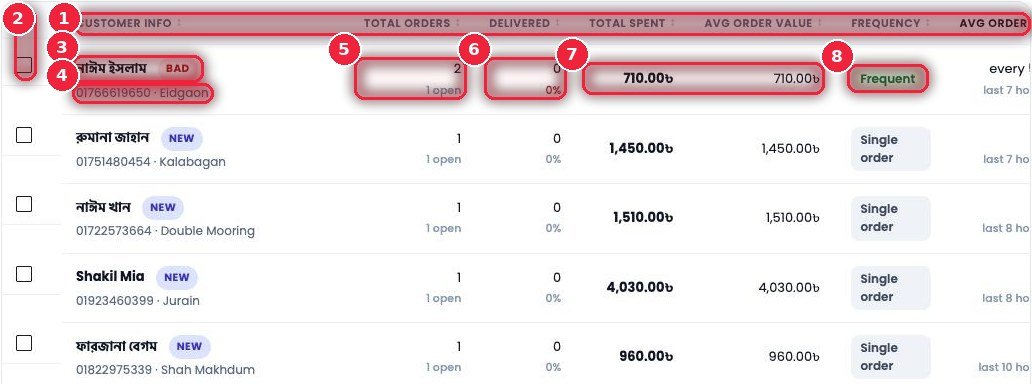
- 1Sortable Click a column with a small arrow to sort high-to-low or low-to-high.
- 2Checkbox Pick a few customers to SMS together (section 5 below).
- 3Name and tag Click the name to open the customer’s full profile. The colored tag next to it (BAD, NEW, DUPLICATED…) shows this number’s past record.
- 4Phone and area The number and the area they order from.
- 5Total orders Total orders and how many are still open.
- 6Delivered How many were delivered and what % — red means most of this customer’s orders weren’t delivered.
- 7Total spent · Avg order value Total spent and the average per order.
- 8FrequencyFrequent (buys regularly) or Single order (bought once).
📞 Customer list — right-side columns and buttons
Scroll the list right for the remaining columns and four buttons for each customer.
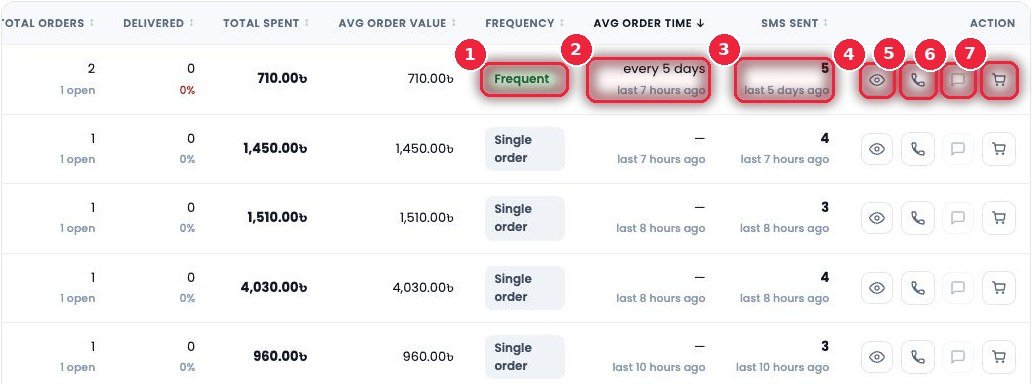
- 1Frequency Buying pattern.
- 2Avg order time How often they order on average (e.g. every 5 days) and when the last order was.
- 3SMS sent How many SMS went out and when the last one was — shows whether you’re bothering the same customer with too many.
- 4👁 View The customer’s full profile (sections 7–8 below).
- 5📞 Call Call directly.
- 6💬 SMS If the customer has turned off SMS (Do not SMS), the button is faded.
- 7🛒 Orders in the desk Opens all of this number’s orders in Order Desk.
☑️ Sending SMS to selected customers
Want to SMS just a few people, not the whole list? Tick them.
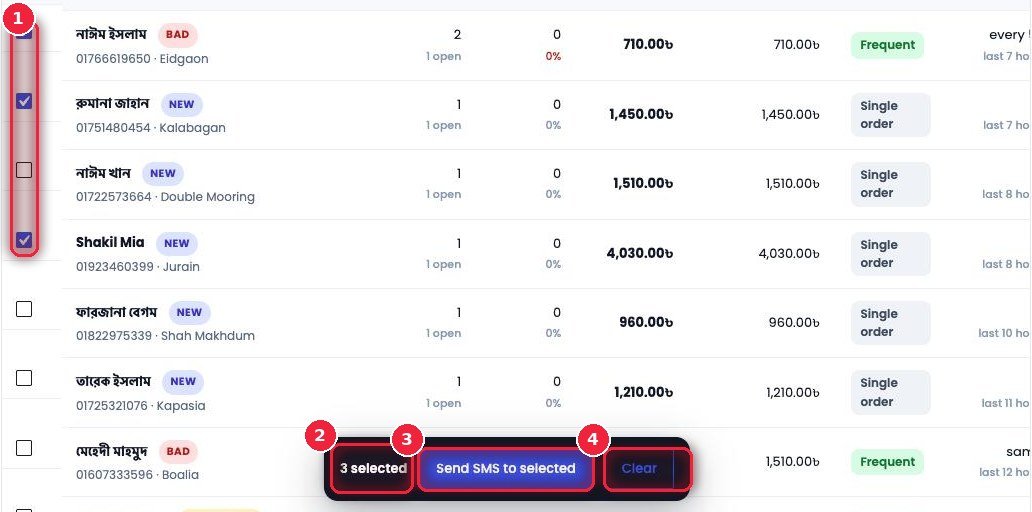
- 1Tick Tick the people you want to send to.
- 2How many selected A bar appears at the bottom showing how many are selected.
- 3Send SMS to selected Opens the message box.
- 4Clear Untick everyone.
✉️ Writing an SMS — now or later, all at once or in batches
SMS one person or a thousand from the same box. Every customer gets the message with their own name.
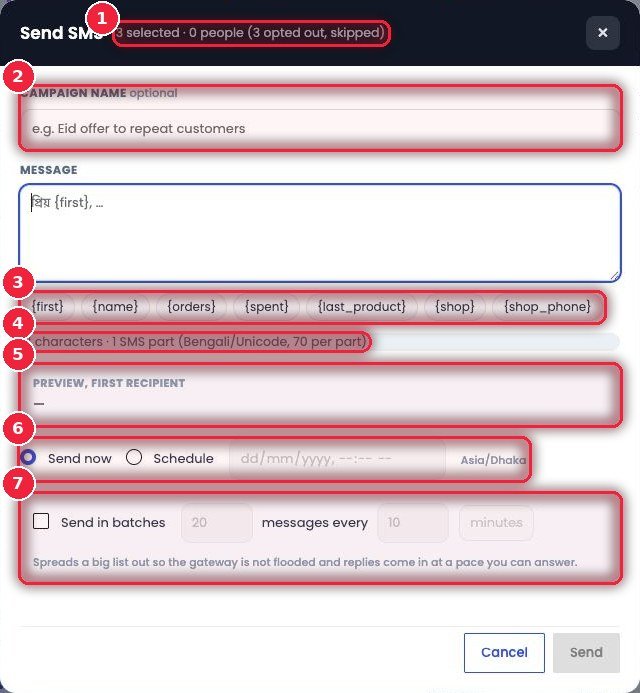
- 1Who will get it How many were selected and how many will actually receive it. Anyone who turned off SMS (opted out) is removed automatically — nobody gets an SMS they don’t want.
- 2Campaign name Give it a name if you like — you’ll find it by that name later in the Campaigns tab.
- 3Personalization tags{first} (first name), {name}, {orders} (number of orders), {spent}, {last_product} (last product bought), {shop}, {shop_phone} — click to insert into the message.
- 4Characters and SMS parts How many characters and how many SMS parts it’ll take — in Bangla, one part is 70 characters. You can estimate the cost upfront.
- 5Preview How the message will actually look to the first customer.
- 6Send now / Schedule Send right away, or pick a date and time for later (Bangladesh time).
- 7Send in batches For big lists, e.g. 20 every 10 minutes — if hundreds of customers call or reply at once you won’t be able to keep up, so send gradually.
🪪 Customer profile — the top part
Click the name or the 👁 button and the profile opens from the side. Before calling, get a picture of who you’re talking to in 10 seconds.
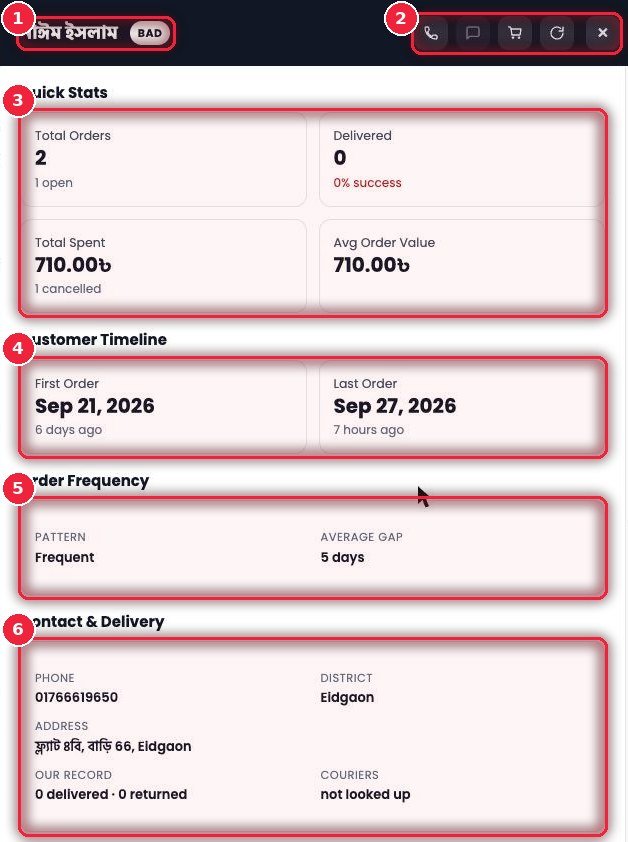
- 1Name and tag The customer’s name and the tag based on their record.
- 2Buttons Call, SMS, orders in Order Desk, Recalculate (redo this customer’s numbers) and close.
- 3Quick stats Total orders, how many open, how many delivered and the success %, total spent, how many cancelled, average order.
- 4Customer timeline When the first and last orders were.
- 5Order frequency Buying pattern and how many days between purchases on average.
- 6Contact & delivery Phone, area, full address, their delivery/return record with your shop, and their courier record.
🧾 Customer profile — what they bought, which SMS they got
The lower part of the profile shows their purchases, SMS and all orders.
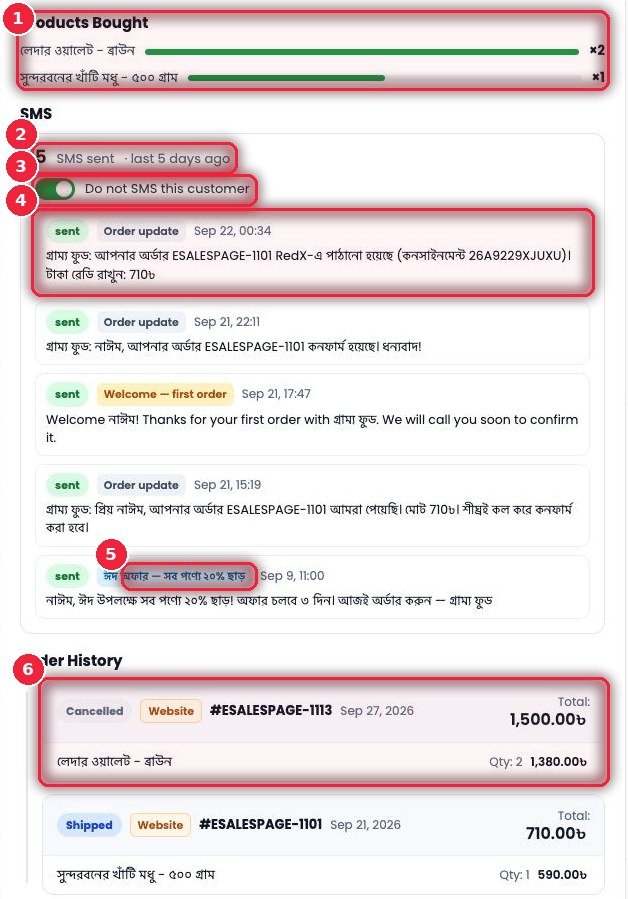
- 1Products bought Which products they bought and how many times — helps you decide on the next offer.
- 2SMS sent Total SMS and when the last one went.
- 3Do not SMS this customer Turn this on if the customer says they don’t want SMS — after that, no campaign or automation will send them one.
- 4Each SMS Status (sent), why it went (Order update, Welcome…), when, and the full text.
- 5Campaign SMS Shows which campaign it came from too.
- 6Order history Every order — status, source, order number, date, products and amount.
📣 Campaigns — every group SMS
Every group SMS — sent now or scheduled — and how far along it is, all here.
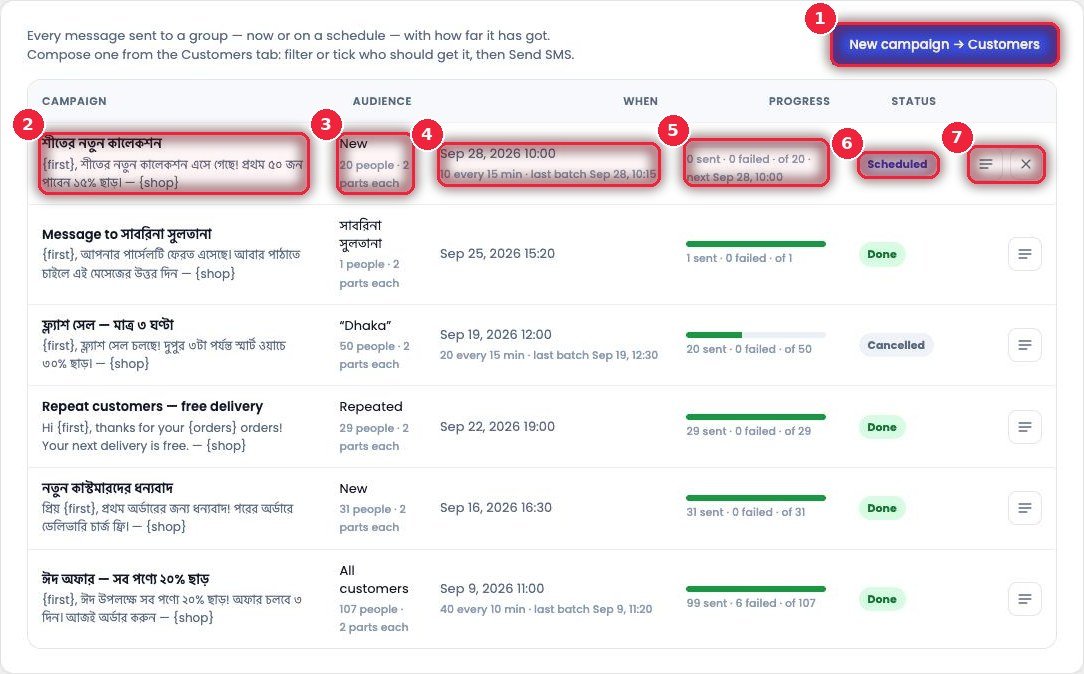
- 1New campaign → Customers New campaigns start from the Customers tab: pick customers with filters or ticks, then Send SMS.
- 2Campaign Name and message.
- 3Audience Who it’s going to (e.g. New, Repeated, All customers, or one person), how many, and how many parts.
- 4When When sending starts, and for batches, how many every how many minutes.
- 5Progress How many went, how many failed, the total, and when the next batch is.
- 6StatusScheduled, Done or Cancelled.
- 7Buttons ☰ to see every SMS in this campaign (opens in SMS History), ✕ to cancel a scheduled campaign.
🤖 Automations — SMS that send themselves
Set a rule once and the rest runs itself. Each rule sends to a customer only once, never during quiet night hours, and never above the daily cap. It checks every hour.
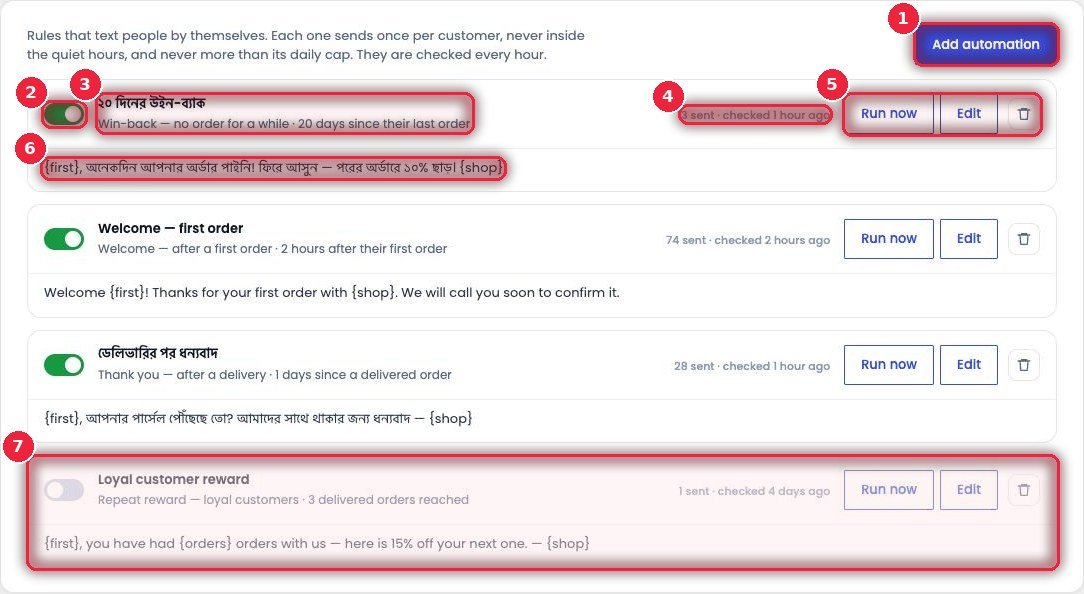
- 1Add automation Create a new rule (section 11 below).
- 2On/off Pause any time with the switch.
- 3Name and rule e.g. Win-back — no order for 20 days; Welcome — 2 hours after the first order; Thank you — 1 day after delivery.
- 4How many sent How many SMS have gone out so far and when it last checked.
- 5Run now · Edit · Delete Run it now without waiting for the hour, change it, or delete it.
- 6Message What will be sent — {first} and {shop} fill in automatically.
- 7Paused rule Shows in grey when it’s off.
⚙️ Creating a new automation
Pick one of four ready-made rules, set the timing and limits, and write the message.
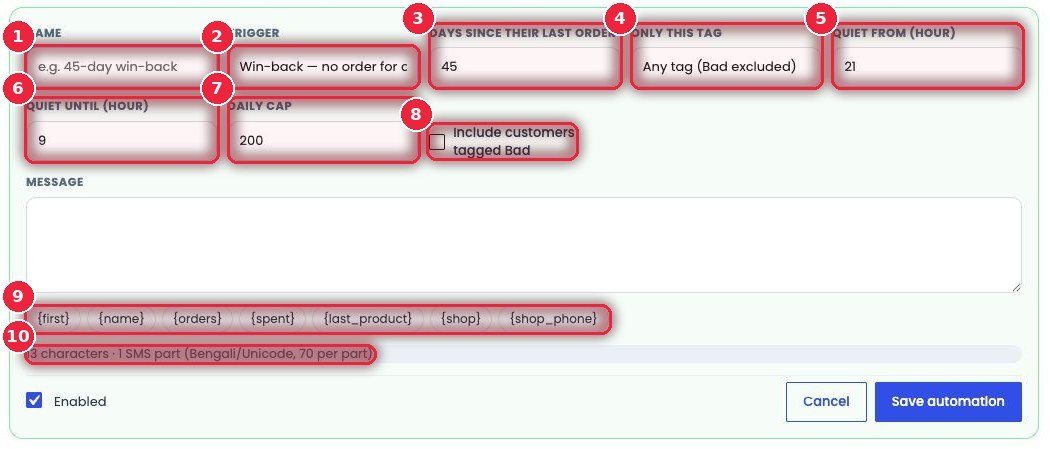
- 1Name A name that makes sense to you, e.g. “45-day win-back”.
- 2TriggerWin-back (no order for a long time), Welcome (after the first order), Thank you (after delivery), Repeat reward (after a set number of deliveries).
- 3Days/hours How many days or hours after, depending on the trigger.
- 4Only this tag Only customers with a particular tag — Bad is excluded by default.
- 5Quiet from The time at night from which no SMS goes out.
- 6Quiet until The time in the morning until which it stays quiet.
- 7Daily cap The maximum per day.
- 8Include customers tagged Bad Send to Bad customers too if you want — usually not needed.
- 9Personalization tags {first}, {name}, {orders}, {spent}, {last_product}, {shop}, {shop_phone}.
- 10Character count How many SMS parts it’ll take.
🗂️ SMS History — a record of every message
Every SMS sent from the shop — to whom, from where, what it said, and its status.
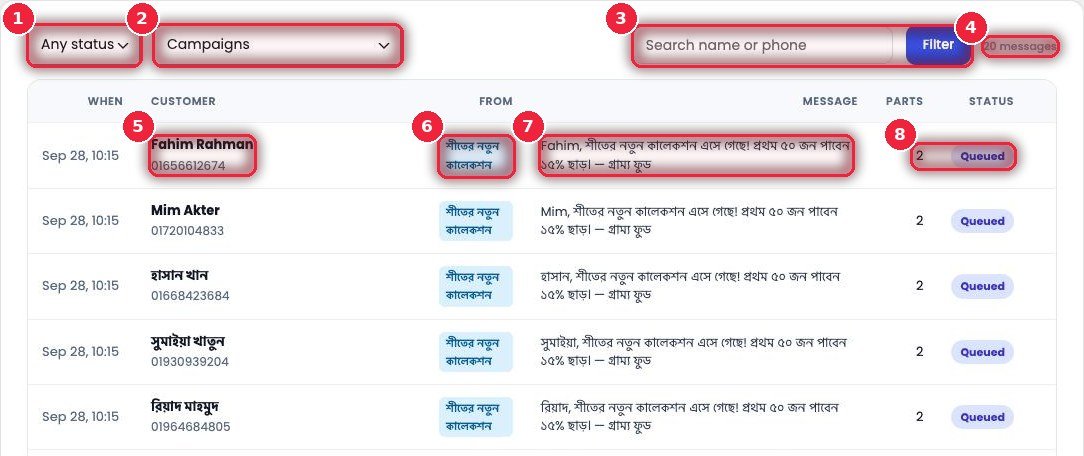
- 1Status filter Sent, Failed, Queued, Skipped, Cancelled.
- 2From where Only Campaigns, only Automations, or both.
- 3Search By name or phone.
- 4Total How many messages were found.
- 5Customer Name and number.
- 6From Which campaign or automation it came from.
- 7Message The actual text that went out, with the name filled in.
- 8Parts · Status How many parts and its current status (Queued, Sent…).