



eSP Theme · Reviews
Your customers’ real words, neatly shown to everyone
The praise and feedback customers give on WhatsApp, Messenger or the phone gets lost inside chats. With Reviews, keep every review with its screenshot, video, rating and where it came from — and it shows up nicely on the product page on its own.
3Feature sections
26+Detailed explanations
7Review sources
1 Red number on the screenshot = number in the explanation below
1
⭐ All reviews in one list
Reviews → All reviews lists every review — who gave it, how many stars, for which product, and where it came from.
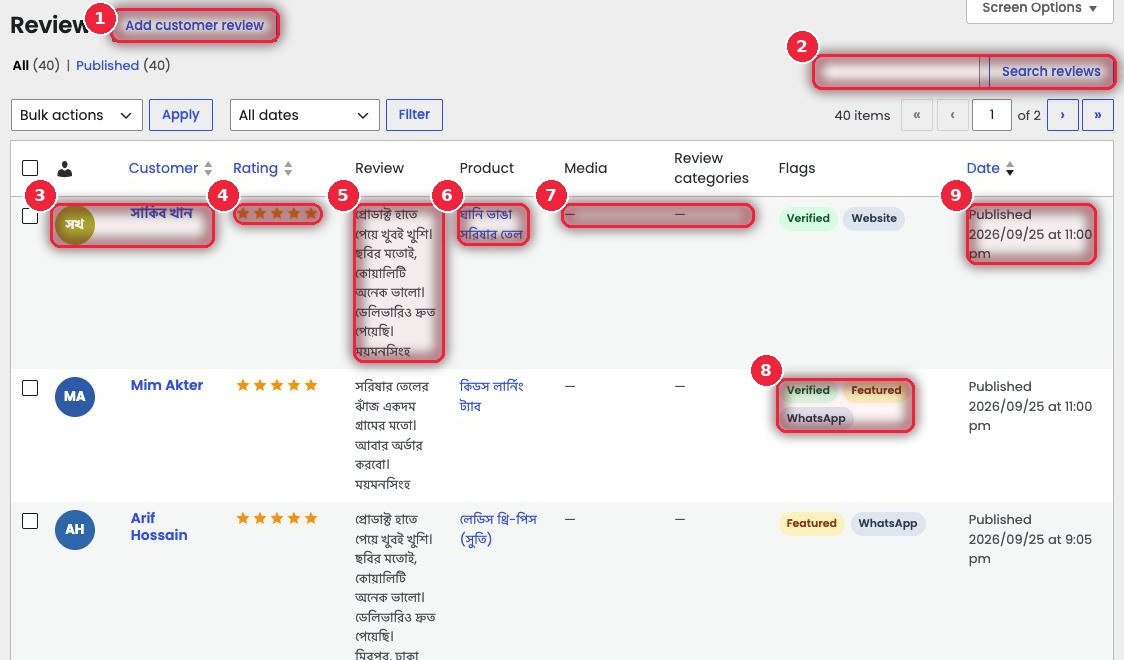
- 1Add customer review Add a new review (next section).
- 2Search reviews Search by name or text.
- 3Customer Photo, or colored initials if there isn’t one, and name.
- 4Rating How many stars — half stars work too.
- 5Review What the customer said, with their area below.
- 6Product Which product the review is for — it shows on that product’s page.
- 7Media · Categories Whether there’s a screenshot or video, and the review category.
- 8FlagsVerified (a real buyer), Featured (shown first), and where it came from — Website, WhatsApp, Messenger, Instagram…
- 9Date When it was added.
2
✍️ Adding a new review
Keep what the customer said in chat or on the phone here. Text is optional — just a screenshot or video works too.
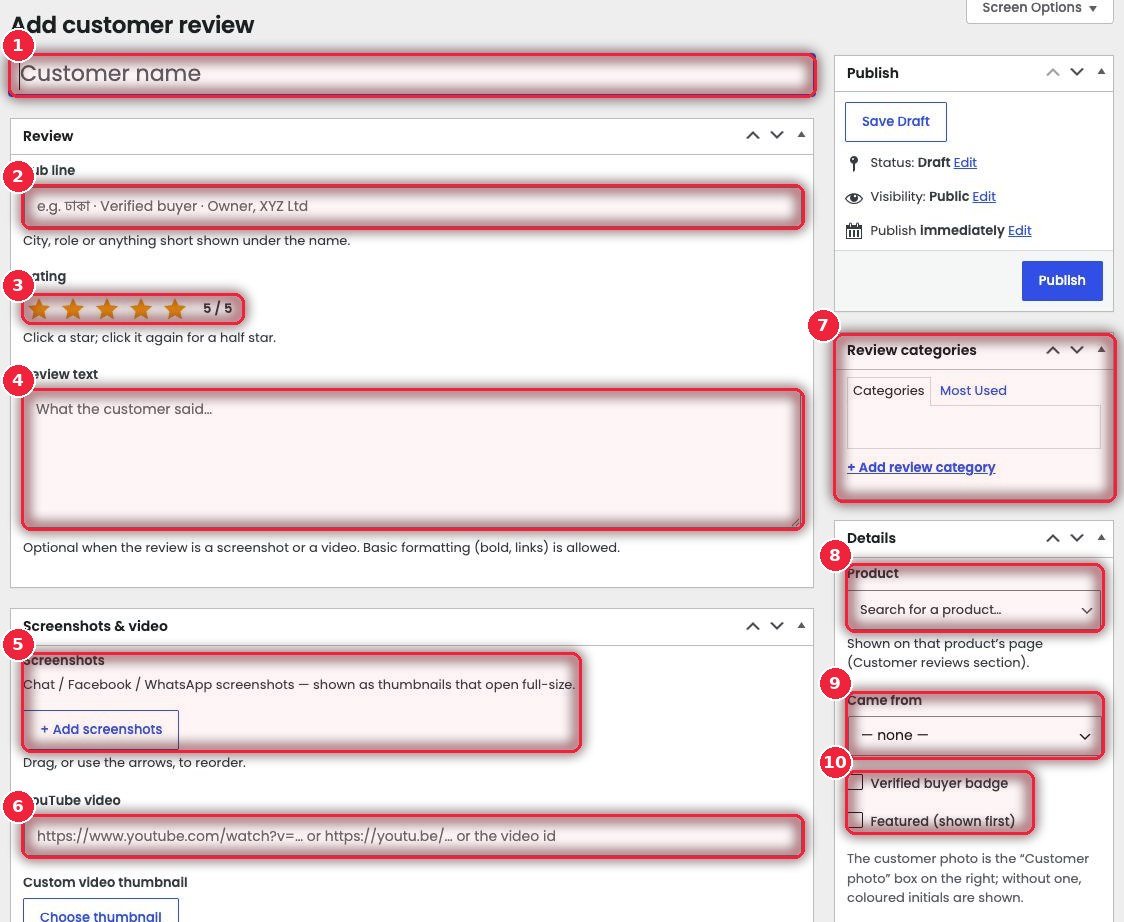
- 1Customer name The customer’s name.
- 2Sub line A short line under the name — area or description, e.g. “Dhaka · Verified buyer”.
- 3Rating Click a star; click again for a half star.
- 4Review text What the customer said. Bold and links are allowed.
- 5Screenshots Screenshots of WhatsApp, Messenger or Facebook chats — shown small, larger on click. Drag to reorder.
- 6YouTube video A link to the customer’s video review; add your own thumbnail if you like.
- 7Review categories Group reviews — e.g. delivery, quality.
- 8Product Which product — shows in that product page’s “Customer reviews” section.
- 9Came from Website, Facebook, WhatsApp, Messenger, Instagram, Phone call or Other.
- 10Verified · Featured A Verified badge for real buyers, and Featured to show it first.
💡 Tip: With the customer’s permission, keep their real words — customers spot made-up reviews easily, and then they stop trusting the real ones too.
↑ Back to top3
🛍️ How it looks on the product page
A “Customer reviews” section at the bottom of the product page, with no code or shortcode. You can also place it on landing pages with the eSalesPage review widget.
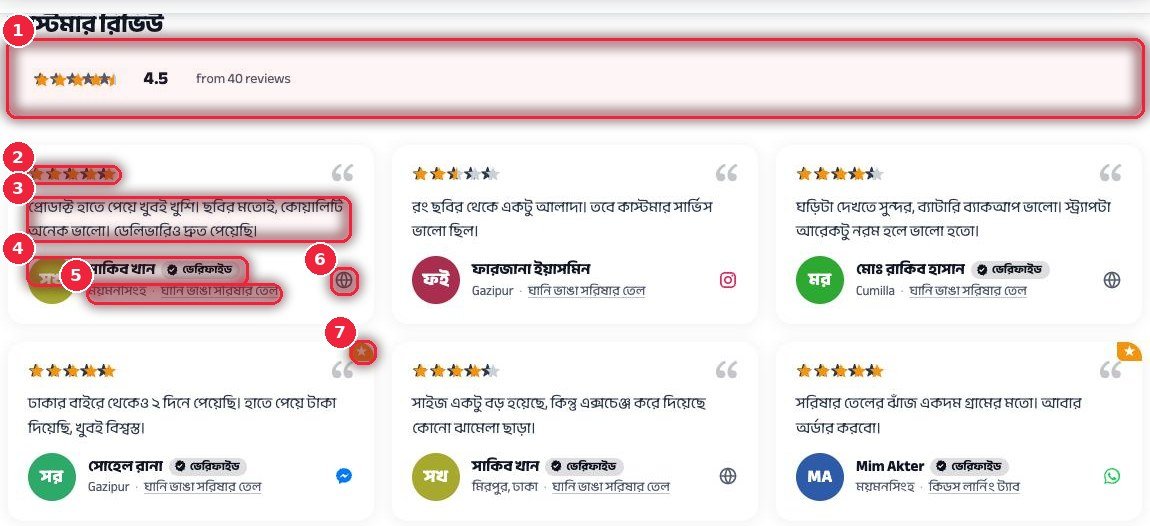
- 1Summary Average rating and total number of reviews.
- 2Stars Each review’s rating.
- 3Text What the customer said.
- 4Name and verified Photo or initials, name and the verified badge.
- 5Area and product Where the customer is from and which product they bought (with a link).
- 6Source icon Where the review came from — website, Instagram, Messenger, WhatsApp.
- 7Featured The star in the corner means it’s a picked review, shown first.