


Check your pixel is firing — see it with your own eyes
“Is the pixel working?” — no more guessing. Every event sent from the server to Facebook and Google, what data went with it, and whether it arrived — it’s all recorded. And import your ad spend into Campaigns to see which campaigns actually make a profit on delivered orders, and which lose money.
📡 Events — the top numbers and filters
Event Tracker lists every event the server sent or kept, newest first. Open any row for the full story, and resend failed ones right from here.
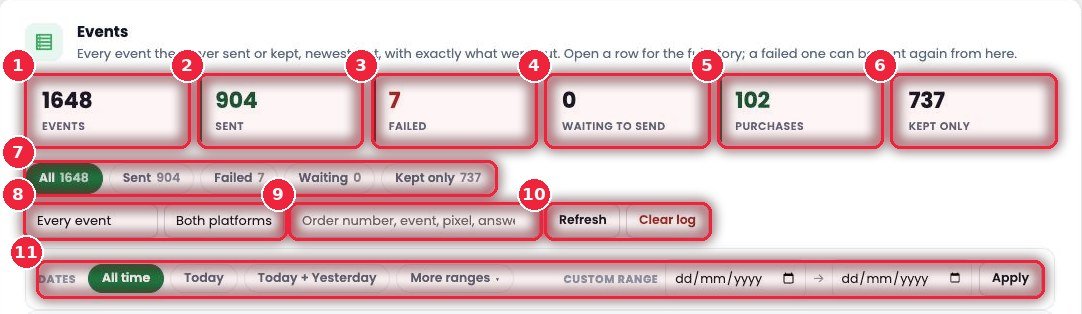
- 1Events Total events recorded.
- 2Sent How many reached the platform successfully.
- 3Failed How many didn’t go — red means you should take a look.
- 4Waiting to send In the queue to be sent.
- 5Purchases How many Purchase events.
- 6Kept only Kept only for your own records, not sent anywhere (e.g. PageView).
- 7By status All, Sent, Failed, Waiting, Kept only.
- 8Event and platform Which event (PageView, ViewContent, AddToCart, InitiateCheckout, AddPaymentInfo, Purchase) and which platform (Facebook, Google or both).
- 9Search By order number, event, pixel or response.
- 10Refresh · Clear log Reload, or delete the whole log.
- 11Dates Today, yesterday, more ranges or your own dates.
📋 Each event row
One line tells you what went, where it went, and what Meta replied.
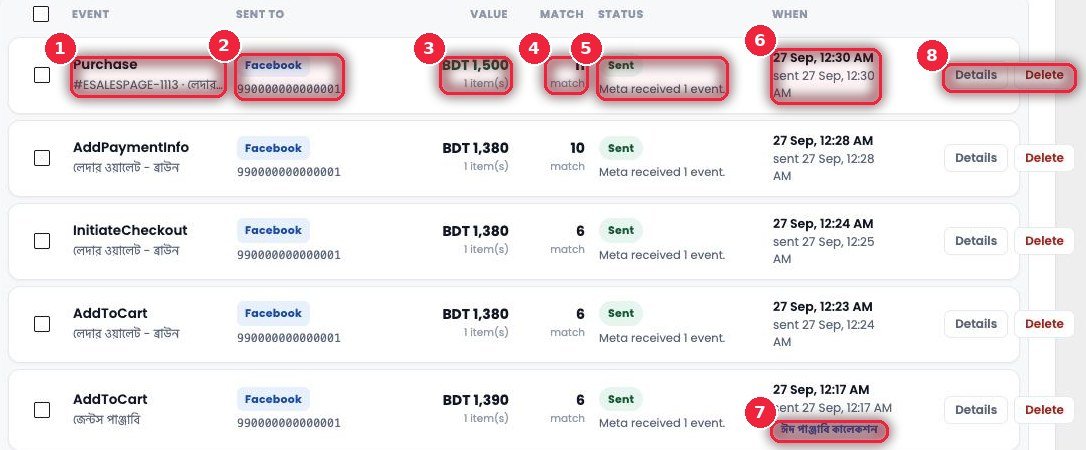
- 1Event The event name and which product or order.
- 2Sent to Which platform and which pixel ID.
- 3Value How much money and how many items.
- 4Match How many customer details (phone, name, area…) went with it — the more, the better Facebook can recognize the person.
- 5Status Sent/Failed and the platform’s reply — e.g. “Meta received 1 event.”
- 6When When it happened and when it was sent.
- 7Funnel tag Which eFunnel page it came from.
- 8Details · Delete See full details or delete.
🔎 One event’s full details
Click Details and it opens on the side — exactly what was sent.
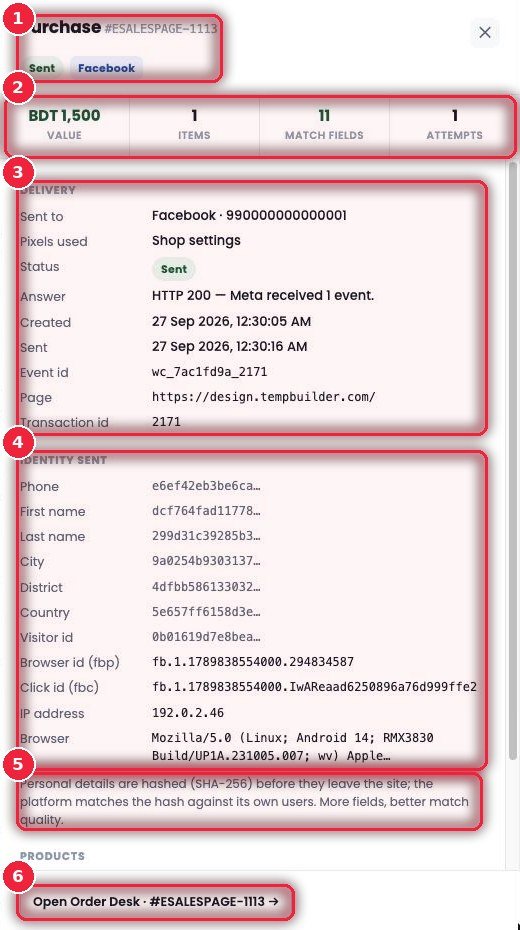
- 1Event and order Name, order number, status and platform.
- 2Summary Value, items, number of match fields and how many attempts.
- 3Delivery Which pixel, the shop’s or the funnel’s pixel, the platform’s reply (HTTP 200), when it was created and sent, event id, page and transaction id.
- 4Identity sent Phone, name, area and so on — all hashed — plus browser ID (fbp), click ID (fbc), IP and browser.
- 5Hashed Personal information is hashed with SHA-256 before it leaves the site; the platform only matches hashes.
- 6Open Order Desk Open this order directly in Order Desk.
📦 Products and the actual data sent
The product list and exactly what was sent.
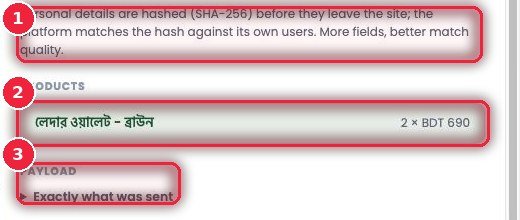
- 1Why hash The more information goes, the better the match — but the real information never leaves your site.
- 2Products Which products, how many, at what price.
- 3Exactly what was sent Expand to see the full data sent to the platform — handy to show your developer or ad agency.
🔁 Resending failed events
If an event doesn’t go through for some reason, it isn’t lost.
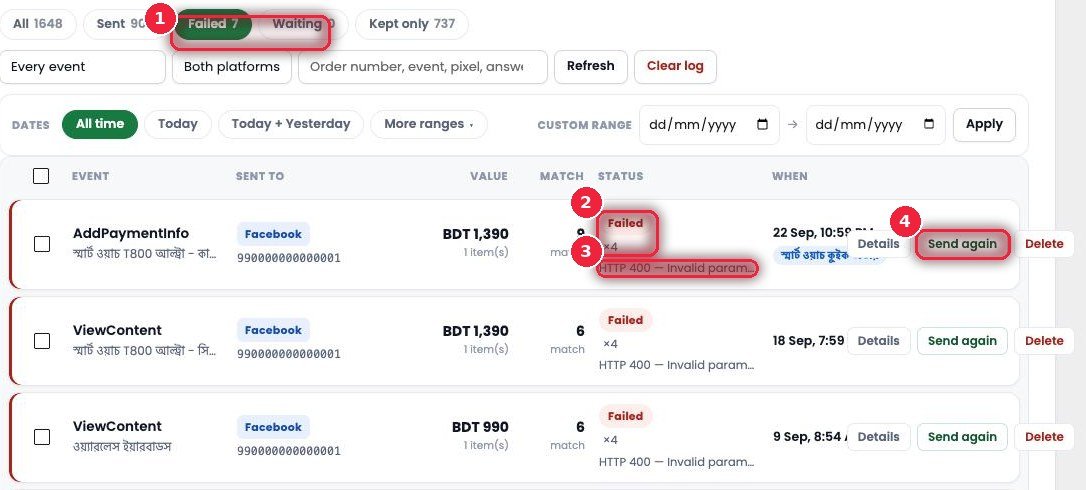
- 1Failed filter Only the ones that didn’t go.
- 2Failed ×4 Failed, and how many attempts — it retries on its own after 1 minute, 10 minutes and 1 hour, then waits for you.
- 3Reason What the platform said — e.g. “HTTP 400 — Invalid parameter”. Use this to fix the problem.
- 4Send again Once fixed, resend in one click.
💰 Campaigns — are your ads really making or losing money
Event Tracker → Campaigns. Not what Ads Manager says — what actually happened on your own site, calculated on delivered orders.

- 1Events kept Total events.
- 2Browsers How many different people (browsers).
- 3Purchases How many orders.
- 4View → purchase What % of people who viewed actually bought.
- 5Value of purchases Total order value.
- 6Ad spend (imported) Spend brought in from Ads Manager.
- 7Delivered orders How many were actually delivered.
- 8ROAS on delivered ROAS based on delivered orders — for a COD business, this is the real ROAS.
- 9Profit after ads & returns Profit or loss after ad spend and returns.
📊 The full funnel for each campaign
Split the same way Ads Manager does — campaign, ad set, ad.
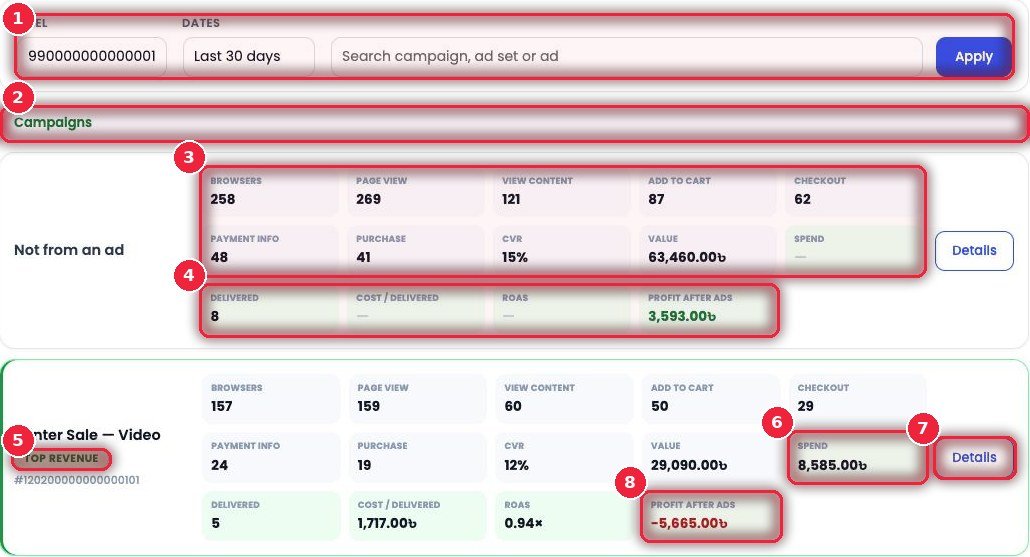
- 1Pixel · Dates · Search Which pixel, which period, and search by name.
- 2Which level you’re on Campaigns → campaign → ad set — the path shows at the top.
- 3Funnel steps Browsers, Page view, View content, Add to cart, Checkout, Payment info, Purchase, CVR and Value.
- 4Based on delivery Delivered, Cost / delivered (spend per delivered order), ROAS and Profit after ads.
- 5TOP REVENUE The row that brought in the most order value on this screen.
- 6Spend How much was spent on this campaign.
- 7Details Split by product, device, country and page (section 9).
- 8Red profit It’s losing money — time to rethink this campaign.
🪜 One click, one level down
Click a campaign name to see its ad sets; click an ad set to see its ads.
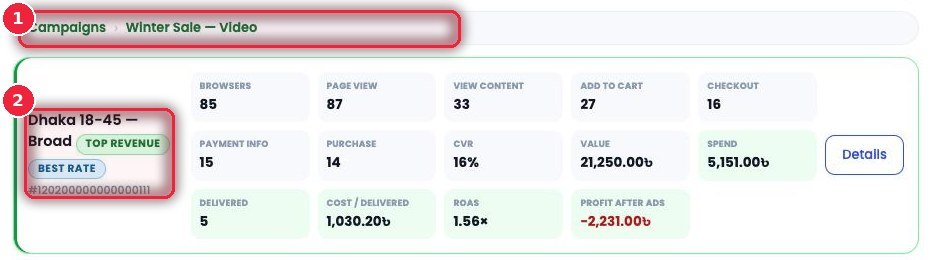
- 1Path Where you are — click Campaigns to go back.
- 2TOP REVENUE · BEST RATE BEST RATE means the highest view-to-purchase rate (only with at least 30 page views, so one lucky sale doesn’t win).
🧩 Details — which product, which device, which page
What’s behind a campaign or ad set.
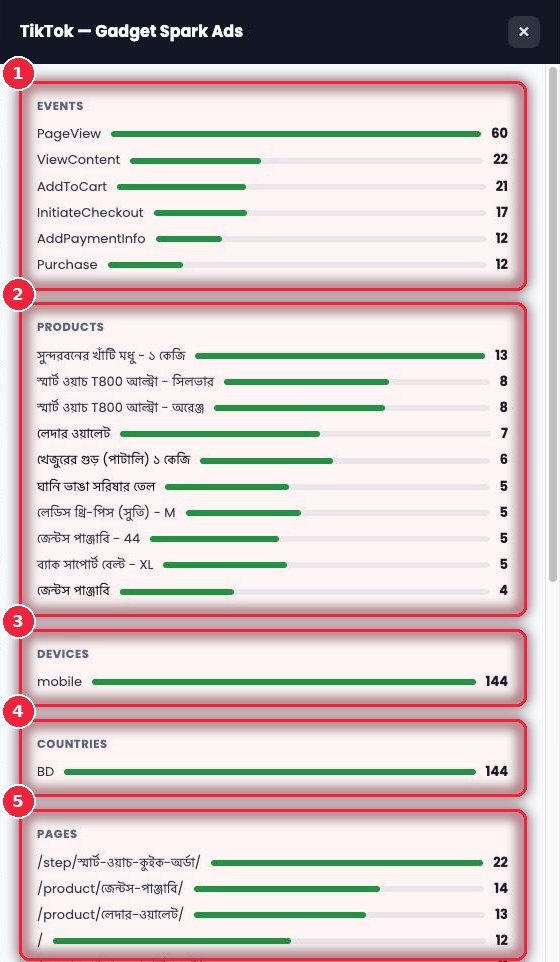
- 1Events How many events at each step — shows where people stop.
- 2Products Which products people from this ad viewed/bought.
- 3Devices Mobile or computer.
- 4Countries Which countries — catches foreign traffic.
- 5Pages How many times each page was visited.
📥 Importing ad spend
Bring in spend from Ads Manager and each row shows spend, cost per delivered order, ROAS and profit after ads and returns.
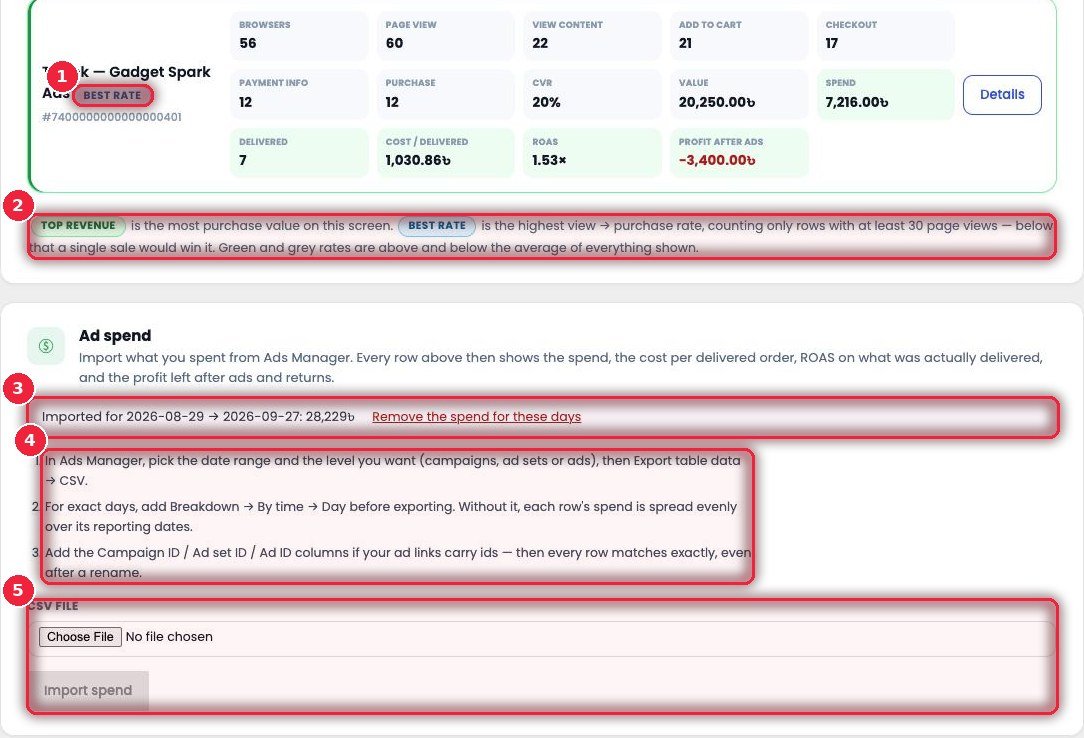
- 1BEST RATE badge The best purchase rate.
- 2What the colors mean Green rates are above average, grey below.
- 3What’s been imported How much for which dates — if it’s wrong, use “Remove the spend for these days”.
- 4How In Ads Manager, pick the dates and level, then Export → CSV. For accurate daily numbers, use Breakdown → By time → Day. Adding Campaign/Ad set/Ad ID columns keeps things matched even if names change.
- 5CSV FILE · Import spend Choose the file and import.
⚙️ Tracking settings — Facebook
eSP Theme → Tracking. Pixel in the browser, Conversions API from the server — both carry the same ID, so Meta counts it only once.
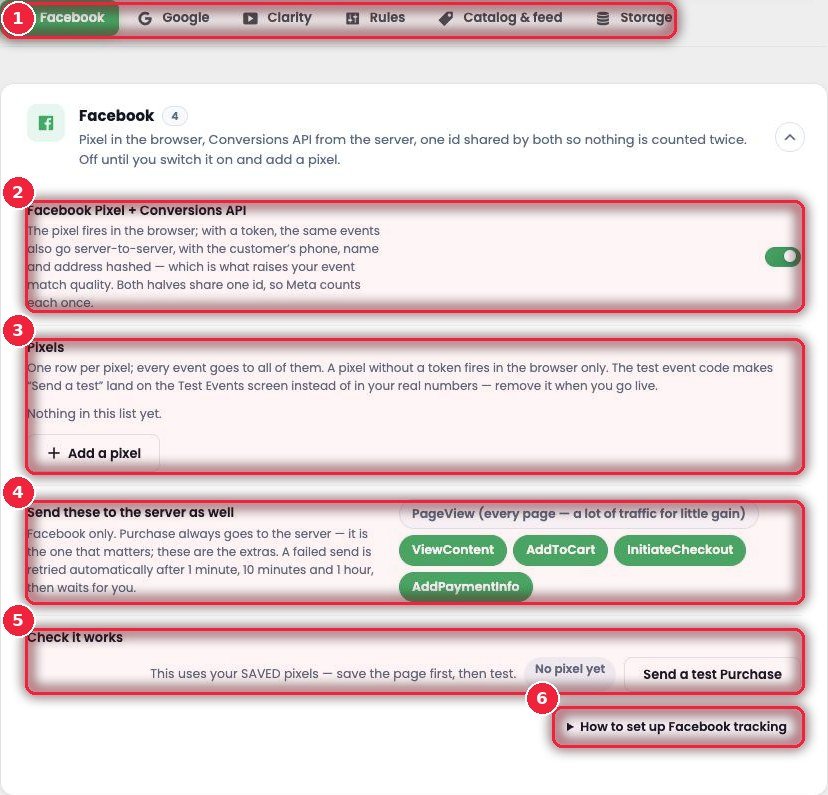
- 1Tabs Facebook, Google (GA4 + Tag Manager, Purchase from the server too), Clarity (recordings and heatmaps), Rules, Catalog & feed (Facebook/Google/TikTok product feeds), Storage (how many days to keep records).
- 2Pixel + Conversions API Add a token and events also go from the server, with the customer’s phone, name and address hashed — this improves match quality.
- 3Pixels You can add several pixels. With a test code, “Send a test” goes to Test Events — remove it when you go live.
- 4What else goes from the server Purchase always goes. For the rest — ViewContent, AddToCart, InitiateCheckout, AddPaymentInfo — choose. PageView fires on every page, so it’s a lot of traffic for little gain.
- 5Check it works After saving, test with Send a test Purchase.
- 6Help Step-by-step instructions for setting up Facebook tracking.
📏 Rules — when a sale counts as a sale
The same rules for Facebook, Google and Clarity.
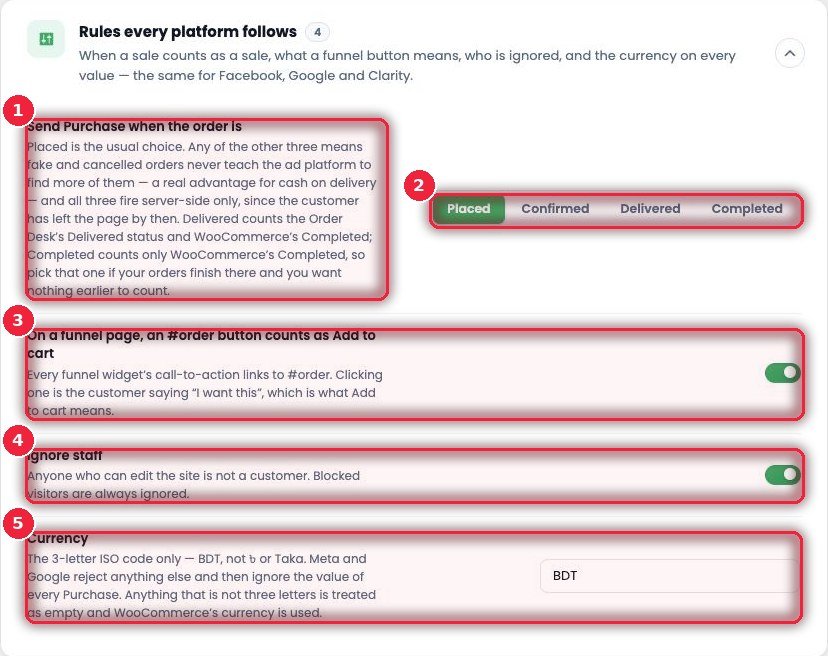
- 1When Purchase is sent Usually Placed (as soon as the order comes in). Choose Confirmed, Delivered or Completed and fake or cancelled orders won’t teach the ad platform to find the wrong customers — a big advantage for a COD business. These are sent from the server, since the customer isn’t on the page by then.
- 2Four options Placed · Confirmed · Delivered · Completed.
- 3#order button = Add to cart Clicking the funnel’s “Order now” button means the customer is saying “I want this” — so it’s counted as Add to cart.
- 4Ignore staff People who can edit the site aren’t customers; blocked visitors are excluded too.
- 5Currency Only the 3-letter code — BDT. Write ৳ or Taka and Meta and Google drop the value.